Docs › AI agents
AI agents
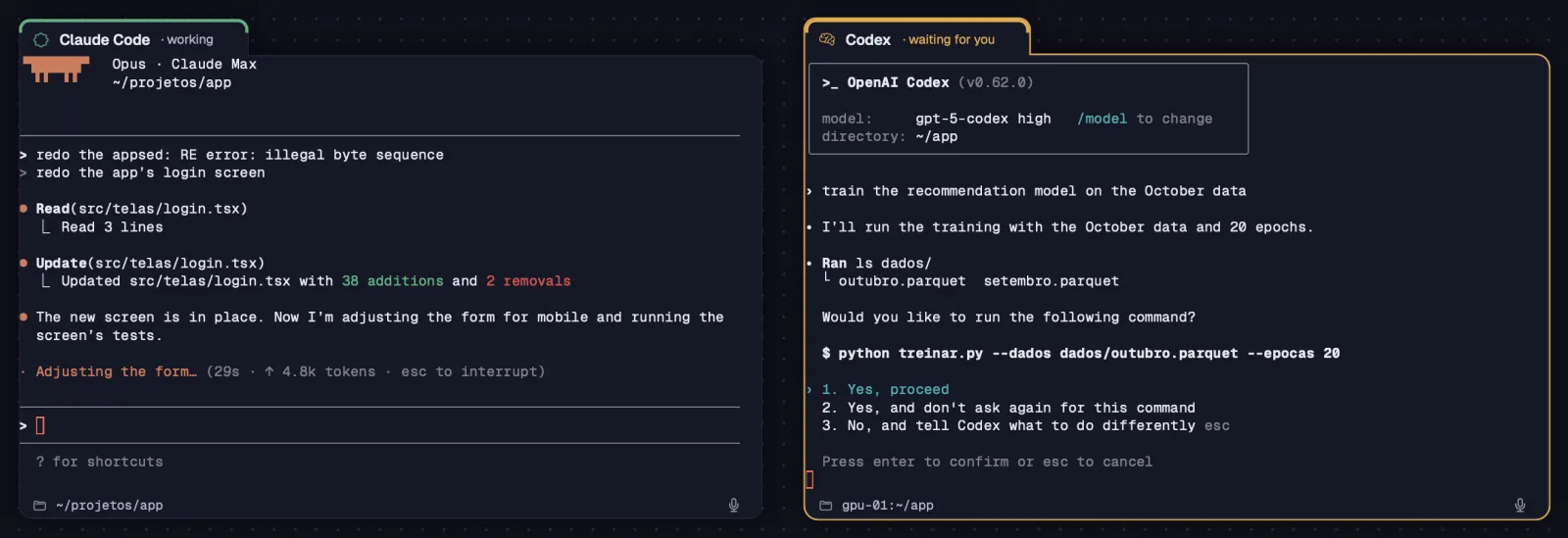
Agents run in cards with your own account, on your computer or on your servers. Linked by cables, they send requests to one another and run commands in the shells you allow, always in plain sight.
Octopus uses the Claude Code and Codex you already have, with your account (Claude Pro or Max, ChatGPT Plus or Pro) or an API key. The limits are your plan's, and the conversations stay on your machines.
Step by step
- Open a New terminal (⌘TCtrl+Shift+T) and choose the Claude Code or Codex block.
- The first time on a machine, sign in to your account: on your computer, through the browser; on a server, with a link and a code.
- The agent starts out knowing it's in an Octopus card. When you mention a note, an attached file or another agent, it looks for what is linked to it.
- The card's tab shows the state: “· working” or “· waiting for you”. The border turns amber when it needs you and green when it finishes.
| New terminal | ⌘TCtrl+Shift+T |
Each agent can be viewed as a terminal or as a chat, with the same conversation.
See alsoChat | TerminalInstalled skillsAsking for you and Done
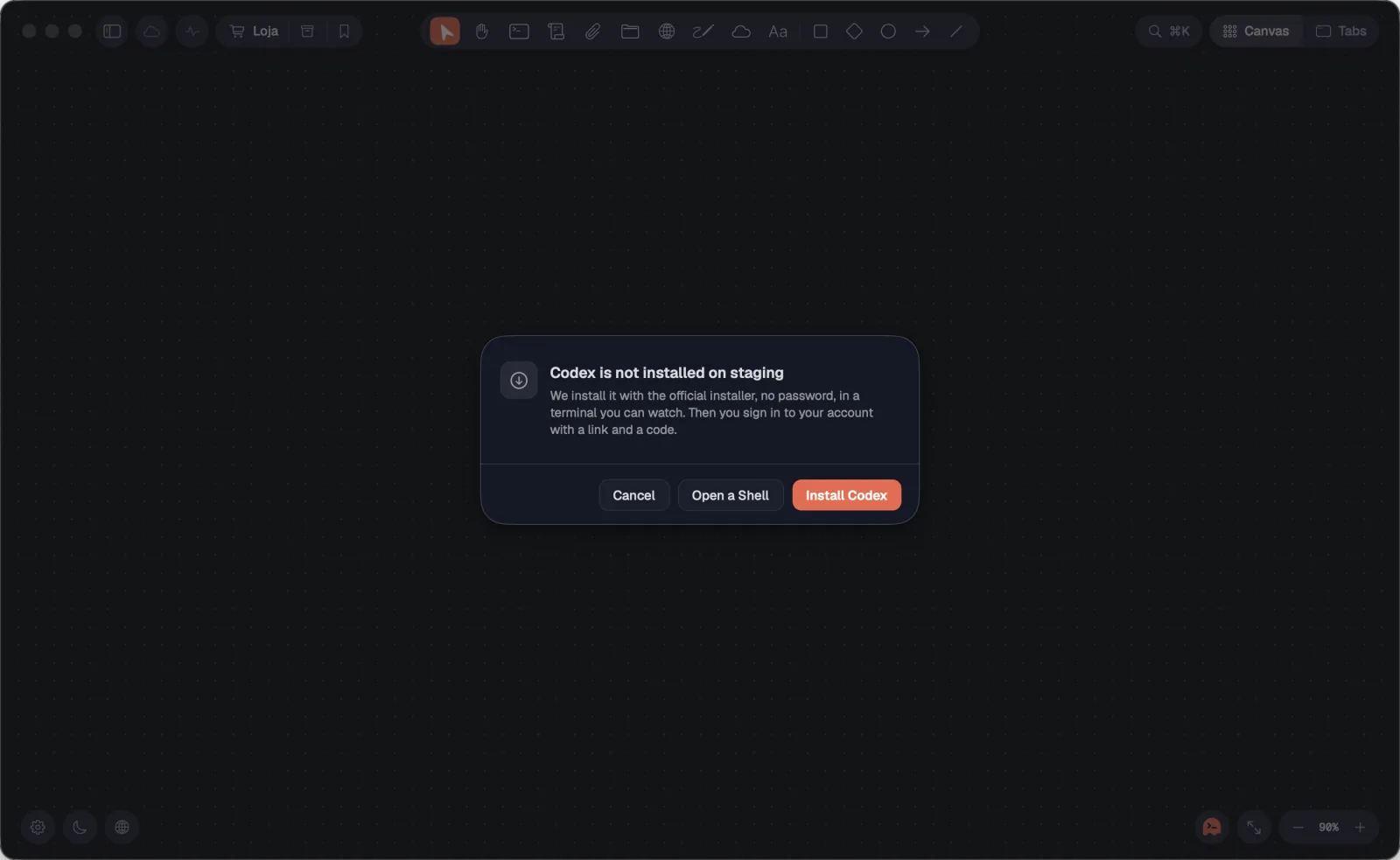
Opened Claude Code or Codex on a machine where it isn't installed? Octopus offers to install it right there, even on a server, and opens the agent when it's done.
Step by step
- Create the agent's terminal as usual. If it isn't on the machine, you see, for example, “Codex is not installed on staging”.
- Click “Install Codex”. An “Installing Codex” card runs the official installer, with no password, in plain sight.
- After the install, sign in to your account: on your computer, through the browser; on a server, with a link and a code.
- When everything is done, the install card closes and the agent opens.
- Rather install it your own way? “Open a Shell” opens a shell in the same folder.
The first time you open Octopus, the quick setup also installs tmux, Claude Code and Codex on your computer.
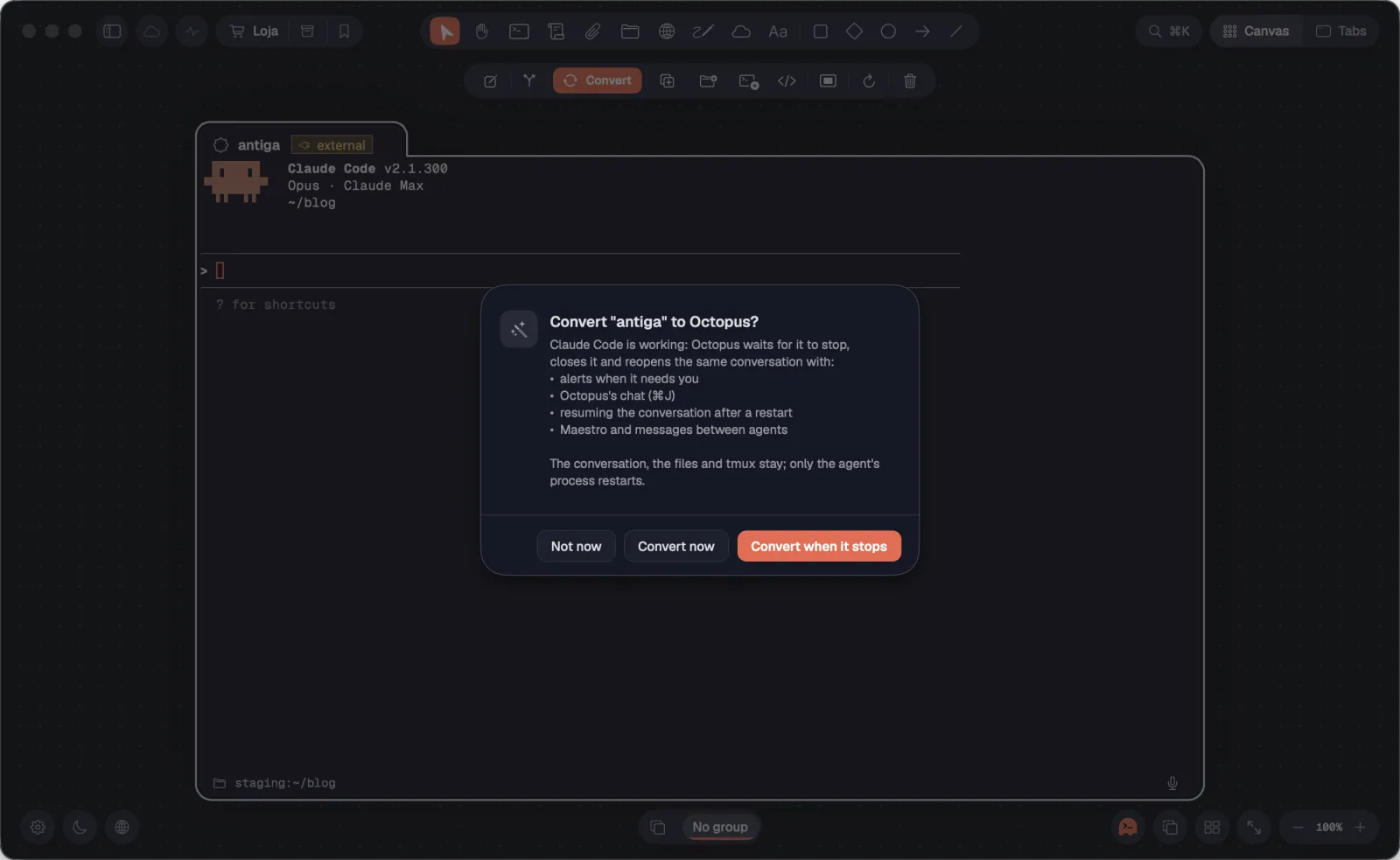
A Claude Code or Codex opened outside Octopus (in an old tmux, or typed by hand in a Shell card) runs without alerts, without chat and without Maestro. Converting reopens the same conversation, in the same tmux, with all of that included.
Step by step
- An outside agent shows up with the “external” badge on its tab. The card's bar shows the Convert button (also under right-click › “Convert…”).
- Click Convert. The notice lists what it gains: alerts when it needs you, Octopus's chat, resuming the conversation after a restart, Maestro and messages between agents.
- If it's working, choose “Convert when it stops” (the badge becomes “converts when it stops”) or “Convert now”. If it's idle, click “Convert”. “Not now” leaves it as it is.
- The badge shows “converting…” and, at the end, a notice confirms it. The conversation, the files and the tmux carry on; only the agent's process restarts.
- When you bring sessions from a server, “Bring and convert” does it all at once.
If the agent doesn't close for the conversion, Octopus asks you to close it (Ctrl-C) and try again.
When Claude Code sends a session to the background, it keeps talking to Octopus: it uses the linked notes and cards and tells you when it needs you.
Step by step
- In Claude Code, send the session to the background as usual (for example, with /background).
- It keeps using octo: it reads the linked notes, talks to the other agents and sends its alerts to Octopus.
- In chat, what runs in the background shows up in the box above the message.
While a job of yours runs behind the scenes (tests, a long run), the card keeps its working indicator; the “Done” alert only goes out when everything finishes.
See alsoWorkflow and background agentsBackground work and Who decides
Link two cards with a cable and the agents start trading requests and replies, even on different machines. A Claude Code on your computer can ask Codex on gpu-01 for a training run and wait for the result.
Step by step
- Select a card, press ⌘LCtrl+Shift+L (or the Connect button in the bar) and click the other card. The cable appears.
- Ask your agent in plain words: “ask Codex if the tests pass”. It uses octo ask and waits for the answer.
- A message arrives in the other card starting with “[Octopus] Pedido de” and carrying the request number. The agent does the work and answers with octo reply; the answer goes back to whoever asked.
- To follow along without interrupting, the agent uses octo check and sees the other one's current screen.
- In a chat, these messages show up as “Message from another agent via Octopus”.
| Start a link | ⌘LCtrl+Shift+L |
Long messages arrive whole, and each request has a number: the answer always finds whoever asked. If the answer takes longer than the wait, it arrives later, as “[Octopus] Resposta de”.
See alsoocto ask, check and replyCommands in a linked shellTentacles (cables)
An agent linked to a shell runs commands in it with octo run. The command shows up typed in the card, in that shell's folder and with its variables, and the full output and exit code go back to the agent.
Step by step
- Link the agent to a Shell card, or use “Shell beside”.
- Ask for the task: “check the API logs on staging”. The agent runs octo run in the shell and you see the command being typed there.
- octo run waits for the command to finish and returns the output and the exit code. If it runs past the time limit, it keeps running and the agent follows it with octo run --wait.
- To answer a program's question (a [y/N]) or interrupt it, the agent sends keys with octo keys, like y, Enter or C-c.
- With octo run --fora, the command runs outside the card, without showing up or getting in the way of what's in the shell. It's meant for quick reads: status, logs, disk space.
- With octo copy, the agent copies files and folders between the machines of the shells linked to it, straight from server to server when one can reach the other.
The agent never types passwords for you: if a command asks for a password, it asks you to type it in the card.
See alsoThe “Agent commands” lockocto run, keys and copyShell beside
Every Shell card has its own lock: Free, Ask or Blocked. It decides whether linked agents run commands, keys and copies there without asking, only with your approval, or never.
Step by step
- Right-click a Shell card and open “Agent commands”.
- “Free”: linked agents run commands there without asking. “Ask”: each command waits for you to allow it. “Blocked”: no agent command runs there.
- On servers marked as “Production server” (the server's sheet, under Advanced), shells start on “Ask”.
- The agent sees each shell's lock in octo list. A refusal applies to that command: it doesn't insist and asks you in the conversation.
The lock applies to octo run, octo keys and octo copy. Changing the lock cancels that shell's “for this session” permissions.
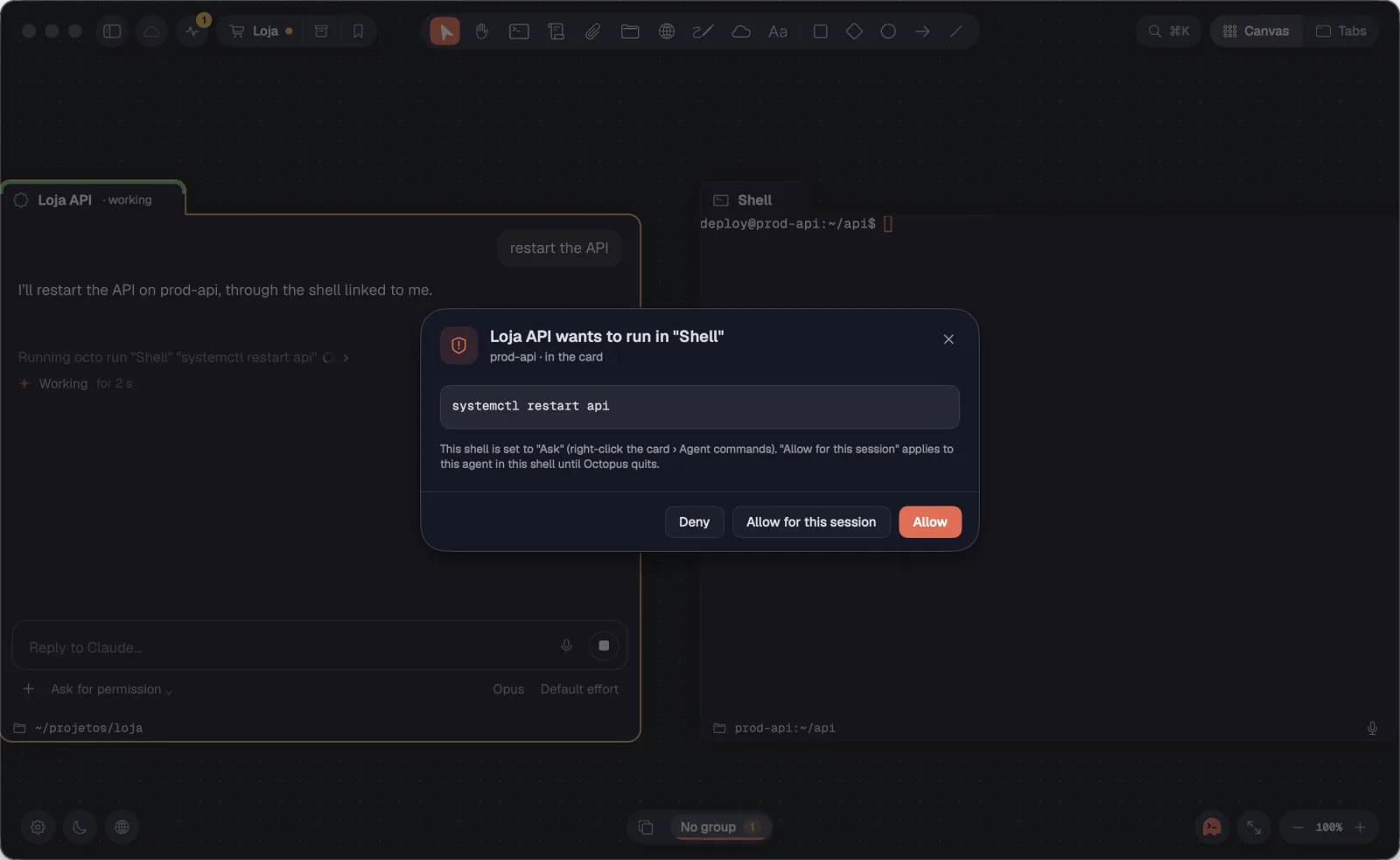
With the lock on “Ask”, the agent's request shows up in a sheet: who is asking, in which shell and machine, and the whole command. You allow it once, allow it for this session or deny it.
Step by step
- When an agent asks, the sheet opens and its card turns amber, with the reason “Asked to run on” and the shell's name.
- Read the command. The top line says the machine and the kind of request: in the card, outside the card, keys or file copy.
- “Allow” (↩Enter) runs just this command. “Allow for this session” clears this agent in this shell until Octopus quits. “Deny” (Esc) runs nothing.
- With no answer within 90 seconds, the request counts as denied and the agent is told.
| Allow | ↩Enter |
| Deny | Esc |
Requests show up one at a time: while one waits for your answer, the others wait in line.
In an agent card's menu, “Copy session ID” copies the conversation's identifier, so you can resume it somewhere else. “Copy alerts diagnostics” copies what the card received and decided about alerts and “running”.
Step by step
- Right-click the Claude Code or Codex card.
- “Copy session ID”: a notice shows the copied ID (hover over the item to see it first). If the agent hasn't saved the conversation yet, Octopus tells you.
- “Copy alerts diagnostics” (since 1.0.16): paste it into a conversation to explain an alert that didn't come or came at the wrong time.
In chat, the ID also shows up in the context ring panel, under “Session”, with “Copy”.
On every machine where it opens terminals, Octopus installs two skills for Claude Code and Codex: “octopus”, which teaches the agent to use the canvas, and “octopus-maestro”, for when it is the Maestro.
Step by step
- They live in ~/.claude/skills and ~/.codex/skills, on your computer and on each server, along with the octo command. Octopus keeps everything up to date.
- The octopus skill kicks in when you mention something linked to the card: a note, an attached image, another agent, a shell, a portal, a cloud account or a drawing.
- The octopus-maestro skill only applies to an agent in Maestro mode: deciding whether to split the work, recruiting, following and closing the team.
- When it opens an agent, Octopus also tells it, right at the start, that it's in a card on the canvas.
On a server with more than one Claude Code profile (CLAUDE_CONFIG_DIR in the server's variables), the skill goes to each profile.
See alsoThe octopus and octopus-maestro skillsWhat the Maestro is