Docs › Tabs and Open on a server
Tabs and Open on a server
In Tabs, the workspace becomes a regular app: each card is a tab of its group and fills the whole window, without the canvas. You split tabs side by side, organize groups without dragging anything on the board and go back to the canvas as it was. ⌘KCtrl+Shift+K (“Open on a server…”) opens a shell, Claude Code or Codex on any server, from anywhere.
The “Canvas | Tabs” switch, in the top right corner, shows the workspace on the canvas or in tabs. In Tabs, each card is a tab of its group and fills the whole window. Cards don't move on the canvas: only the way you see them changes. On the Mac since 1.0.36; on Windows and Linux since 1.0.38.
Step by step
- Click “Tabs” in the top right corner.
- The tab of the card that was selected on the canvas opens, with its group's tabs. With nothing selected, the group the view was on opens.
- Click “Canvas” to go back: the open tab's card is selected and in view.
- Each workspace remembers whether it was on the canvas or in Tabs.
- Alerts, “Now”, notices and panels work the same in Tabs. An alert opened in Tabs opens the card's tab.
See alsoThe row of tabsGroups without the canvasAlerts in Tabs
At the top are the tabs of the group shown, one per card, in the order they sit on the canvas (top to bottom, left to right). Each tab shows the icon, the name, the server (when it isn't this computer) and the state.

Step by step
- Click a tab to open it. ⌘1Ctrl+1 to ⌘9Ctrl+9 open tabs 1 to 9; ⌃⇥Ctrl+Tab and ⌃⇧⇥Ctrl+Shift+Tab go to the next and the previous one.
- The state shows on the tab: a coral spinner while working, an amber dot while waiting for you, a green dot when done.
- A split tab shows “+N”, with the number of extra panes.
- The open tab has the “×” to close it.
- Right-clicking a tab opens its menu.
- A group with no tabs shows “No tabs” and the “New terminal…” button.
| Tab 1 to 9 | ⌘1–9Ctrl+1–9 |
| Next tab | ⌃TabCtrl+Tab |
| Previous tab | ⌃⇧TabCtrl+Shift+Tab |
The “+” after the tabs creates a new card as a tab of the group shown, right after the open tab. On the canvas, the card goes to the right of the group's cards, in a free spot.
Step by step
- Click the “+” after the tabs.
- Choose what to open. “Shell”, “Claude Code” and “Codex” open “New terminal” with the program already chosen.
- ⌘TCtrl+Shift+T and ⇧⌘DLeader D also create a terminal and a note as tabs.
| New terminal | ⌘TCtrl+Shift+T |
| New note | ⇧⌘DLeader D |
| Cloud accounts | ⇧⌘ULeader U |
See alsoThe row of tabs
Closing a tab never deletes the card: it goes to the workspace's history, and you can open it again.
Step by step
- Click the “×” on the open tab or press ⌘WCtrl+Shift+W.
- On a split tab, ⌘WCtrl+Shift+W closes only the pane with the keyboard; the others stay. To close them all, use “Close tab (all panes)” in the tab's menu.
- If an agent is still working, Octopus asks first, as on the canvas.
| Close tab (or the pane) | ⌘WCtrl+Shift+W |
See alsoDetaching or closing a paneReopen, Reopen in and Forget
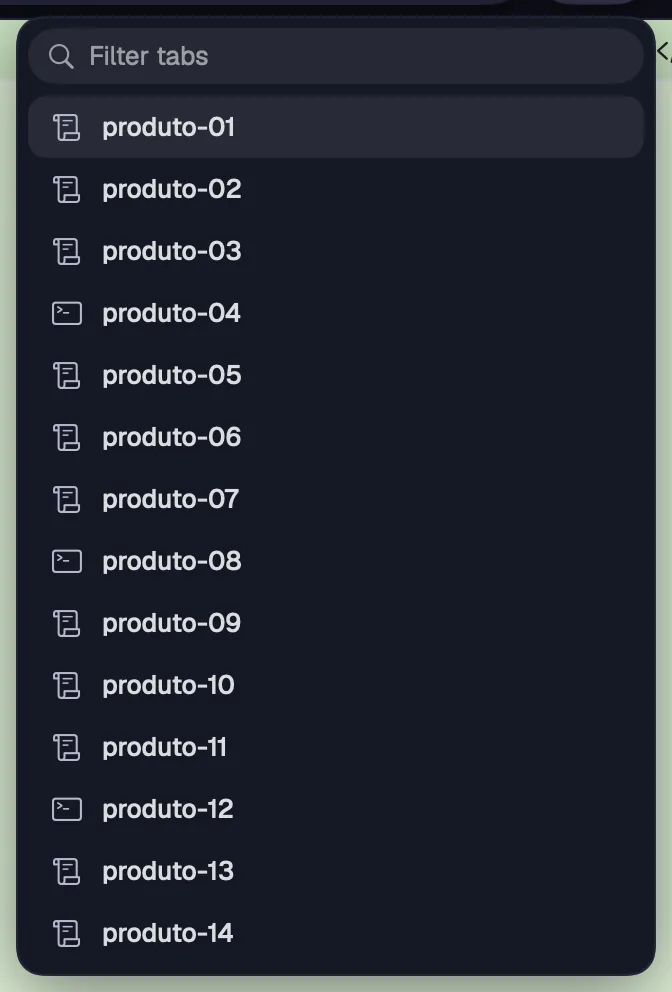
When the tabs don't fit in the row, it scrolls sideways, keeping the open tab in view, and a capsule with the number of tabs appears. It opens the list of all of them.
Step by step
- Click the capsule with the number, next to the tabs.
- Choose the tab in the list. With more than 12 tabs, the list has “Filter tabs”.
See alsoThe row of tabs
Put two cards or more in a single tab, side by side or one above the other. Each pane has its own bar, and you adjust the size by dragging the divider.
Step by step
- Drag a tab to one side of the open tab. The half it will take lights up, with “Split left”, “Split right”, “Split above” or “Split below”.
- Drop it. If the card was from another group, it moves to this one.
- Drag the divider between the panes to change their size. Each pane is at least 180 points wide and 120 tall.
- ⌃⌘←Leader ← (and the other arrows) passes the keyboard to the neighboring pane. The pane with the keyboard has its border lit.
- “Shell beside” and the folder's file tree, opened in Tabs, come in as a split next to the card.
| Neighboring pane | ⌃⌘ + arrowsLeader + arrows |
On Windows and Linux, Leader + arrow in Tabs doesn't turn on navigation mode: the following arrows keep going to the terminal.
A pane can leave the split and become its own tab, or go to history on its own. Since 1.0.37, “Move to its own tab” leaves the screen on the split.
Step by step
- Click “Move to its own tab” in the pane's bar, or drag the pane's bar to the row of tabs. The pane becomes a tab, and the split of the others stays on screen.
- Click “Close pane” in the pane's bar, or press ⌘WCtrl+Shift+W with the keyboard in it. Only that pane goes to history; the others stay.
- The tab's menu has “Move to its own tab”, “Close pane” and “Close tab (all panes)”.
| Close the pane with the keyboard | ⌘WCtrl+Shift+W |
Dragging a tab (or a pane's bar) to the row of tabs also brings a card from another group into the group shown, as its own tab.
See alsoSplitting tabsTab menu
Each pane of a tab has a thin bar on top: icon, name, machine and folder, state and the card's buttons.

Step by step
- The buttons change with the card. Terminals: chat or terminal, link, shell beside, folder file tree, duplicate, Maestro, editor, reconnect and rename. Portals: reload and mobile or desktop. Files: send to an agent. Notes: the format bar and the microphone.
- Without the canvas, there are no cables to drag: the link button opens “Link to”, with the workspace's cards, and “Unlink from”.
- When the pane gets narrow, some buttons disappear. The “⋯” always has everything the card does.
- In a split, the bar also has “Move to its own tab” and “Close pane”.
- Drop files on a pane: in a terminal the path is typed (uploaded first, if it's a server); a chat, a note, a tree or a Draw receive the file.
See alsoTab menuSelection bar
In Tabs, you see one group's tabs at a time. You can create groups, rename them and move cards between groups without touching the canvas; there, the cards of a new group come together side by side.
Step by step
- With the sidebar open, groups sit in the “Groups” folder, below the workspace. Click a group to see its tabs, or use ⌃⌘1Alt+1 to ⌃⌘9Alt+9.
- To move a tab to another group, drag the tab onto the group in the sidebar, or use “Move to group ▸” in the tab's menu. “Remove from group” sends the card to “No group”.
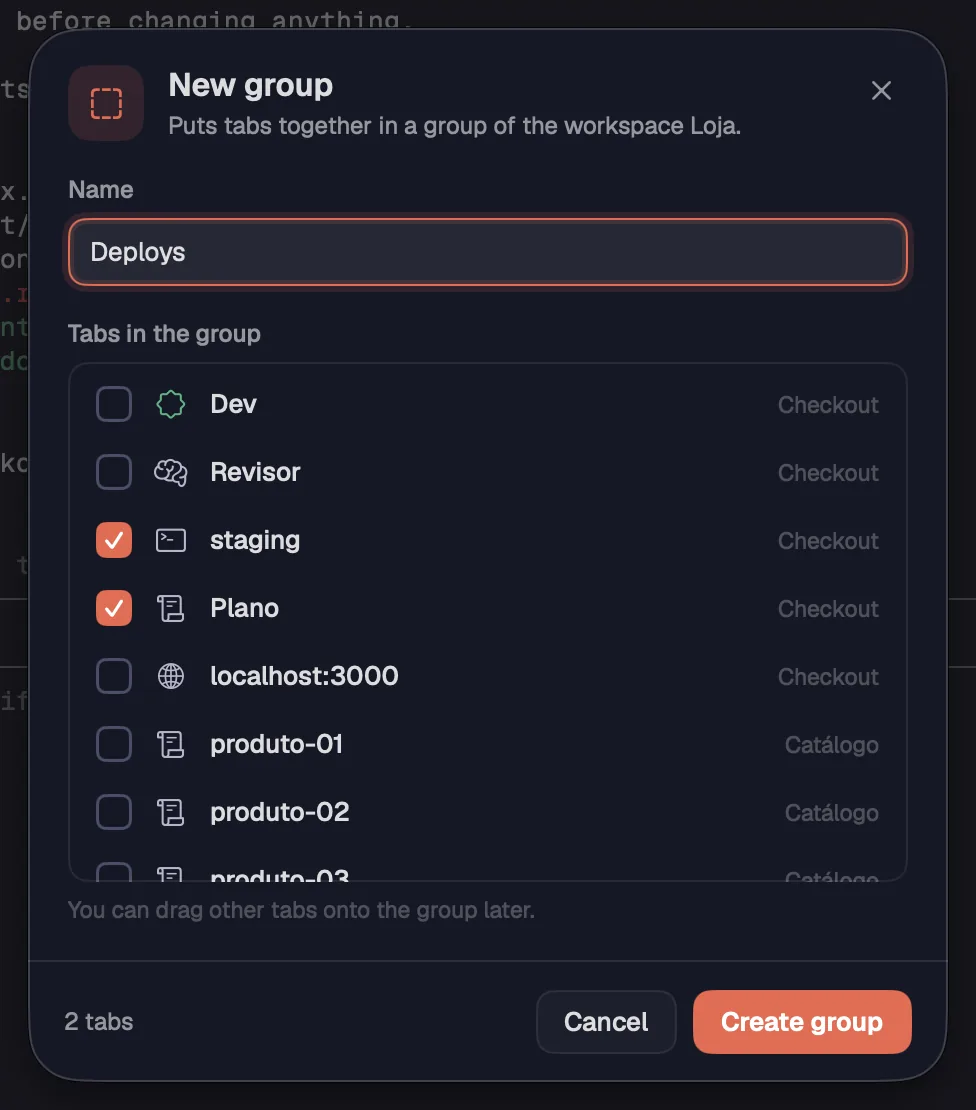
- To create a group, use “New group…” (in a group's “⋯”, in the folder's right-click menu or in “Move to group ▸”). Give it a name, check the “Tabs in the group” and click “Create group”. You can drag other tabs onto the group later.
- A group's “⋯” (it shows up on hover) and the right-click menu have “Rename group…”, “Save group…”, “Move group to ▸”, “Ungroup” and “New group…”.
- With the sidebar closed, a capsule next to the workspace's shows the open group and the other groups' signals; one click lists them all, each with its cards and alerts.
| Group 1 to 9 | ⌃⌘1–9Alt+1–9 |
See alsoGroups folderNo groupTab menu
In Tabs, the canvas keys act on tabs and panes.
Step by step
- Numbers pick tabs, ⌃⌘1Alt+1 to ⌃⌘9Alt+9 pick groups, and the arrows with ⌃⌘Leader move between the panes of a split.
| Tab 1 to 9 | ⌘1–9Ctrl+1–9 |
| Next tab | ⌃TabCtrl+Tab |
| Previous tab | ⌃⇧TabCtrl+Shift+Tab |
| Group 1 to 9 | ⌃⌘1–9Alt+1–9 |
| Close tab (in a split, the pane with the keyboard) | ⌘WCtrl+Shift+W |
| Neighboring pane | ⌃⌘ + arrowsLeader + arrows |
| New terminal as a tab | ⌘TCtrl+Shift+T |
| New note as a tab | ⇧⌘DLeader D |
| Open on a server | ⌘KCtrl+Shift+K |
See alsoTabs
From anywhere, ⌘KCtrl+Shift+K opens a shell, Claude Code or Codex on a server or in a recently used folder, or takes you to a card that is running. On Windows and Linux, since 1.0.38.
Step by step
- Press ⌘KCtrl+Shift+K or click the magnifier button (“⌘K”; on Windows and Linux, “Ctrl⇧K”) in the top right corner.
- In the “Server, folder or card” field, type part of the server's, folder's or card's name, with the words in any order. The matching letters light up.
- The list has three sections: “Servers” (this computer and yours, with online, connecting or no connection), “Recent” (up to 6 folders of recently closed terminals, in any workspace) and “Running now” (what's waiting for you and what's working; with a search, any open terminal).
- On a server or a recent folder, ↩ opens a Shell, ⌘↩Ctrl+↩ Claude Code and ⌥↩Alt+↩ Codex. A click is the same as ↩.
- On a card in “Running now”, ↩ goes to it (“Go to card”).
- ↑ and ↓ move through the list; escEsc closes it and gives the keyboard back to the card.
- The field says where it will open, for example “opens in Loja › Checkout”. In Tabs, it becomes a new tab of the group shown; on the canvas, a card placed in view.
| Open on a server | ⌘KCtrl+Shift+K |
| Open a Shell | ↩ |
| Open Claude Code | ⌘↩Ctrl+↩ |
| Open Codex | ⌥↩Alt+↩ |
| Choose the folder | ⇥Tab |
| Move through the list | ↑ ↓ |
| Close | escEsc |
See alsoChoosing the folderAdding a serverServers in the sidebar
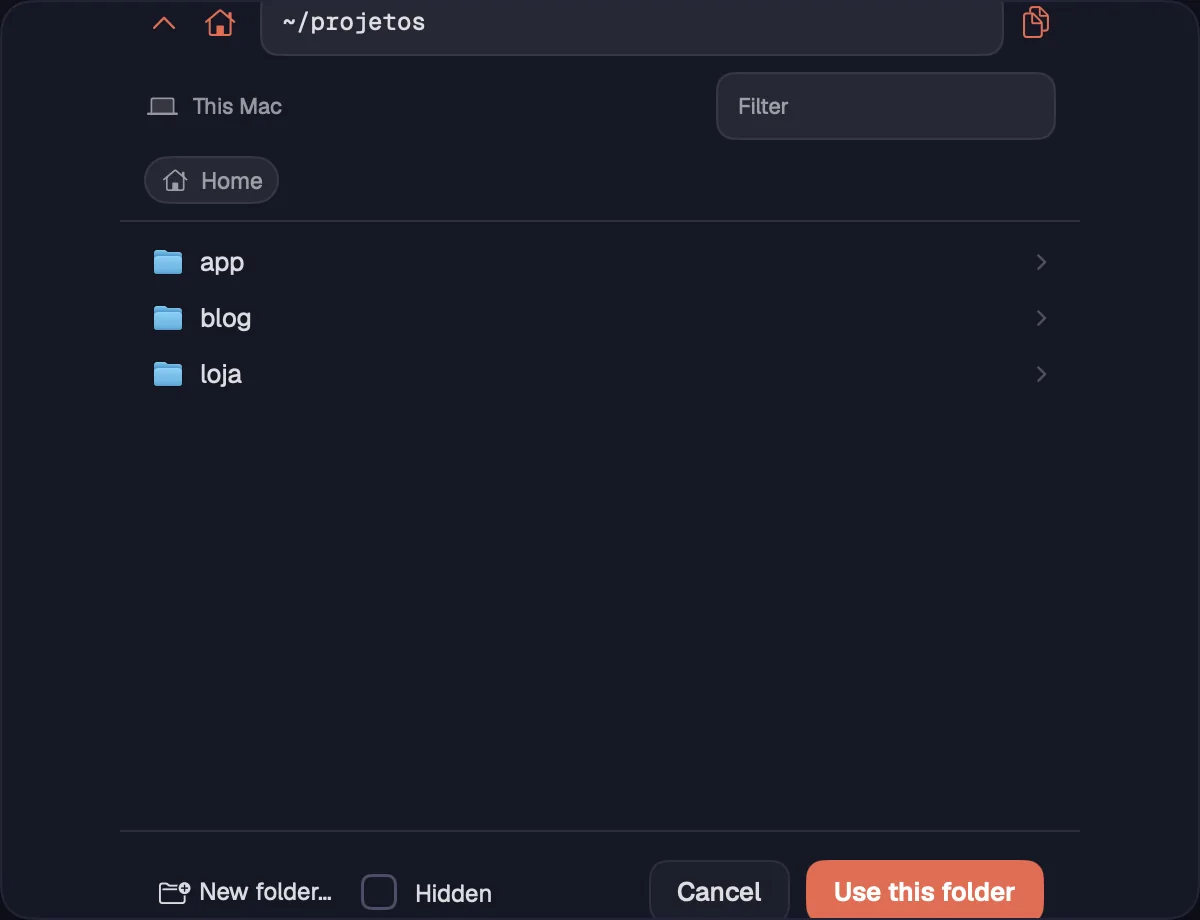
In “Open on a server”, with a server or a recent folder selected, ⇥Tab opens that machine's folders so you can choose where to open.
Step by step
- Choose the server with the arrows and press ⇥Tab.
- Browse the folders and choose the project folder. To go up a folder, use ⌘↑Alt+↑.
- You go back to the list with the server and the folder chosen. Open with ↩, ⌘↩Ctrl+↩ or ⌥↩Alt+↩.
| Choose the folder | ⇥Tab |
| Parent folder | ⌘↑Alt+↑ |