Docs › Canvas and cards
Canvas and cards
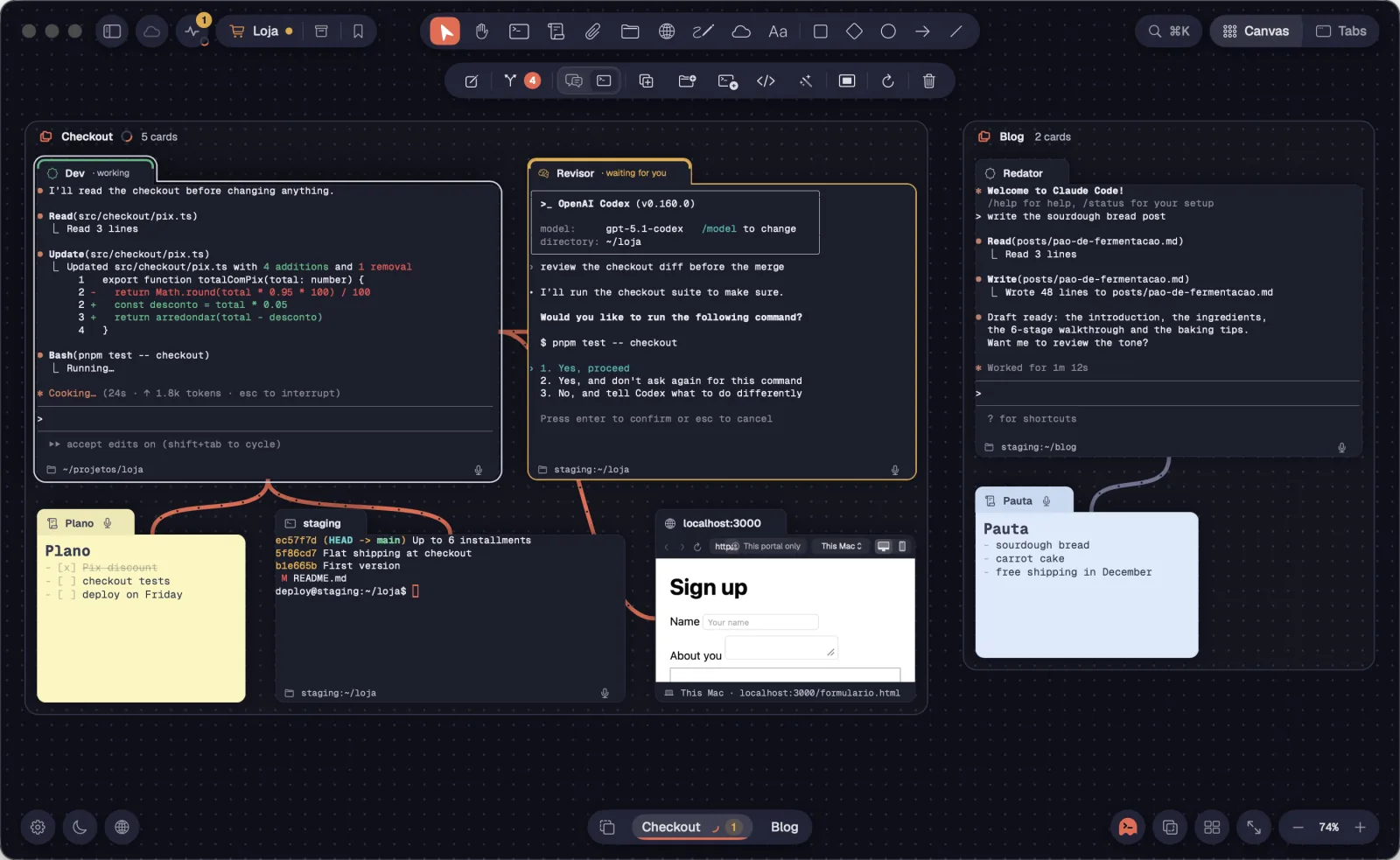
The canvas is an infinite board where every terminal, agent, note, file or portal becomes a card. You link cards with tentacles, gather them into groups and fit everything on screen in one gesture. Zoom is only a lens: nothing changes inside the cards.
The canvas is an infinite board with a dotted background. Each card has a tab on top with its icon, name and state: “· working” while an agent works and “· waiting for you” when it needs you. The border lights up amber when the agent needs you and green when it finishes.
Step by step
- Click a card to select it. It lifts a little, gets a light ring and takes the keyboard.
- The cables between cards are tentacles. Groups show up as islands, with their name on a badge.
- When the canvas is empty, you see “Empty canvas”: click “New terminal…” or press ⌘TCtrl+Shift+T. You can also bring in sessions already running on a server from the sidebar.
The dark theme is the default. Switch it with the sun or moon at the bottom of the sidebar.
See alsoCard typesAsking for you and DoneAppearance and theme
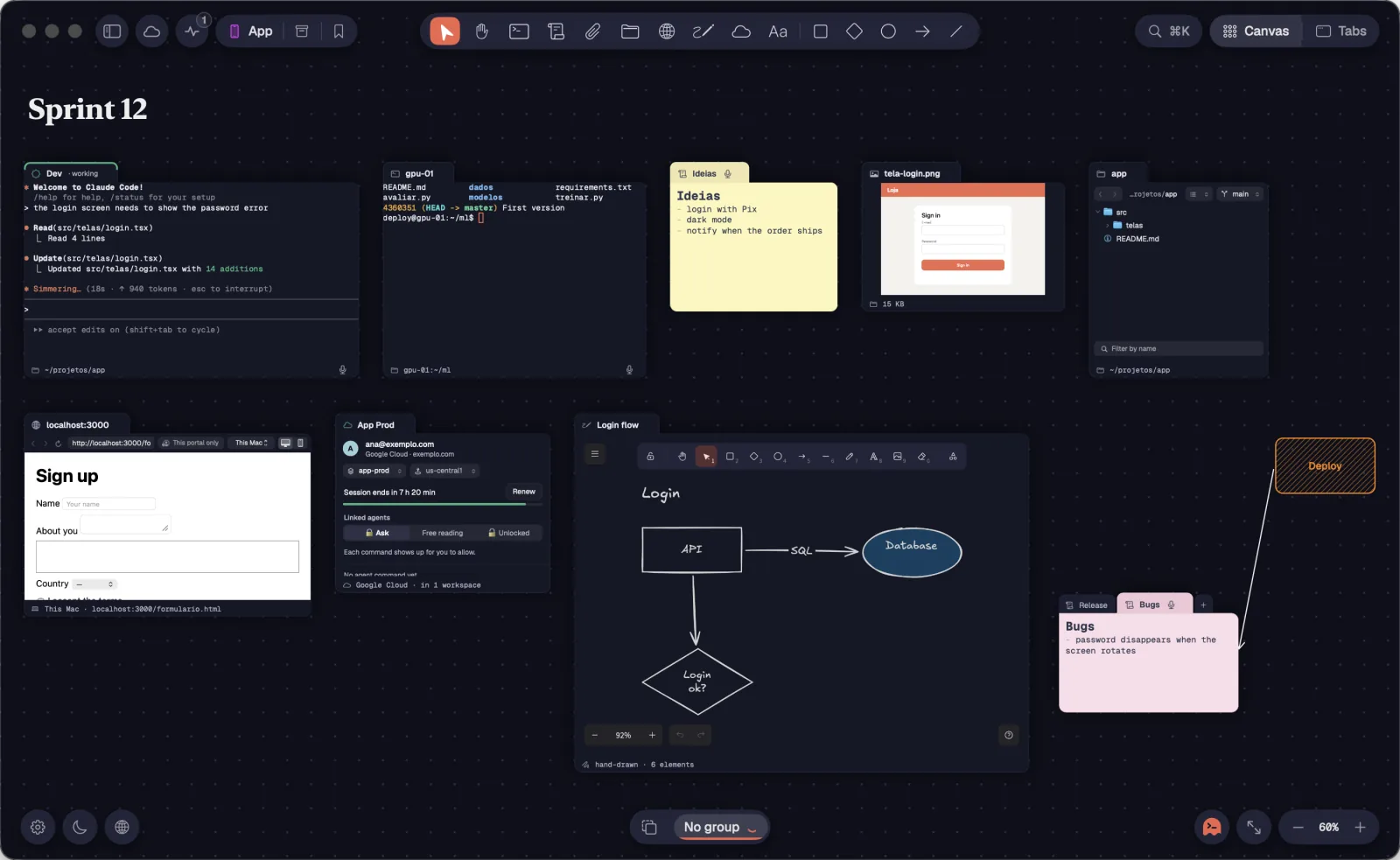
Everything on the canvas is a card or a drawing. Each type has its own tool in the top bar or a shortcut.
Step by step
- Terminal: Claude Code, Codex, a Shell or any command, on this computer or on a server. The footer shows the folder (or server:folder) and the microphone. An agent has two faces, terminal or chat: switch with ⌘JCtrl+Shift+J. Badges show “Maestro”, the role or “external”.
- Note: markdown text, gray by default, with 7 colors. The title follows the first line. A loose .md or .txt on the canvas becomes a note that edits the original file.
- File: an image, PDF, video, folder or other file, with a preview. Double-click to open it in the system app; “Send to” hands it to an agent.
- File tree: a folder on your computer or on a server, with the open file, Git and copies.
- Portal: a browser on the canvas, as desktop or mobile, with your logins.
- Cloud account: a gcloud account. The icon is green while the session is valid, amber when it's about to expire and red once expired.
- Draw: an Excalidraw board where you and the linked agents draw.
- Text: a loose block of text on the canvas.
- Shapes: rectangle, diamond, ellipse, arrow and line. Arrows and lines stick to cards.
- Folder: several cards stacked as tabs of a single card.
See alsoNew terminalCreate a noteOpen a file treeOpen a portalThe account cardCreate a DrawFolders
The bar at the top of the canvas creates cards and drawings. With nothing selected, each tool has a letter.

Step by step
- Click the tool or press its letter: Select V, Hand H (or hold Space), Terminal T, Note N, File tree F, Portal P, Draw X and Text L.
- Click on the canvas where the card goes, or drag to draw its size. A click without dragging uses the default size.
- ⌘TCtrl+Shift+T opens “New terminal” directly, without picking a spot.
- The “Attach files” paperclip picks files that become cards. You can also drag them onto the canvas.
- The cloud opens the “Cloud accounts” panel (⇧⌘ULeader U).
- Right-click the Portal globe to open a new portal straight on a shortcut, like Gmail, Google Calendar, Notion or a site of your own.
- After the tools come the shapes: Rectangle, Diamond, Ellipse, Arrow and Line.
- Esc goes back to the pointer.
| Select | V |
| Hand | H or hold Space |
| Terminal | T |
| New terminal directly | ⌘TCtrl+Shift+T |
| Note | N |
| File tree | F |
| Portal | P |
| Draw | X |
| Text | L |
| Cloud accounts | ⇧⌘ULeader U |
| Rectangle | B or R |
| Diamond | D |
| Ellipse | O |
| Arrow | A |
| Back to the pointer | Esc |
The letters only work with nothing selected, so they never steal what you type in a card.
See alsoShapes and textCanvas tools
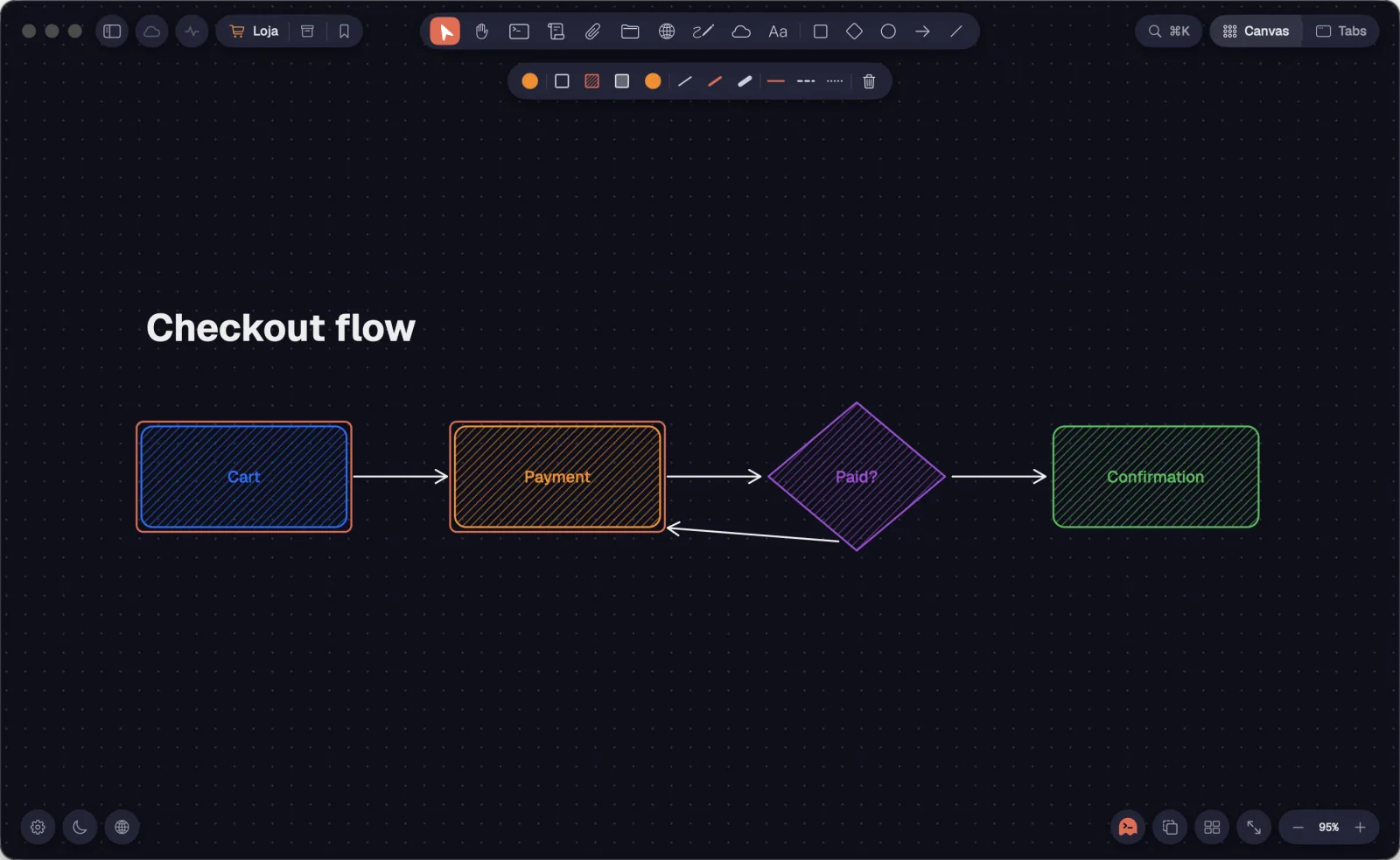
Draw rectangles, diamonds, ellipses, arrows and lines and write loose text, like in Excalidraw. Two format bars appear at the top: one for text and one for shapes.
Step by step
- Pick a shape in the bar or press its letter: Rectangle B or R, Diamond D, Ellipse O or Arrow A. Line has no letter.
- Drag on the canvas to draw. A click without dragging draws at the default size. With Shift you get squares, circles and lines in 15° steps.
- Drag an arrow or a line from one card to another: the ends stick to the cards and follow them when they move.
- Double-click inside a closed shape to write in it.
- With shapes selected, the format bar changes the stroke color, the fill (“No fill”, “Hatched” or “Filled”, with the fill color), the thickness (thin, medium, thick) and the stroke style (“Solid”, “Dashed”, “Dotted”). With a shape tool active and nothing selected, the same bar applies to the next shapes.
- To write text, press L and click where you want to write. Double-click a text to edit it; Esc finishes.
- With a text selected, the text bar picks the font (Aa sans serif, serif or monospaced), the size, from 10 to 96, bold and the color.
An empty shape can only be grabbed by its border. That way, a rectangle drawn around cards leaves the cards clickable.
A click selects a card and gives it the keyboard. You move it by its tab, resize it from any side and can snap a card to its neighbor.
Step by step
- Click a card to select it. Shift-click adds others to the selection.
- Drag on empty space to select several with a rectangle. Esc clears the selection.
- Drag by the tab to move. Cards stop on a 10-point grid.
- Hold ⌘Ctrl while dragging to use the magnet: the card snaps to one side of its neighbor (or of a row of them) and fills the free space up to the next one, with the edges aligned.
- Hold ⌥Alt while dragging to duplicate: the copies move and the originals stay.
- Resize by pulling any side of the card. With ⌘Ctrl, the moving edge snaps to the neighbor's.
- Drop a card on another card's tabs to put both in a folder.
| Add to the selection | Shift+click |
| Clear the selection | Esc |
| Magnet while dragging | ⌘Ctrl |
| Duplicate by dragging | ⌥Alt |
| Align the edge while resizing | ⌘Ctrl |
The mouse wheel scrolls inside a card only when that card is selected. That way, moving the canvas over the cards never gets stuck on one of them.
See alsoFoldersZoom and mouse wheel
Zoom is only a lens: it zooms in and out without changing anything inside the cards. At 100%, text is as sharp as in any regular app, and the zoom stops exactly at 100% when it passes through it.
Step by step
- Zoom in with ⌘=Ctrl+= and out with ⌘-Ctrl+-, 10% at a time.
- ⌘0Ctrl+0 frames everything (“Show all”); ⌥⌘0Leader 0 goes back to 100% (“Actual size”).
- On the trackpad, two fingers move the canvas and pinching zooms. Two fingers with ⌘ or ⌥ (on Windows and Linux, with Alt) zoom too.
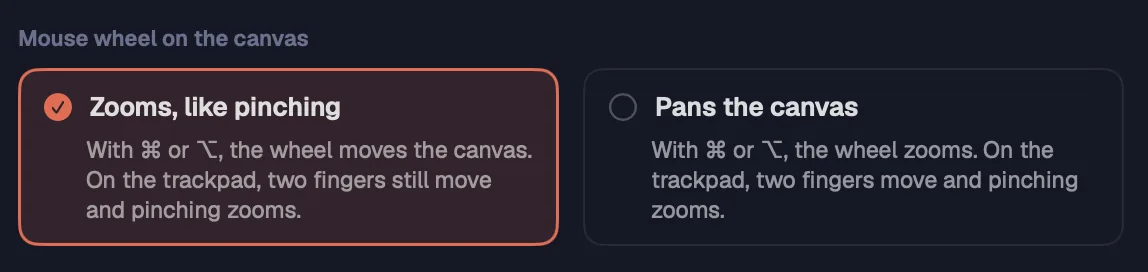
- The mouse wheel follows Settings › General › “Mouse wheel on the canvas”: “Zooms, like pinching” or “Pans the canvas”. On the Mac, with ⌘ or ⌥ the wheel does the other one. On Windows and Linux, in zoom mode Alt pans; in pan mode, Ctrl or Alt zoom.
- Shift+wheel moves the canvas sideways.
- To move the canvas, hold Space and drag, drag with the middle mouse button or use the Hand H.
- When you pass 100% with the wheel, a pinch or the buttons, the zoom stops at 100%. A pinch released near 100% settles on it.
| Zoom in | ⌘=Ctrl+= |
| Zoom out | ⌘-Ctrl+- |
| Show all | ⌘0Ctrl+0 |
| Actual size (100%) | ⌥⌘0Leader 0 |
| Move the canvas | Space held or middle button |
| Scroll sideways | Shift+wheel |
On the Mac, on a regular (non-Retina) monitor, text in terminals, chats and files stays sharp at any zoom, and you don't lose your place while reading.
In the bottom right corner you find the voice octopus, “Show all” and the zoom. With something selected, the selection buttons show up too.

Step by step
- Click the octopus to dictate by voice into the selected card.
- With cards selected, you get “Group” (⌘GCtrl+Shift+G) or “Ungroup” (⇧⌘GLeader G) and “Standard mode for the selection” (⌃⌘↩Leader ↩).
- “Show all” frames every item (⌘0Ctrl+0).
- The − and + zoom out and in by 10%. Click the percentage to go back to 100%.
| Show all | ⌘0Ctrl+0 |
| Zoom out | ⌘-Ctrl+- |
| Zoom in | ⌘=Ctrl+= |
| Actual size | ⌥⌘0Leader 0 |
Standard mode fits the cards on screen, ready to read and type, without covering the other cards. One card sits in the middle; two, always side by side; three, one large and two stacked; four, in a 2×2 grid. Do it again and everything goes back to how it was.
Step by step
- Double-click a card's header (or footer), or ⌘Ctrl-double-click anywhere on it.
- Or select the card and press ⌃⌘↩Leader ↩. With several selected, the shortcut and the “Standard mode for the selection” button fit them all together.
- For a whole group, click its name badge and use the same shortcut, or choose “Group standard mode” in the name's menu. Double-clicking the group in the group bar does the same.
- The first card (the one you clicked, or the group's Maestro) takes the large spot.
- A terminal or a chat on its own fills the free view. A tree with an open file or a portal as desktop also use the full width.
- Repeat the gesture to go back. If the view or a card changed in the meantime, the cards stay where they are.
- Up to 16 cards fit; with more, Octopus uses “Arrange for reading”.
| Standard mode | ⌃⌘↩Leader ↩ |
| Standard mode from anywhere on the card | ⌘ + double-clickCtrl + double-click |
When the cards fit, standard mode stays exactly at 100%, with sharp text. The screen decides how many fit side by side. On a small screen, the zoom backs off a little (down to 75%) to keep text readable; on a large screen, a terminal or chat next to others is never wider than 1400 points, and a card on its own goes up to 1800.
In standard mode for a whole group with 3 cards or more (and something to work on: an agent, a tree with an open file or a portal), Octopus sets up a work table instead of shrinking everything. Nothing gets smaller than you can read.
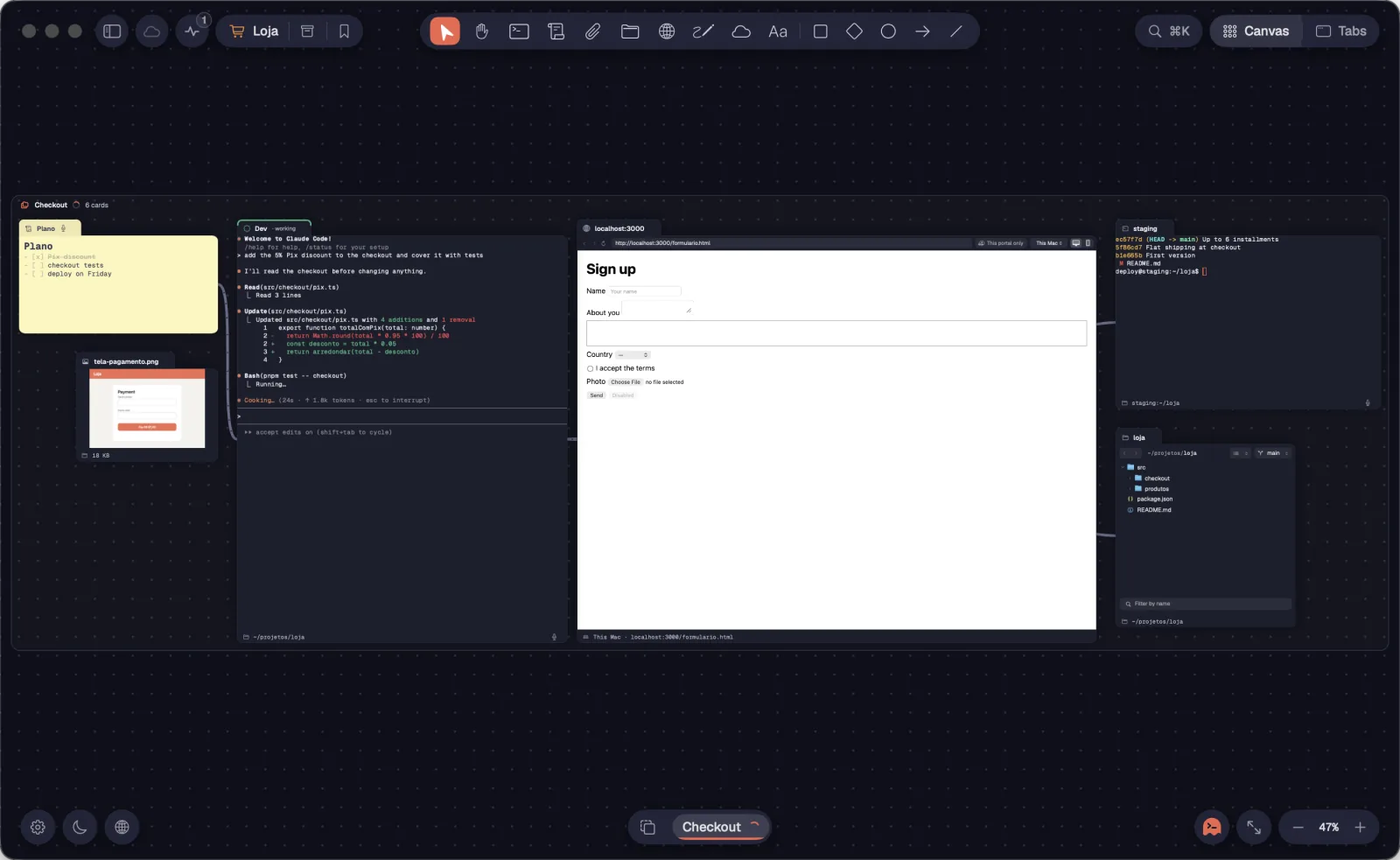
Step by step
- Click the group's name badge and press ⌃⌘↩Leader ↩, or double-click the group in the group bar.
- On the stage, in the middle, goes the card you used last.
- Next to it on the stage goes its partner: of the cards linked to it, the one you used last. If none was used and it's an agent, the partner is what it works on: a tree with an open file or a portal.
- On the left, a shelf with what you read now and then: notes, images, PDFs, files. On the right, a column with the tools: shells and trees listing files.
- Every other agent in the group gets its own table, on the right. Whatever doesn't fit on screen stays next to it on the canvas, one drag away.
- Repeat the gesture to go back to how it was.
| Standard mode for the selected group | ⌃⌘↩Leader ↩ |
If you haven't used any card in the group yet, the one that needs you goes to the stage; if none does, the one that is working; otherwise, the Maestro.
See alsoStandard modeGroups
Focus mode lifts a card into a panel over the canvas, which blurs behind it. Dragged to the edge of the window, the panel becomes a fixed column, and the canvas keeps moving underneath.
Step by step
- Select the card and press ⇧⌘↩Ctrl+Shift+↩, or click “Focus mode” in the card's bar or in its menu.
- Where the card was, the canvas shows an outline that says “Lifted”.
- Drag the panel by its header to the left or right edge of the window: it docks there as a column as tall as the window, and its spot on the canvas now says “Docked”.
- To go back, press Esc (outside the terminal), click the background, double-click the header or use “Return to canvas” in the card's menu.
- Only one card is lifted in the middle at a time: lifting another one returns the first.
| Focus mode | ⇧⌘↩Ctrl+Shift+↩ |
| Leave focus mode | Esc |
The panel shows the card at 100%, whatever the canvas zoom, with sharp text.
See alsoStandard mode
A tentacle links two cards. Linked agents talk to each other and use the linked cards: they read and write the note, control the portal, run commands in the shell, draw in the Draw. Who linked whom doesn't matter: the conversation goes both ways.
Step by step
- Select a card and drag the link button from the bar to the other card. Or click the button and then the other card.
- From the keyboard: select the card, press ⌘LCtrl+Shift+L and click the target.
- The number on the link button counts the card's cables. A cable turns coral when one of its cards is selected.
- To unlink, click the cable and press Delete, or right-click it and choose “Unlink”. The card's menu also has “Link to ▸” and “Unlink from ▸”, with “All”.
- Portal, Draw and cloud account only link to terminals: it's the terminal's agent that uses them. A file tree only links to a terminal on the same machine.
- A new card with no group joins the group of the card you link it to; linked to two groups, it stays without a group. What the Maestro creates joins its group, and a duplicated terminal joins the original's group.
| Start a link | ⌘LCtrl+Shift+L |
| Unlink the selected cable | ⌫Delete |
See alsoAgents that talk over cablesGroupsKeyboard navigation
A group gathers cards into an island with a name. You select and move the group only by its name badge; clicking a card selects only that card.
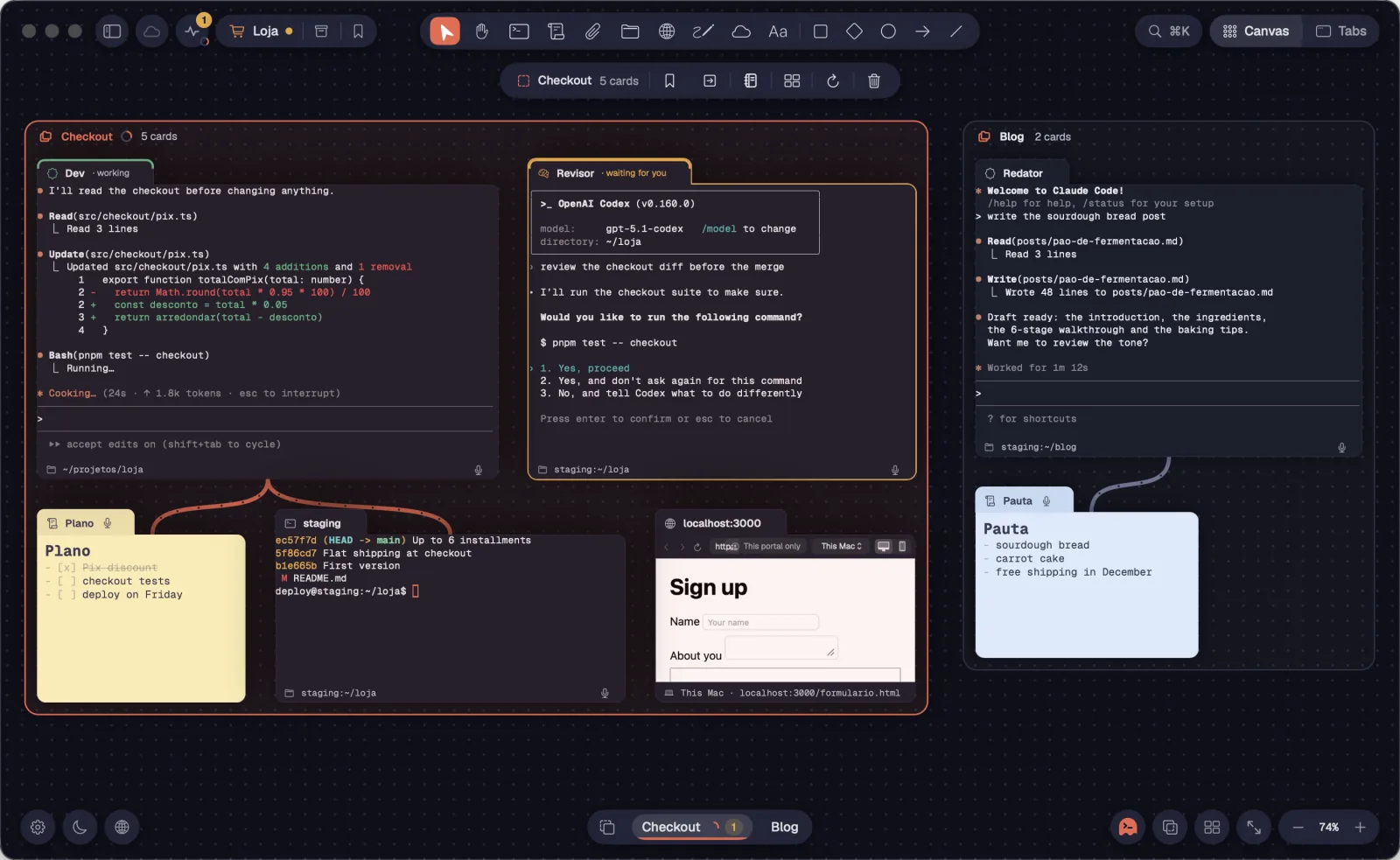
Step by step
- Select the cards and press ⌘GCtrl+Shift+G, or click “Group” in the zoom corner.
- Click the name badge to select the whole group; drag the badge to move everything together.
- Double-click the badge to rename the group.
- With the group selected by its name, the bar shows the name, “N cards”, “Save group” and “Move the group to another workspace”. It works even for a group with a single card.
- Right-click the badge to open the group's menu.
- To undo the group, select it and press ⇧⌘GLeader G, or use “Ungroup” in the menu.
- When you move the view to another group, whatever was selected outside it is no longer selected.
| Group | ⌘GCtrl+Shift+G |
| Ungroup | ⇧⌘GLeader G |
| Group 1 to 9 in the bar | ⌃⌘1–9Alt+1–9 |
Groups also form on their own through cables: a new card linked to a group joins it.
Cards that aren't in any group show up together as “No group”: last in the group bar, in the sidebar's “Groups” folder and in Tabs.
Step by step
- Click “No group” in the group bar (or in the “Groups” folder) to take the view to those cards, without selecting any.
- Double-clicking puts those cards in standard mode.
- In Tabs, “No group” shows those cards' tabs. To send a card there, use “Remove from group” or “Move to group ▸ › No group” in the tab's menu.
- “No group” isn't a real group: it can't be saved or moved to another workspace as a group.
A folder stacks several cards as tabs of a single card. Tabs that aren't open keep running, with their alerts. A folder never creates a group: it stays in the open card's group, or in none.
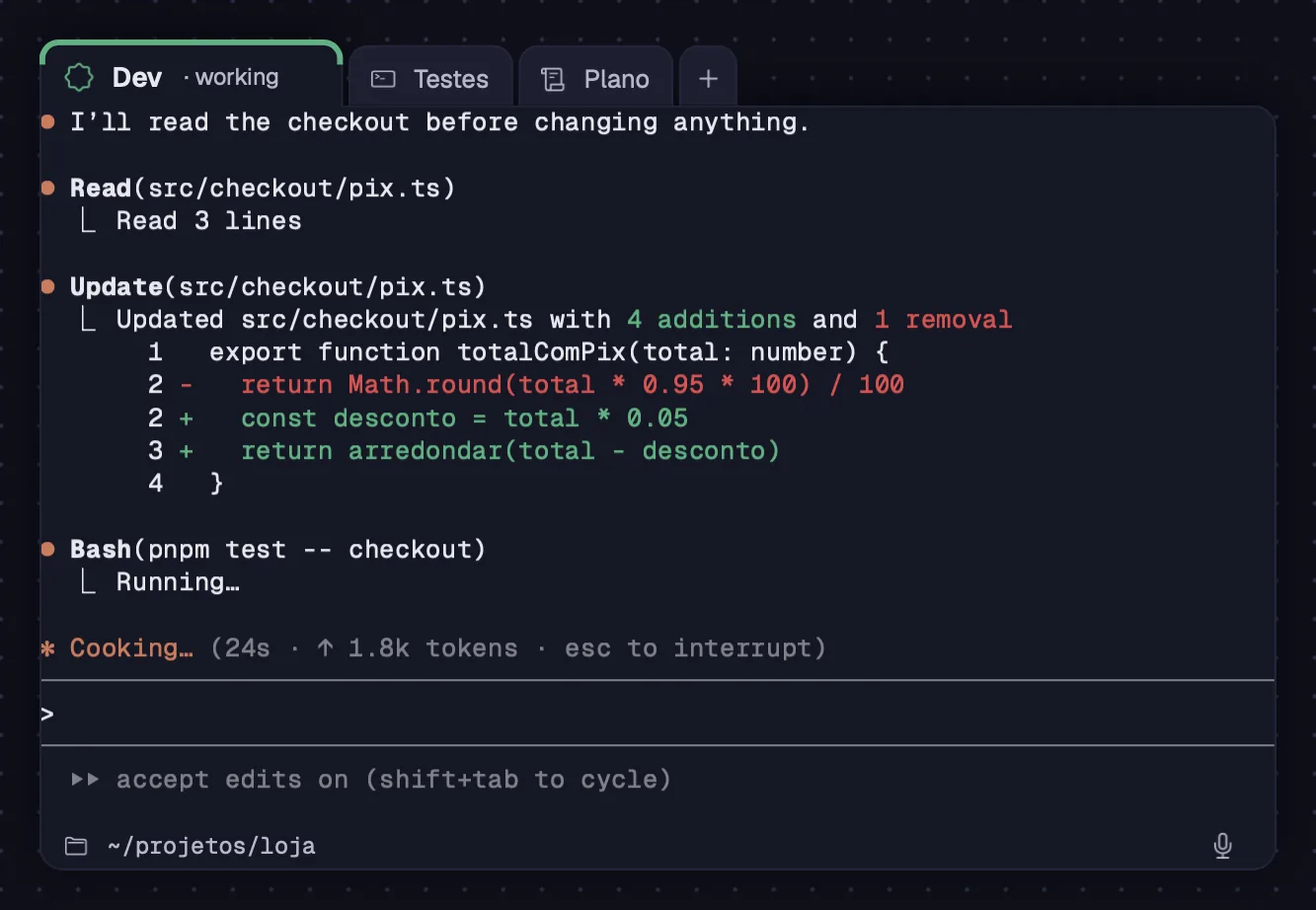
Step by step
- Select two cards or more and press ⌥⌘GLeader P, or click “Gather into folder” in the selection bar. The card you used last stays open.
- Or drag a card and drop it on another card's tabs.
- Click a tab to show that card.
- Drag a tab out to take the card out of the folder, or use “Take out of folder” in the card's menu.
- The “+” after the tabs creates a new card in the folder: a terminal like the tab's (same server, folder and program), “Shell in the same folder” or “Note”.
- To undo it, select the folder and press ⌥⌘GLeader P, or click “Spread out”: the cards go back where they were, all selected.
| Gather into folder / Spread out | ⌥⌘GLeader P |
When you drag with the magnet (⌘ on the Mac, Ctrl on Windows and Linux), the card doesn't go into another card's tabs. Deleting a selected folder closes all its tabs; the “×” on a tab closes only that card.
See alsoSelect, move and resize
“Arrange” puts the selection in an aligned grid. “Arrange for reading” gives each card its reading size at 100%. Cards in the way don't move: the block goes to a free space nearby.
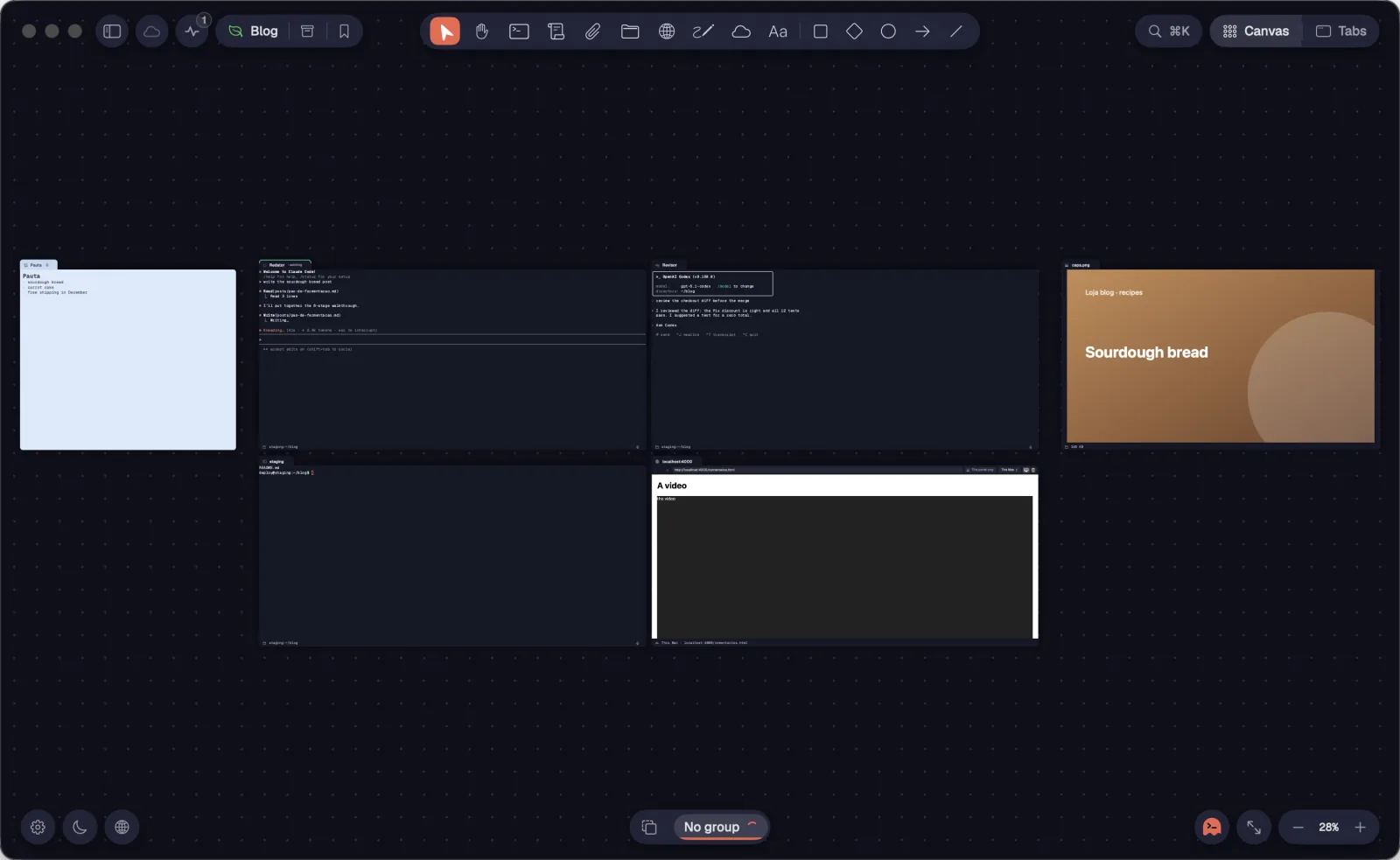
Step by step
- Select the cards and press ⇧⌘TLeader T: they become a grid. Notes, attachments, the Maestro and whatever is linked to a terminal get their own spots.
- Press it again, with the same selection, to arrange for reading.
- Or press ⌥⇧⌘TLeader R to go straight to reading. Each card gets its reading size at 100% (a terminal, the size of the view). With several, the view shows them all; with just one, it sits at 100% in the middle of the view.
- With the mouse: “Arrange for reading” in the card's menu and, with several selected, “Arrange”.
| Arrange (again: for reading) | ⇧⌘TLeader T |
| Arrange for reading | ⌥⇧⌘TLeader R |
See alsoAlignStandard mode
With several cards selected, “Align” lines their edges up or spreads the space between them evenly.
Step by step
- Select two cards or more.
- Right-click one of them and open “Align ▸”.
- On the Mac, the same is in the Canvas › Align menu. On Windows and Linux, in the action palette —Ctrl+Shift+P, as “Align › …”.
See alsoArrange and Arrange for reading
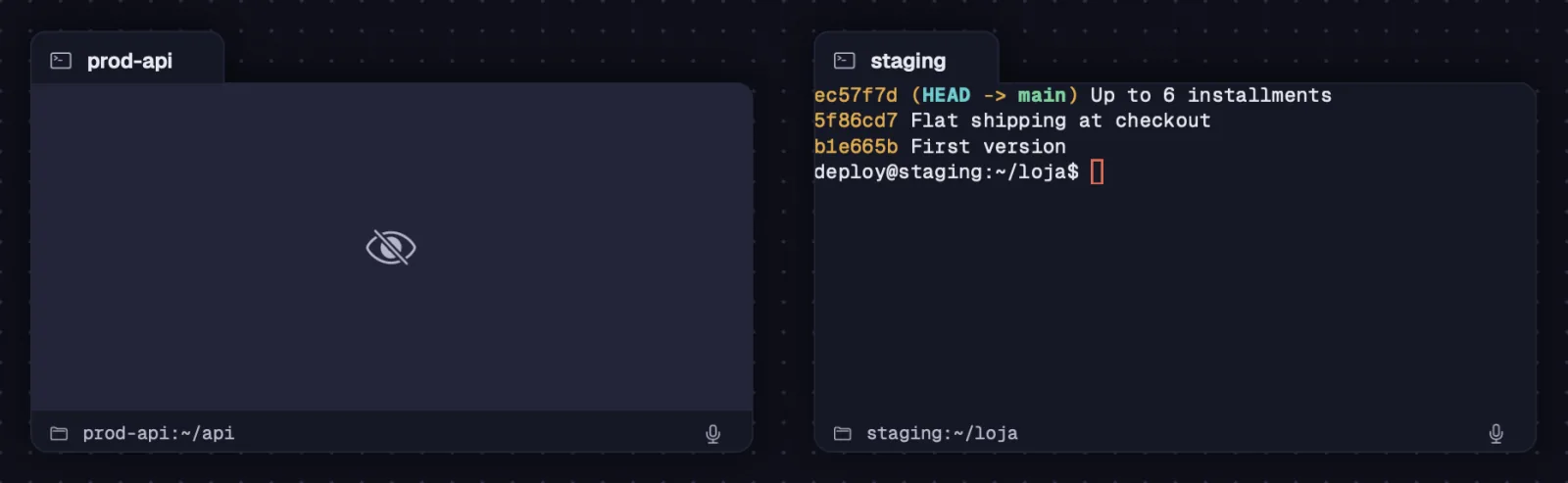
Blur hides a card's contents behind a closed eye. Use it to share your screen without showing what's in the card.
Step by step
- Right-click the card and choose “Blur”. With several selected, it applies to all of them.
- To show it again, click the eye (“Show contents”) or choose “Unblur”.
- On the Mac, also from the Canvas › “Blur / Unblur” menu. On Windows and Linux, from the action palette —Ctrl+Shift+P.
Canvas steps can be undone and redone. Copied cards bring along the cables between them.
Step by step
- ⌘ZCtrl+Z undoes a canvas step; ⇧⌘ZCtrl+Shift+Z or Ctrl+Y redoes it.
- ⌘CCtrl+C copies the selected cards, with the cables between them. ⌘VCtrl+V pastes them in the middle of the view; pasted terminals open new sessions.
- With an image or files copied (a screenshot, an image from a web page, files copied in Finder or, on Windows and Linux, in the file manager), ⌘VCtrl+V on the canvas creates cards in the middle of the view.
- Right after moving cards to another workspace, ⌘ZCtrl+Z undoes the move while the notice is showing.
- On Windows and Linux, right-clicking empty canvas has “Undo”, “Redo” and “Paste”.
| Undo | ⌘ZCtrl+Z |
| Redo | ⇧⌘ZCtrl+Shift+Z or Ctrl+Y |
| Copy cards | ⌘CCtrl+C |
| Paste | ⌘VCtrl+V |
In a terminal or a text field, these keys belong to the terminal or the field; on the canvas, they belong to the canvas.
Drag files from Finder (or from your file manager) into Octopus. Where you drop them decides what happens.
Step by step
- Drop on empty canvas: each file becomes a card. A .md or .txt becomes a note that edits the original file.
- Drop on a terminal: the path is typed. If the terminal runs on a server, the file is uploaded there first.
- Drop on a chat: it becomes an attachment to the message.
- Drop on a Draw: the image goes into the drawing.
- Drag from the file tree to the canvas: files become cards and folders become trees. On a terminal, the path is typed.
- Double-click a file card to open it in the system app.
See alsoDrop and paste filesPasting images and files into the terminalCopy, paste and undo
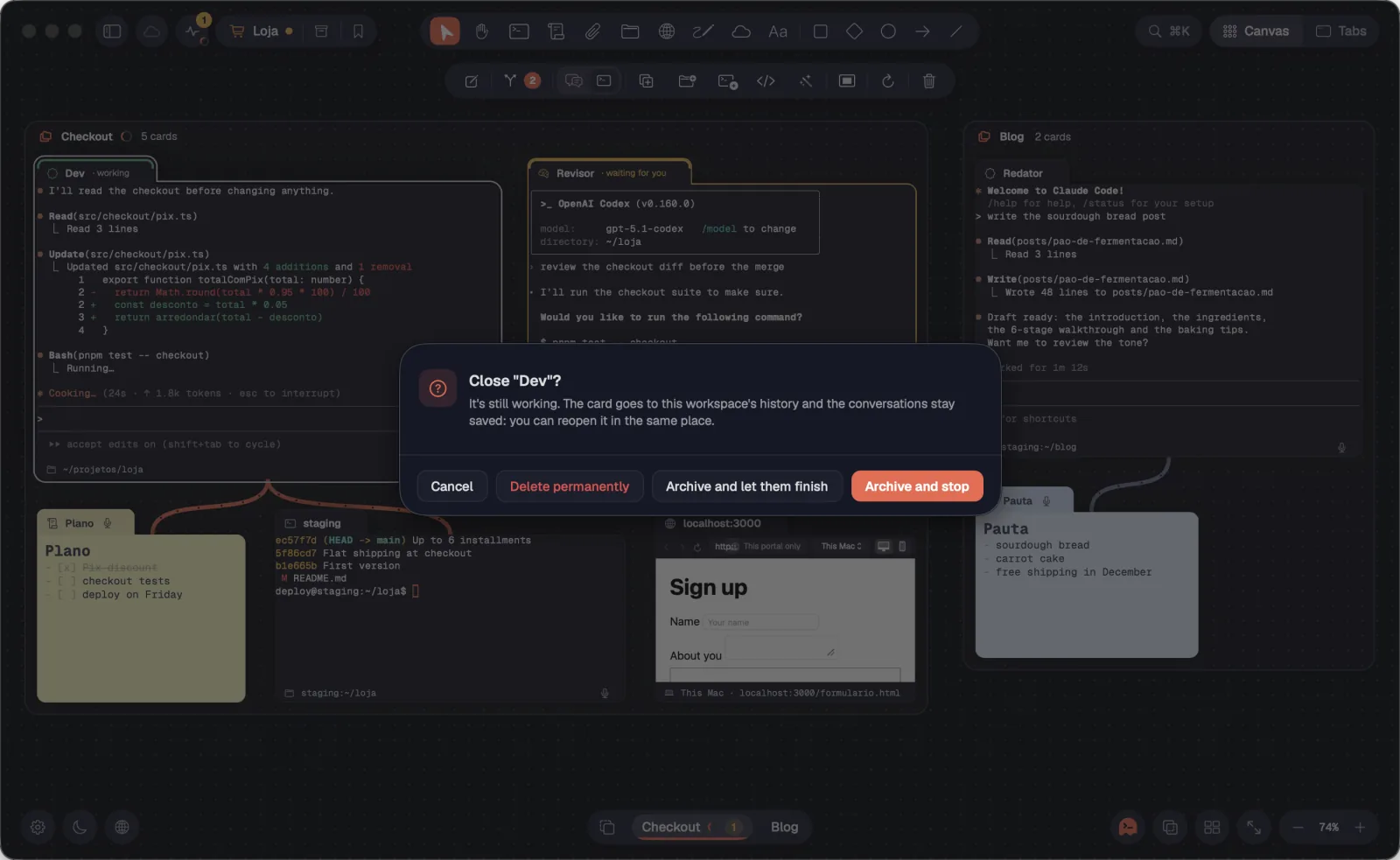
Delete closes what is selected. Terminals go to the workspace's history, to reopen in the same place; nothing disappears without your confirmation.
Step by step
- Select and press Delete (or Backspace), ⌘WCtrl+Shift+W, or click “Delete” in the bar. The “×” on the card's tab does the same for that card.
- Idle terminals go straight to history, with “Undo” in the notice.
- If an agent is still working, Octopus asks: “Archive and stop”, “Archive and let them finish”, “Delete permanently” or “Cancel”. Shells don't stay in history: once closed, they disappear from the canvas, and “let them finish” keeps the session in the server's list.
- Notes go to the Trash, and a portal clears its cookies and site data. Octopus asks first.
- Shapes and text go right away, without asking.
- With a cable selected, Delete unlinks the cable.
| Delete the selection | ⌫ or ⌘WDelete, Backspace or Ctrl+Shift+W |
With something selected, a bar appears below the toolbar with what you can do there. It changes with what you selected.

Step by step
- A terminal: “Rename”, link (with the number of cables), “View as chat” or “View as terminal” (⌘JCtrl+Shift+J) or “Convert”, “Duplicate” (⌘DCtrl+Shift+D), the folder's file tree (⇧⌘ECtrl+Shift+E), “Shell beside” (⌥⌘TLeader S), the editor (VS Code or Cursor; on a server, through Remote-SSH), “Make Maestro”, the folder, “Focus mode”, “Reconnect” and “Delete”.
- A group selected by its name: the name, “N cards”, “Save group”, “Move the group to another workspace”, the folder, “Standard mode for the selection”, “Reconnect” and “Delete”.
- Several cards: “N selected”, “Move the cards to another workspace”, “Gather into folder”, “Standard mode for the selection”, “Reconnect” and “Delete”.
- A note, a text or shapes show their format bars.