Docs › Cloud accounts
Cloud accounts
Cloud accounts keep several Google Cloud (gcloud) accounts, each signed in on its own and all at the same time, without one knocking the other out. You put the account on the canvas, link it to an agent and decide what the agent can do without asking. The gcloud you already use in the terminal doesn't change.
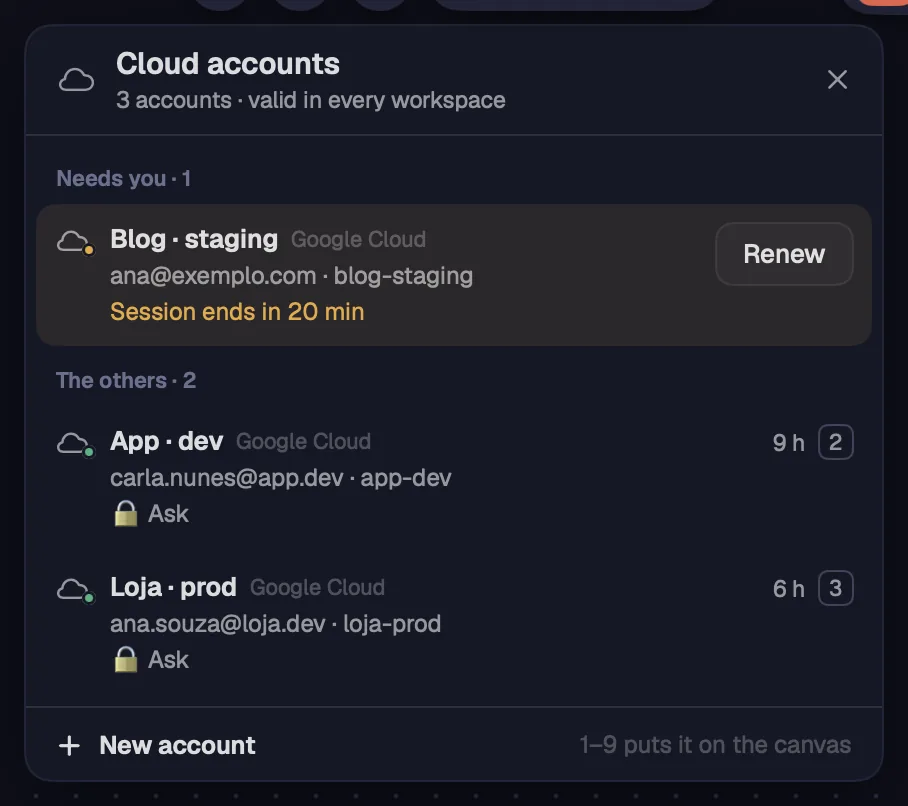
The panel lists your accounts, with the ones that need you at the top. An account works in every workspace: the sign-in is stored only once.
Step by step
- Press ⇧⌘ULeader U, click the cloud at the top of the sidebar (next to the Now pulse) or Cloud accounts on the toolbar.
- “Needs you” holds the accounts whose session is about to end or has ended, with “Renew” or “Sign in again”. The rest are under “The others” (when nothing is pending, the list is called “Accounts”).
- Each row shows the name, the email and the project, and how long until the session ends.
- Press 1–9, or hover and click “Put on the canvas”, to create the account's card in this workspace. If the card is already here, the button says “Show”.
- Right-click an account for “Edit…”, “Put on the canvas” (or “Show on the canvas”, if the card is already here) and “Renew the sign-in”.
- To add another account, click “New account”, at the bottom of the panel.
| Cloud accounts | ⇧⌘ULeader U |
| Put the account on the canvas | 1–9 |
The cloud in the sidebar gets an amber dot when a session ends soon and a red one when it has ended. If gcloud isn't installed, the panel tells you how to install the Google Cloud SDK.
Each account lives in its own folder, like a server in your server list. You sign in with Google, in your browser, and the signed-in account goes straight to the canvas.
Step by step
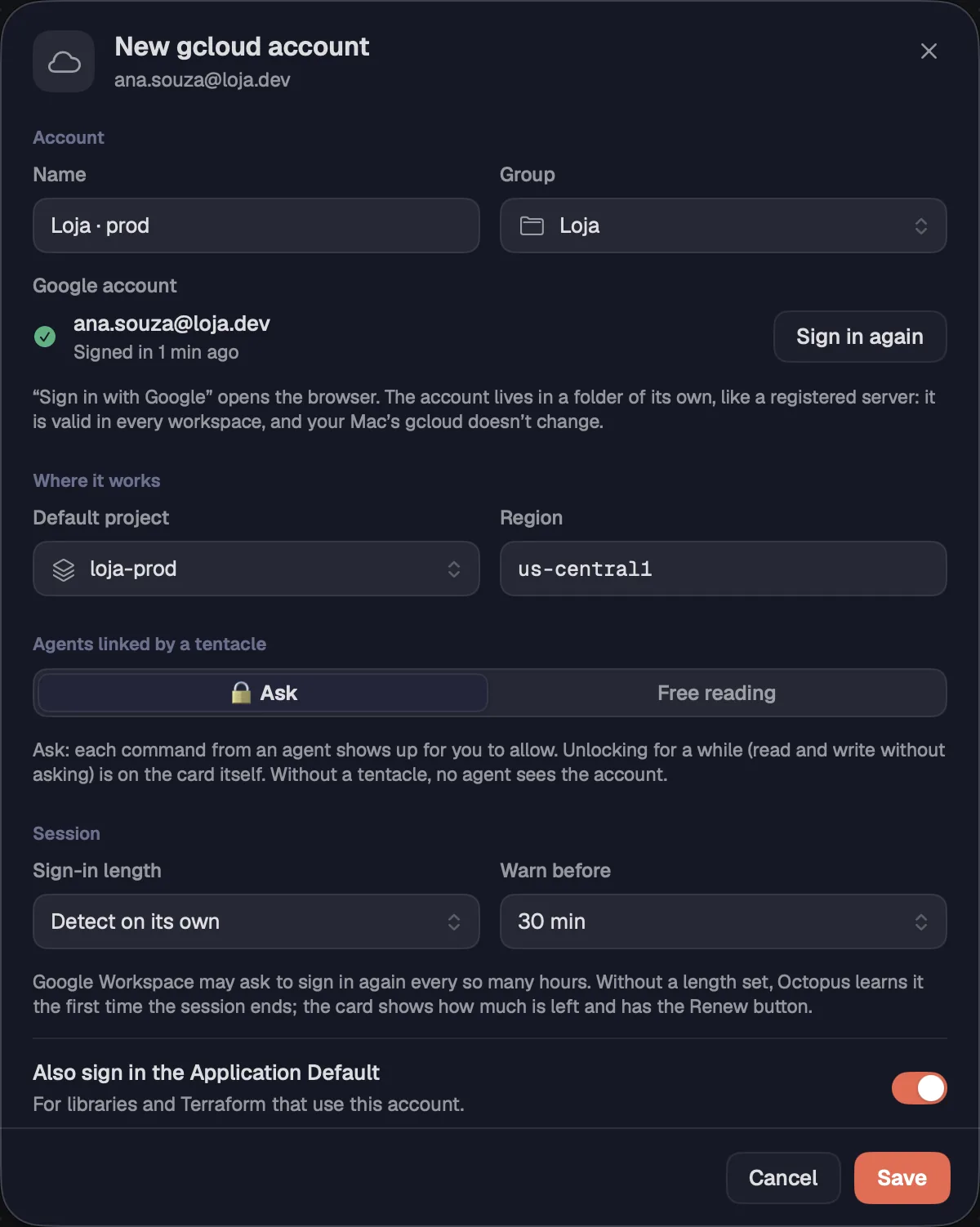
- In the panel, click “New account”.
- Under Account, give it a Name (for example, “Loja · prod”). To group accounts, pick a Group: No group, an existing one or “New group…”.
- Click “Sign in with Google…”. The browser opens: pick the Google account and allow access. The sheet shows “Waiting for the sign-in in the browser…” and then the email.
- Under Where it works, choose the Default project (the list arrives after you sign in) and the Region, like us-central1.
- Under Agents linked by a tentacle, choose the default mode: “🔒 Ask” or “Free reading”.
- Under Session, choose the Sign-in length (Detect on its own, 8, 12, 16 or 24 hours, or 7 days) and Warn before (15 min, 30 min or 1 hour).
- Leave “Also sign in the Application Default” on if libraries or Terraform will use this account.
- Click “Save”.
With “Detect on its own”, Octopus learns the length the first time the session ends; Google Workspace often asks you to sign in again every so many hours. To delete an account, open “Edit…” and use “Delete account…”: the sign-in leaves this computer and the account's cards say it left.
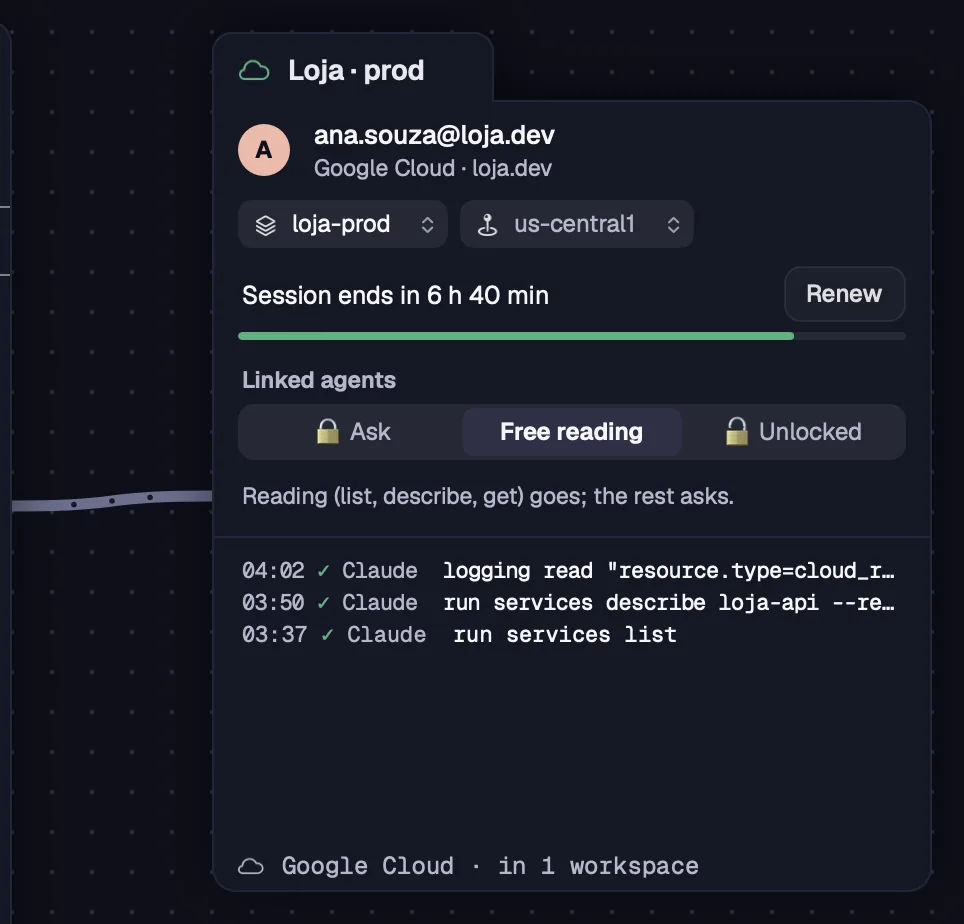
The card shows the account on the canvas: who is signed in, the project, the region and how long until the session ends. The color follows the session: green when valid, amber near the end, red when it has ended.
Step by step
- Put the account on the canvas from the panel (1–9 or “Put on the canvas”). In the Tabs view, use the “+” and choose “Cloud account…”.
- At the top are the account's initial, email and domain.
- Click the project to pick another one from the list (without a project, it says “Choose project”). Next to it is the default region.
- The session row says how much time is left, like “Session ends in 6 h 40 min”, with a time bar and the “Renew” button.
- Once the session ends, the row turns into “Session ended … ago” and the button into “Sign in again”, which opens the sign-in in the browser.
- The footer says how many workspaces the account is in.
- If the account was deleted, the card says “This account left the Cloud accounts.” and offers “Remove from the canvas”.
“Warn before”, in the account's details, decides when the card turns amber and the account moves up to “Needs you” in the panel.
Only the agents linked to the card by a cable see the account. On the card itself you choose the mode: always ask, read without asking or unlock for a while.
Step by step
- Link a terminal to the card: press ⌘LCtrl+Shift+L and click the account card, or drag the link button from the bar to it.
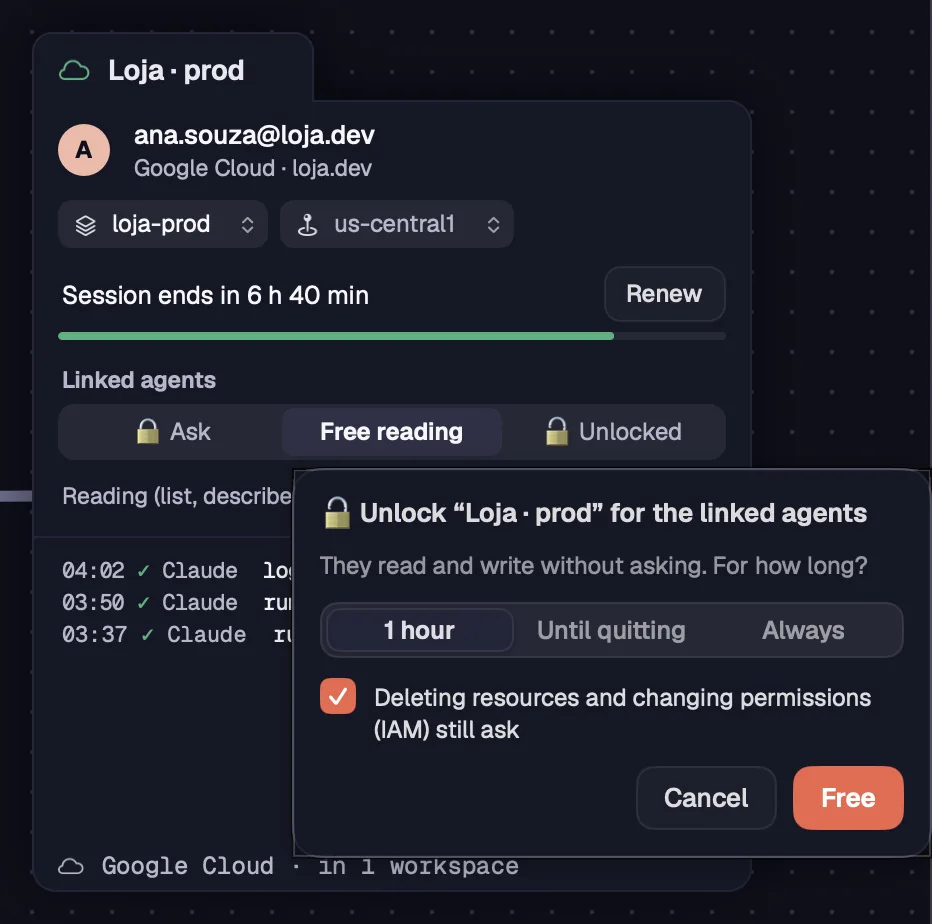
- Under “Linked agents”, choose “🔒 Ask”: each command shows up for you to allow.
- Or choose “Free reading”: reading (list, describe, get) goes through without asking; everything else asks.
- Or choose “🔓 Unlocked”. The balloon asks how long agents can read and write without asking: “1 hour”, “Until quitting” (until you quit Octopus) or “Always”. Click “Free”.
- In the balloon, “Deleting resources and changing permissions (IAM) still ask” comes checked. Uncheck it only if you want to unlock that too.
- Once unlocked, the account shows how much time is left, like “🔓 Read and write · 52 min left”. The “Lock” button goes back to asking right away.
- Below, the log lists the agents' latest commands, newest on top: the time, whether it worked, who asked and the command.
| Start connection | ⌘LCtrl+Shift+L |
Without a cable, no agent sees the account. The account card only links to terminals.
When a command needs you, Octopus opens the request “Claude wants to use “Loja · prod”” with the command, the project and what it does. The agent waits for you, and its card lights up as with any request.
Step by step
- Read the command and the risk line: “Only reads.”, “Changes things in the cloud (creates, updates, deploys).”, “Deletes resources, changes permissions (IAM) or reveals a secret.” or “Hands the agent a credential of the account: with it, the agent acts without going through Octopus.”
- The sheet also says why it asked, like “Even unlocked, the account asks before deleting or changing IAM.”
- Choose “Deny” (Esc), “Unlock for 15 min” or “Allow” (↩).
- “Unlock for 15 min” lets every agent linked to the account read and write without asking for 15 minutes. It only shows up for commands that read or change things; deleting and IAM keep asking.
- Once allowed, the command runs on your computer, with the account's sign-in, and the output goes back to the agent. Everything goes into the card's log.
- With no answer within 90 seconds, nothing is done and the agent is told.
| Deny | Esc |
| Allow | ↩ |
When you deny, the agent is told not to insist and to ask in the conversation what you'd prefer.
Agents use the account with the octo gcloud command. It works even for an agent running on a server over SSH: the command runs on your computer, with the card's account, and only the output goes back.
Step by step
- Link the agent's terminal to the account card, even if the terminal is on a server like prod-api or gpu-01.
- Ask in the conversation, for example: “list the Cloud Run services in the Loja · prod account”.
- The agent runs octo gcloud “Loja · prod” -- run services list. With only one account linked, the name is optional.
- Depending on the card's mode, the command runs right away or waits for your approval.
- gcloud's output and exit code go back to the agent. The command stops after 110 seconds (--timeout changes that, up to 3600); stopped by the timeout, it exits with code 124.
- With the session ended, nothing runs: the agent tells you to click “Sign in again” on the card.
Your computer's gcloud stays as it is: each account uses its own configuration folder.
Some things never go through without you, in any mode. Octopus reads every word of the command; a word it doesn't know never makes a command count as less risky.
Step by step
- Credentials: a command that hands over a token or a key of the account (like print-access-token or creating a service account key) always asks, even with the account unlocked.
- Deleting resources, changing permissions (IAM) or revealing a secret ask in any mode. The only exception is unchecking “Deleting resources and changing permissions (IAM) still ask” when you unlock the account.
- Signing in is always up to you: an agent doesn't sign in for the account. To renew the session, use “Renew” on the card.
- A command that tries to use another identity (--account, another configuration, another credential file) is refused before it runs.