Docs › Terminals and servers
Terminals and servers
Each terminal is a card: Claude Code, Codex, a shell or any program, on your computer or on a server over SSH. Servers are saved with their passwords in the system vault, and sessions stay alive when the network drops or the app closes.
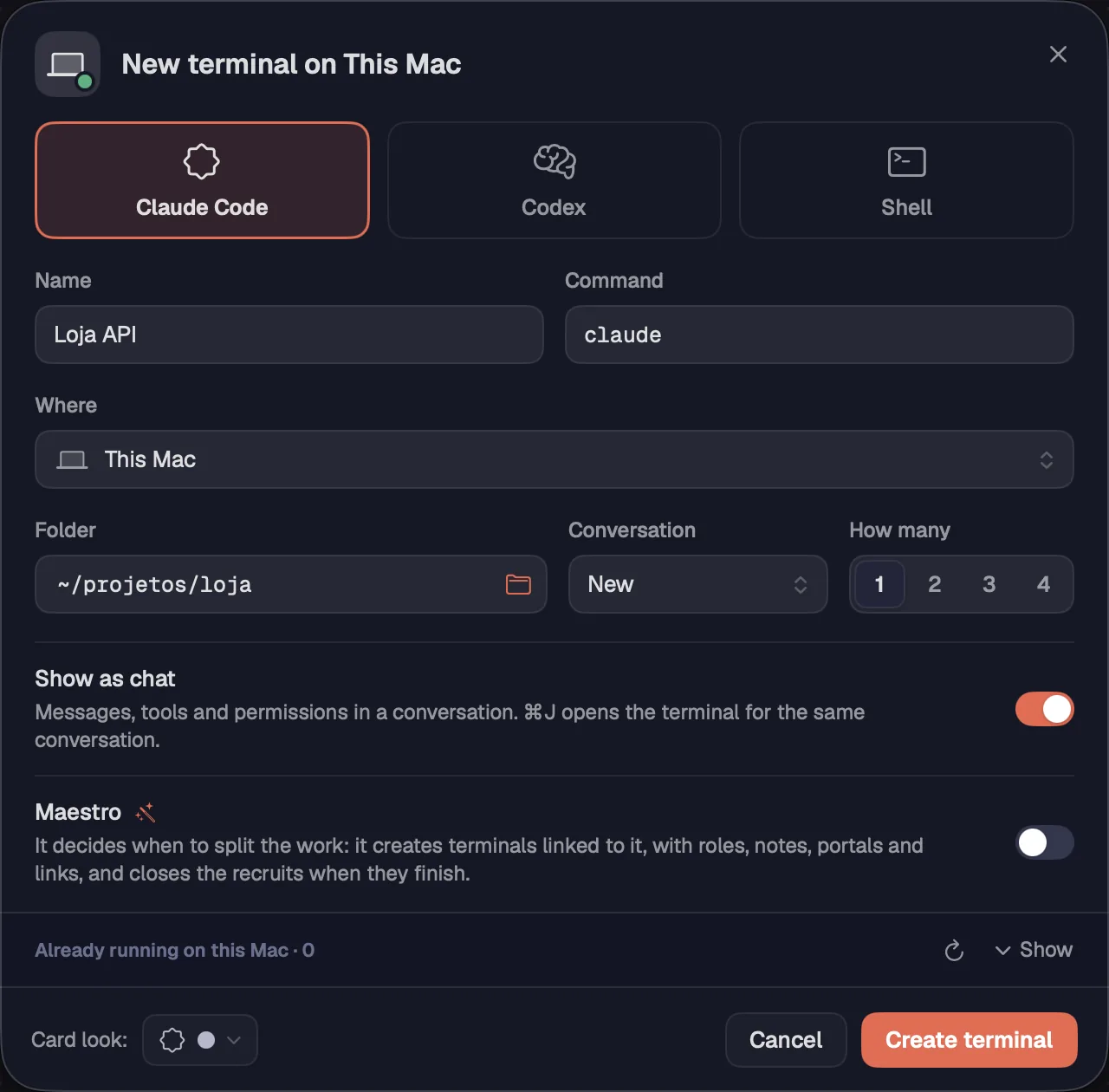
Opens a terminal with Claude Code, Codex, a shell or any other command, on your computer or on a saved server. Name, folder, conversation, count and look all fit in a single sheet.
Step by step
- Press ⌘TCtrl+Shift+T. Or, with nothing selected, use the Terminal tool (T) and click on the canvas where the card should go; drag to draw its size.
- At the top of the sheet, choose Claude Code, Codex or Shell. The block fills in “Name” and “Command”.
- In “Command”, keep the block's command or type another program. Empty opens a shell.
- In “Where”, choose “This Mac” (“This computer” on Windows and Linux) or a saved server. In “Folder”, type the path or click the folder button to browse.
- With Claude Code or Codex, turn on “Show as chat” to open the conversation in Octopus's chat, and “Maestro” if you want it to build a team.
- In the footer, under “Card look:”, choose the icon and the color.
- Click “Create terminal” (or “Create 3 terminals”, depending on the count).
| New terminal | ⌘TCtrl+Shift+T |
The sheet remembers the last folder used on each machine. When you change “Where”, the folder becomes that machine's last one. The card's footer shows the folder, or server:folder when it runs on a server.
See alsoConversation and How manyChoosing the folderChat | TerminalTurning on the Maestro
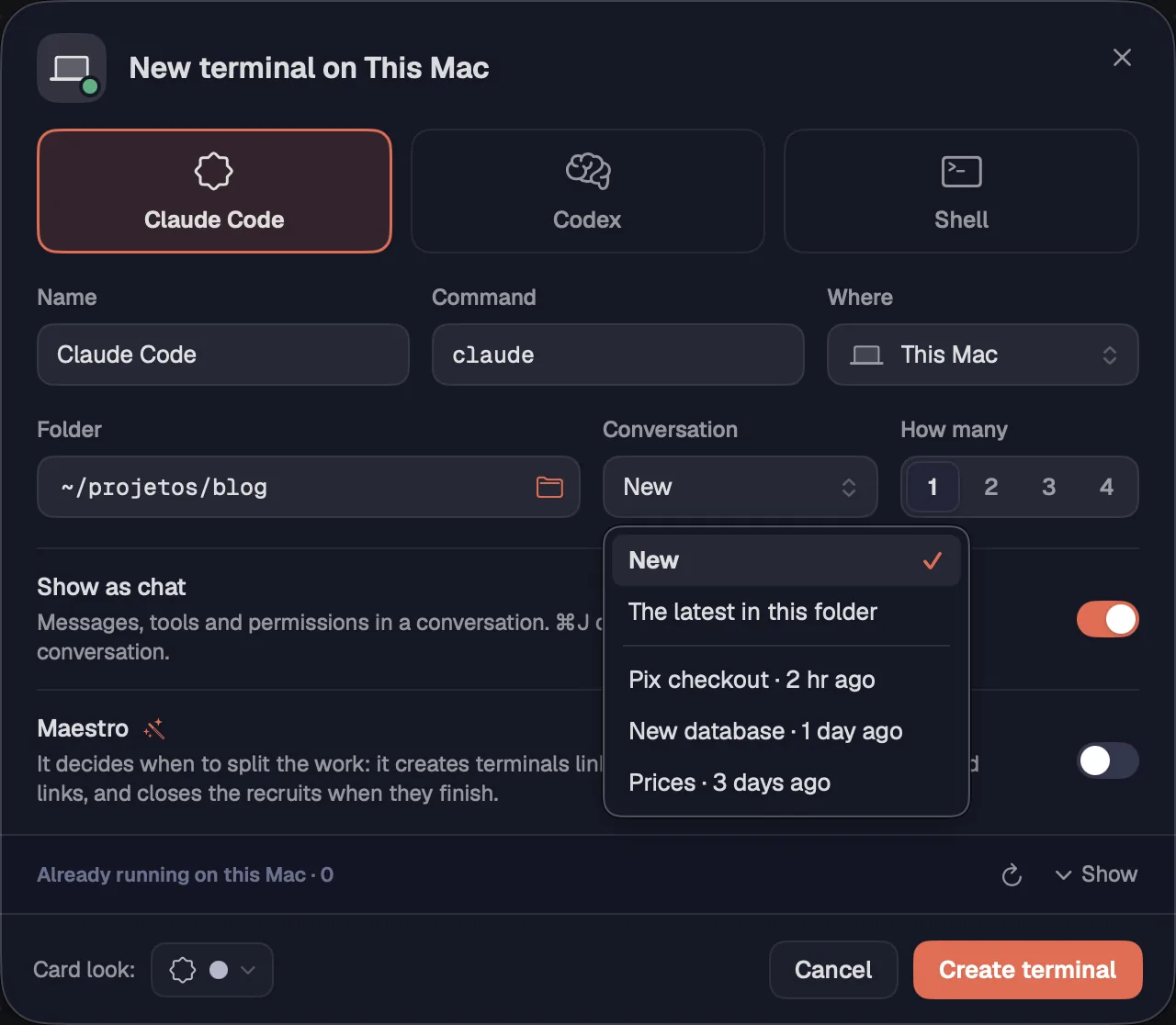
With Claude Code or Codex, the “Conversation” field opens a new conversation, the latest one in that folder or one the agent saved there. “How many” creates 1 to 4 identical terminals at once.
Step by step
- Choose Claude Code or Codex and the project folder. The “Conversation” field shows up next to the folder.
- Open “Conversation”: “New” starts from scratch; “The latest in this folder” continues the most recent one; below are the conversations saved in that folder, with each one's age.
- When you choose a saved conversation, the card takes its name, unless you already gave it another one.
- In “How many”, choose 1 to 4 to open several identical terminals at once.
A conversation opens in a single card: with “The latest in this folder” or a saved conversation selected, the count stays at 1. The “Conversation” field only shows up when the command is the block's own (claude or codex).
The button on the “Folder” field opens a browser for the folders on the chosen machine, whether your computer or a server. You go up, filter, paste a path or create a folder without leaving it.

Step by step
- In the New terminal sheet, click the folder button on the “Folder” field.
- Click a folder to go into it. “Parent folder” (⌘↑Alt+↑) goes up one level and “Home folder” goes back to your user folder.
- To go straight there, paste a full path (or ~/…) in the field at the top and press ↩Enter. The button next to it copies the full path.
- Use “Filter” to find a folder by name and check “Hidden” to see the ones that start with a dot.
- On your computer, the row of places takes you to Home, Desktop, Documents, Downloads and the cloud folder: iCloud Drive on the Mac, OneDrive on Windows.
- “New folder…” creates a folder there and goes into it.
- Click “Use this folder”, or press ↩Enter again in the path field.
| Parent folder | ⌘↑Alt+↑ |
A server has no row of places: start from the home folder or paste the path.
See alsoNew terminal
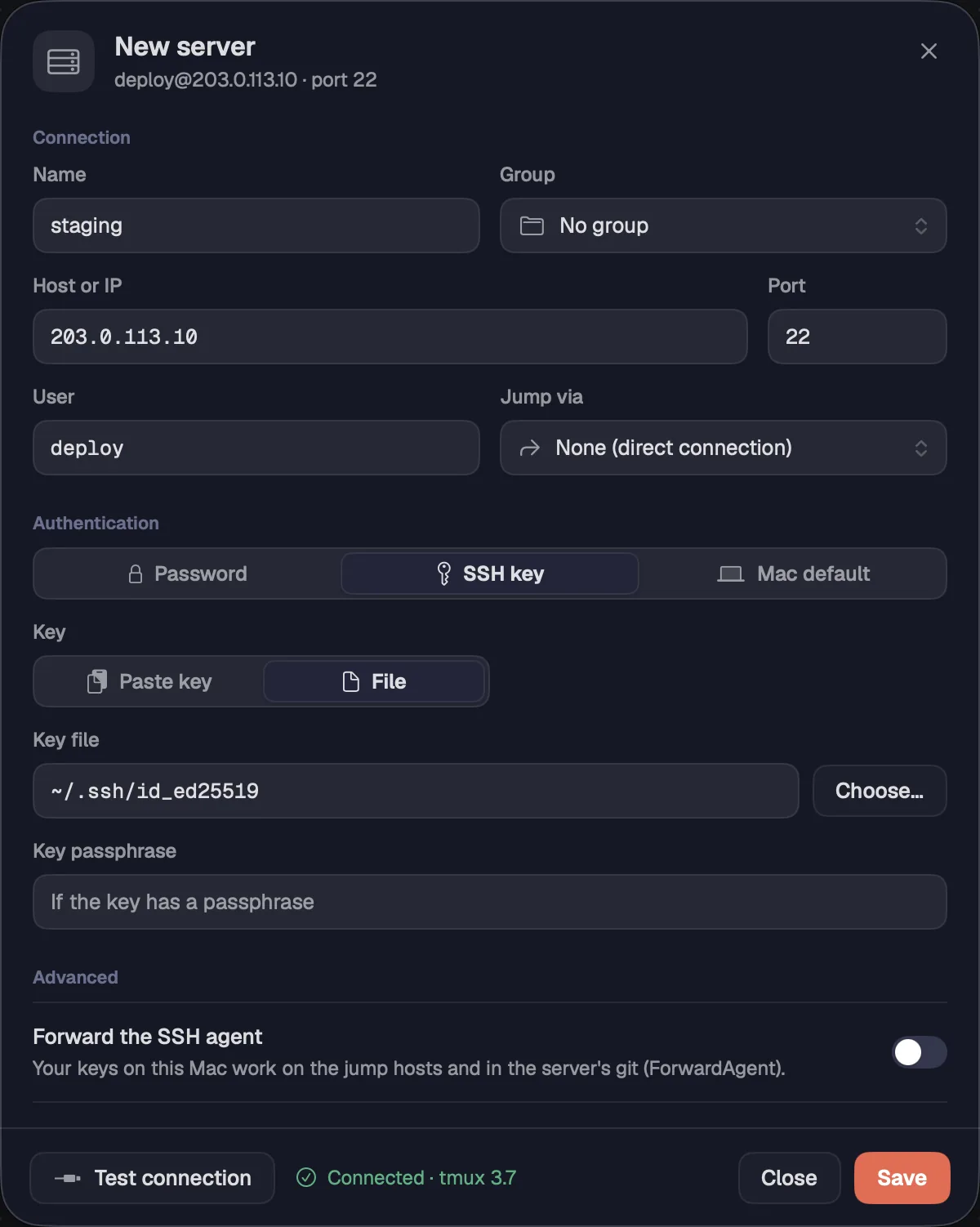
Add each server once, like in Termius: address, user, password or key, jump host and variables. After that it shows up in the sidebar and everywhere that asks for a machine.
Step by step
- In the sidebar, click the “+” next to Servers and choose “New server…”.
- Under Connection, fill in “Name”, “Host or IP”, “Port” and “User”. In “Group”, choose a folder, “No group” or “New group…”.
- In “Jump via”, choose another saved server when this one can only be reached through it (jump host). “None (direct connection)” connects directly.
- Under Authentication, choose “Password”, “SSH key” or “Mac default”. The key can be pasted (“Paste key”) or read from a “File”, with the “Key passphrase” if it has one. “Mac default” (“System default” on Windows and Linux) uses ssh-agent and the keys in ~/.ssh.
- Under Advanced: “Forward the SSH agent” makes your keys work on the jump hosts and in the server's git; “Production server” makes agents ask your permission before running commands in that server's shells.
- Still under Advanced, “Environment variables” takes one per line, in the NAME=value format. They apply to every terminal opened on that server.
- Click “Test connection”. The sheet says whether it connected and whether the server has tmux. Then click “Save”.
With environment variables you can have two profiles on the same machine: for example, CLAUDE_CONFIG_DIR pointing to another Claude Code folder. When you edit a server, “SSH alias” shows the name Octopus uses for the connection.
See alsoPasswords and keys in the vaultServer groupsThe “Agent commands” lock
Server passwords, private keys and key passphrases live only in the system vault (the Keychain, on the Mac) and in the app's memory. They never go to a file.
Step by step
- When you save a server with a password or a pasted key, Octopus stores the secret in the vault. The password field then shows “in the vault”; the pasted key's, “Saved in the vault”.
- To change it, type the new password over it, or click “Switch” and paste the new key.
- When you delete a server, the password and key stored in the vault are deleted too.
Octopus hands the password only to ssh, at connection time. If a command inside the server asks for a password (a sudo, for example), you type it yourself, in the card.
See alsoAdding a server
Gather servers into folders in the sidebar: production, clients, GPU machines. Each row shows whether the server is connected and how many sessions run on it.
Step by step
- In the “+” next to Servers, choose “New server group…”, give it a name and check the servers that go in. You can skip this and drag them later.
- Drag a server onto a group's folder, or right-click › “Move to” › the group, “No group” or “New group…”.
- Right-clicking a group's name gives you “New server in this group…”, “Rename group…” and “Delete group”. Deleting the group doesn't delete the servers: they end up with no group.
- Right-clicking a server gives you “New terminal…”, “Edit…”, “Duplicate” (a copy with the same details and secrets) and “Delete server…”.
- The dot next to the name turns green when it's connected and red when the connection failed; the number is how many sessions are running. Hover to see the address and the state.
- In a long list, type part of the name in “Filter”, at the top of the sidebar.
Deleting a server tells you how many terminals on the canvas use it: those cards stop connecting.
Brings into Octopus the hosts you already have in ~/.ssh/config. They go into their own group, ready to open terminals.
Step by step
- In the sidebar, click the “+” next to Servers and choose “Import from ~/.ssh/config”.
- Octopus says how many servers it imported. They go in the “Imported from ~/.ssh” group.
- Hosts that are already saved are left out. If there's nothing new, you see “Nothing new to import”.
- Passwords don't come from ~/.ssh: if a server uses a password, edit it and type the password.
Importing only reads your ~/.ssh/config; the file stays as it was.
See alsoAdding a serverServer groups
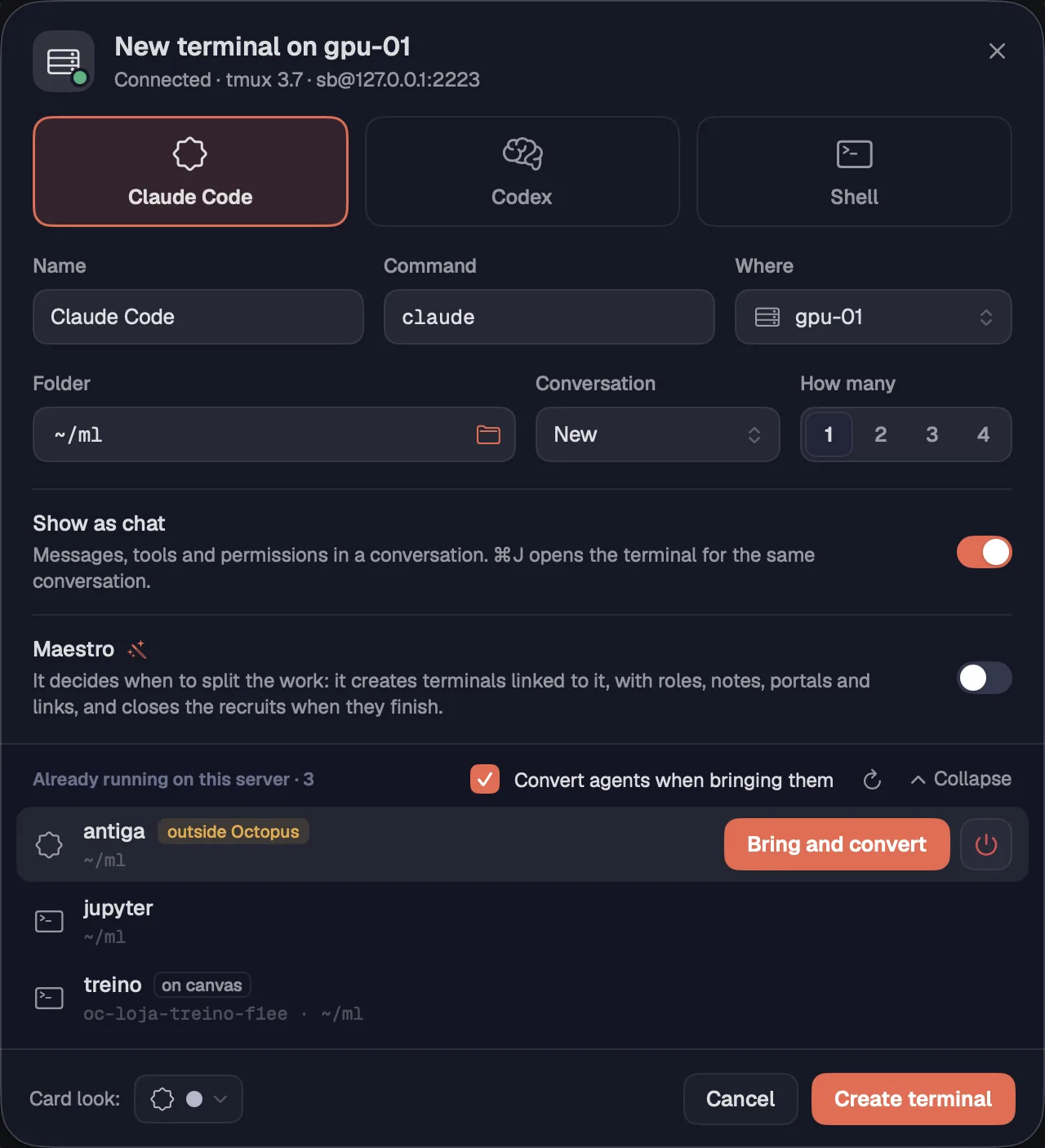
One click on a server opens New terminal right on it. Below, you see the sessions running there, opened by Octopus or outside it, to show, bring onto the canvas or end.
Step by step
- In the sidebar, click a server (or “This Mac”; “This computer” on Windows and Linux). New terminal opens on that machine.
- Under “Already running on this server”, each row shows the session's name, the folder and a badge: “on canvas” or “outside Octopus”.
- Hover over a row. “Show” takes you to the card already on the canvas; “Bring” puts the session on the canvas as a new card.
- On a Claude Code or Codex opened outside Octopus, with “Convert agents when bringing them” checked, the button becomes “Bring and convert”: it comes in with alerts, chat and resume.
- The red button ends the session on the server, along with whatever runs in it. Octopus asks first, with “End” and “Cancel”.
- The refresh button reads the list again; “Collapse” hides the list and “Show” brings it back.
Without tmux on the machine, the list warns that sessions won't survive drops and offers “Install tmux”, which uses the machine's package manager. If sudo asks for a password, Octopus opens a terminal for you to type it. In the sidebar, “This Mac” (“This computer” on Windows and Linux) shows “no tmux” while it's missing.
Each terminal runs in a tmux session, on the server or on your computer; on Windows, in an Octopus service. Quitting the app, your computer going to sleep or the VPN dropping doesn't stop what is running: the card reconnects and shows the same screen.
Step by step
- Open the terminal as usual. Octopus creates the session on the machine and attaches the card to it.
- If the network drops, the card shows “Reconnecting…” and comes back on its own when the connection returns. The program keeps running on the server the whole time.
- Quit Octopus whenever you like. Next time, each card reopens its session, wherever it is.
- What ends a session is deleting the card (a closed agent goes to history, where it comes back with the same conversation) or the end button in the server's session list.
When you quit, Octopus closes the ssh connections it opened, and replaces a connection that stopped responding (network drop, computer asleep) with a new one. To keep agents going with the computer awake, see Settings › Energy.
See alsoReconnection and the card's screensClicking a server: the sessions already runningClosing is archivingKeep awake
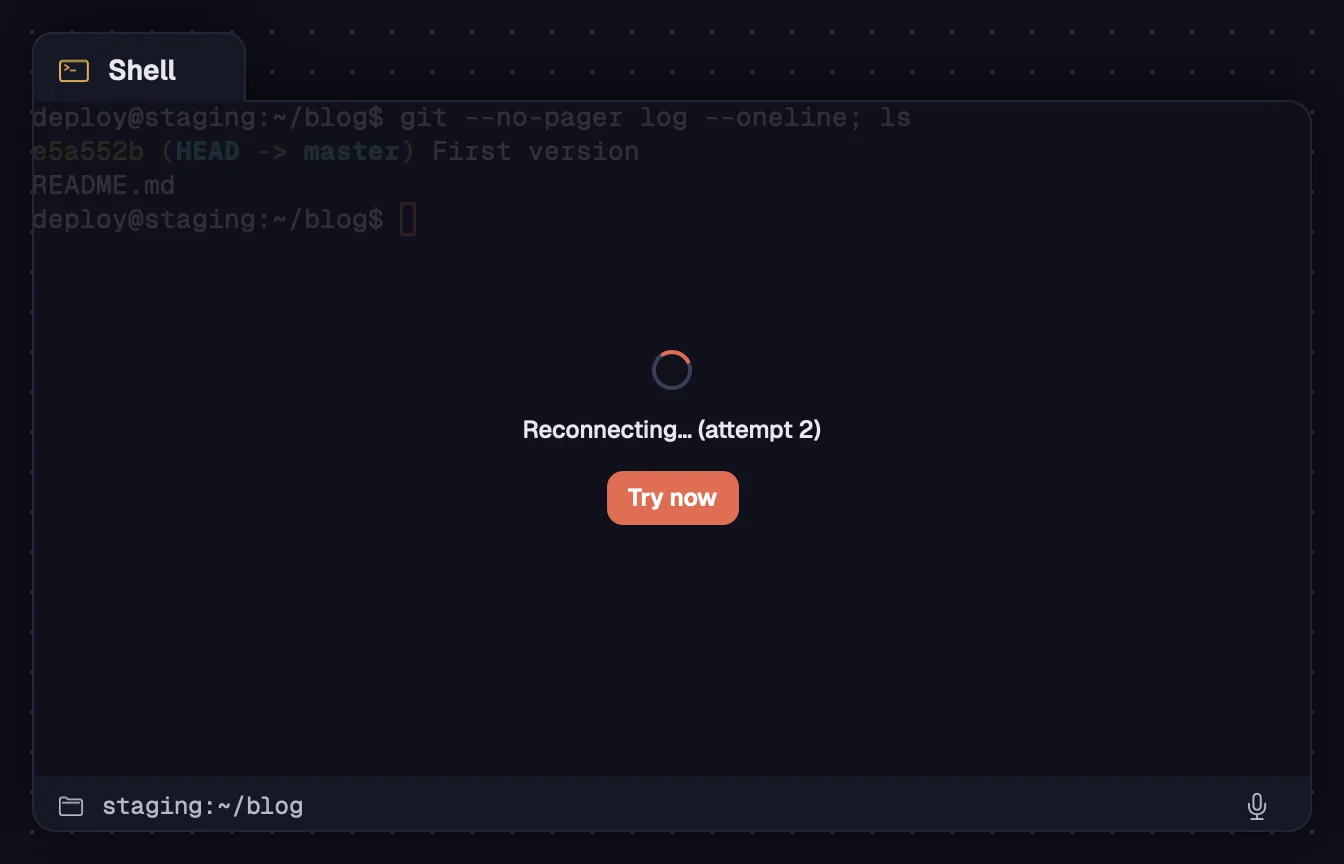
While connecting, when the connection drops or after a session ends, the card shows a screen on top with what's going on and a button for the next step.
Step by step
- “Opening the terminal…”, “Opening the session…” or “Connecting to staging…”: the card is opening the session.
- “Reconnecting… (attempt 2)”: the connection dropped and Octopus tries again on its own. “Try now” doesn't wait for the next attempt.
- “Detached. The session keeps running on the server.”: the card left the session, which keeps running. “Reconnect” goes back to it.
- “The session ended.”: the program exited or the session was ended. “Start over” opens a new session with the same program.
- If the connection fails, the screen shows the error and “Try again”.
- To reconnect at any time, use “Reconnect” in the card's bar or in the right-click menu. With several cards selected, the button reconnects them all.
Each server keeps up to six terminals connected at the same time. The next one shows “On hold: limit of connected terminals on this server.” and “Connect this one”, which releases the one used longest ago; its session keeps running.
See alsoSessions that don't drop
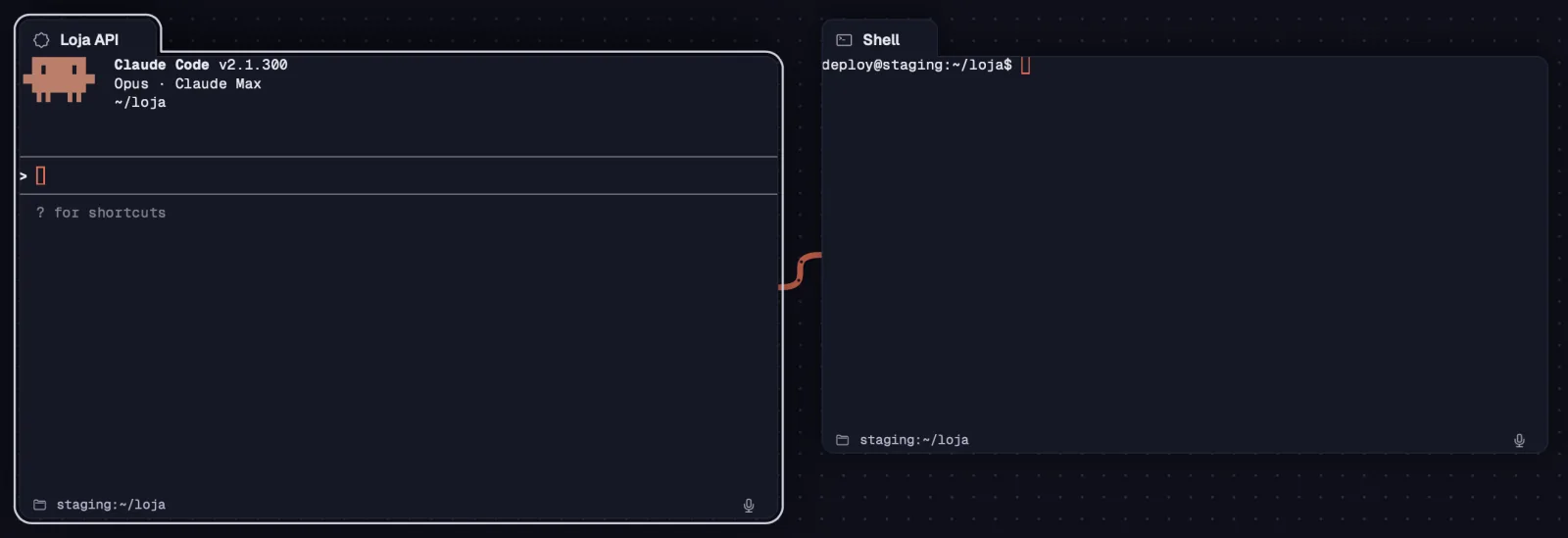
Opens a shell on the same machine and in the same folder as an agent, next to it and already linked by a cable. The agent runs commands there and you watch each one happen.
Step by step
- Select an agent's card (Claude Code, Codex or another program that isn't a shell).
- Press ⌥⌘TLeader S, click the Shell beside button in the card's bar or right-click › “Shell beside”.
- The shell opens next to it, in the same group and linked to the agent. Ask the agent to run something there: it uses octo run and the command shows up typed in the card.
| Shell beside | ⌥⌘TLeader S |
What the agent can do in that shell depends on the card's “Agent commands” lock.
Creates another terminal on the same server and in the folder the original is in right now, with the same program and the same look. It opens next to it and joins the original's group.
Step by step
- Select a terminal and press ⌘DCtrl+Shift+D, or use Duplicate in the card's bar or in the right-click menu.
- The new card opens next to it. An agent starts a new conversation; a chat opens as a chat.
| Duplicate | ⌘DCtrl+Shift+D |
To continue the same conversation in another card, use “Conversation” in New terminal.
See alsoConversation and How many
Paste a screenshot or copied files into a terminal and Octopus types the paths. On a server, it uploads the files first. Claude Code and Codex read the image from the path.
Step by step
- Copy an image (a screenshot, a picture from a web page) or files in Finder or in the file explorer.
- Click the terminal and press ⌘VCtrl+Shift+V. Each file's path is typed at the prompt; on a server, the files go there first.
- In Claude Code and Codex, the image becomes [Image #1]. Write your question and send it.
- Dragging files from Finder (or from the file manager on Windows and Linux) or from the file tree and dropping them on the terminal does the same: the path is typed.
- On Windows and Linux, Ctrl+Shift+C, Ctrl+Shift+V and Ctrl+Shift+A copy, paste and select all in the terminal (Ctrl+Insert and Shift+Insert too; on Windows, Ctrl+V pastes). Ctrl+click opens links and file paths, and on Linux the middle button pastes the selection.
| Paste | ⌘VCtrl+Shift+V |
In a chat, the pasted image becomes an attachment to the message.
See alsoAttachments and @ files
Copies the full path of the folder the terminal is in right now, on the card's machine. Works for agents and shells.
Step by step
- Right-click the card (in Tabs, also the pane's “⋯”).
- Choose “Copy folder path”. A notice shows the copied path and, on a server, which machine it's from.
It's the current folder, not the one from when the terminal opened: if you went into another folder with cd, the new one counts.
Opens the folder of a terminal or a file tree in VS Code or Cursor. On a server, the editor opens through Remote-SSH, with the same connection as Octopus.
Step by step
- Select a terminal or a file tree and click the editor button in the card's bar, or right-click › “Open in editor”.
- Choose “Open in VS Code” or “Open in Cursor”. On a server, the item ends in “(via SSH)”.
- The first time with a server, Octopus asks to add a line at the top of your ~/.ssh/config, so the editor uses the same connection. It keeps a copy of the file at ~/.ssh/config.octopus-backup. Click “Add”.
- The editor opens the folder on the server; there, Octopus's servers show up as octopus-…. If it asks for the server's OS, it's Linux.
Without VS Code or Cursor installed, the menu shows “Install VS Code or Cursor”.
See alsoOpen a file tree