Docs › Voice
Voice
Octopus Voice turns your speech into text in a terminal, a chat or a note. Google's Gemini does the transcription, with your key. At the end, you insert the text as you said it or have it cleaned up, and nothing is sent without you.
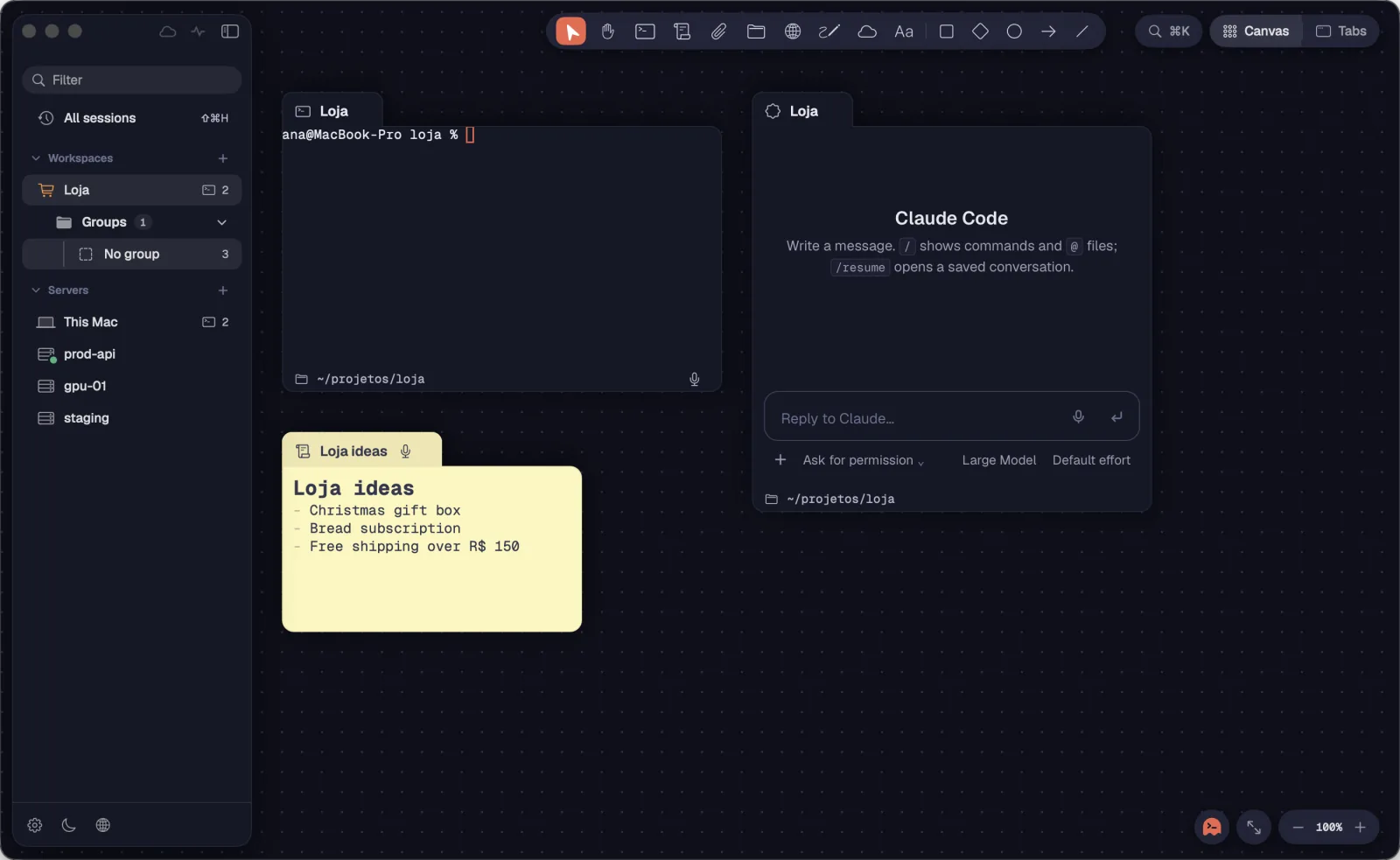
Every card that takes text has a microphone: the terminal in its footer, the chat next to Send and the note on its tab. The octopus in the bottom corner dictates to the selected card.
Step by step
- In a terminal, click the microphone in the card's footer (“Speak: dictate the text with your voice”).
- In a chat, click the microphone next to the Send button.
- In a note, click the microphone on the tab, right after the title.
- In the Tabs view, use the microphone on the pane's bar. A note also has the microphone on its own bar.
- Or select a terminal, a chat or a note and click the octopus in the bottom-right corner (“Talk to Octopus: dictate to the selected card”).
- With no card selected, the octopus tells you: “Select a terminal, a chat or a note to talk to it.”
The microphone on the note's bar, in the Tabs view, arrived in 1.0.40.
See alsoDictateThe Gemini keyPane bar
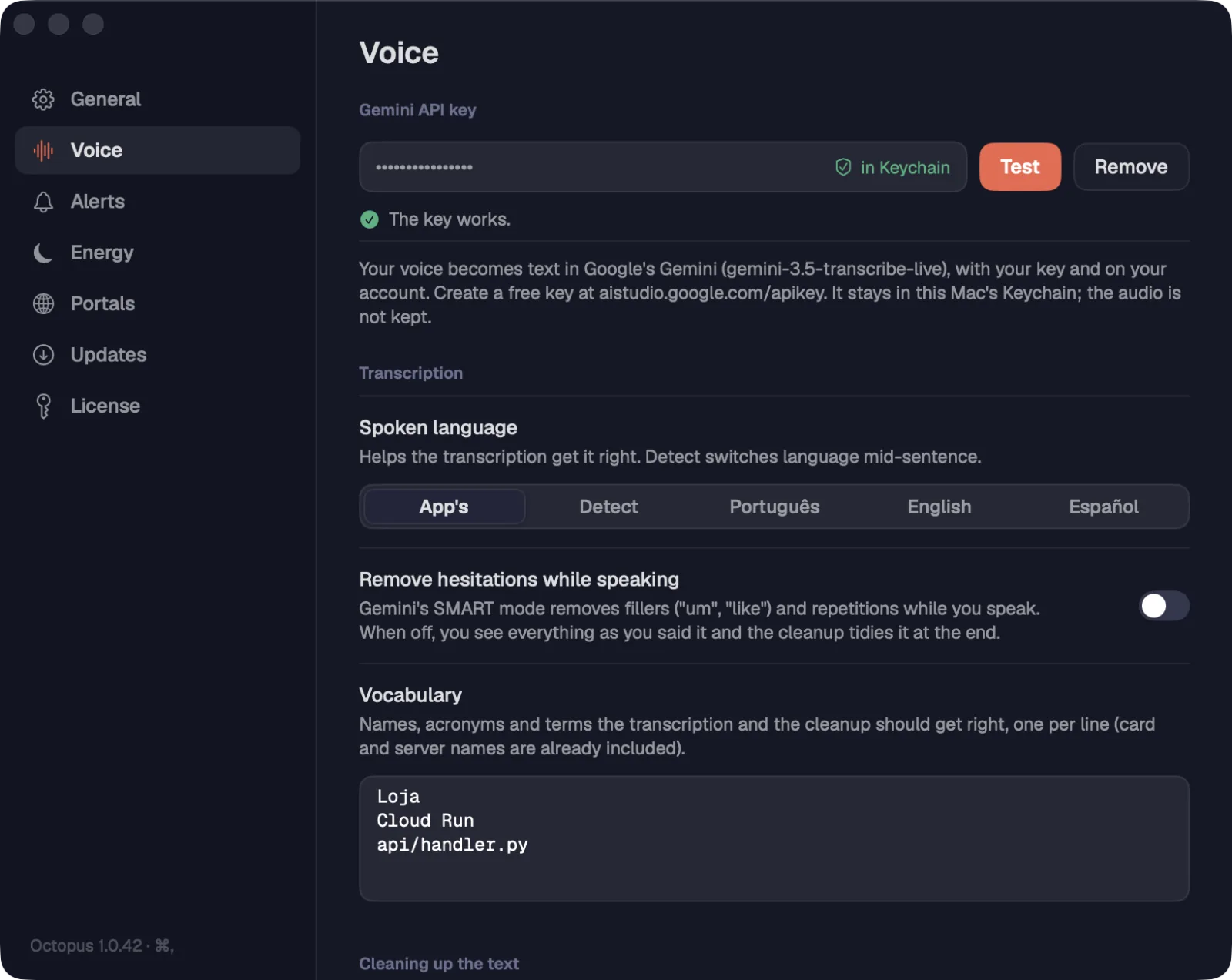
Your voice becomes text in Google's Gemini, with your key and on your account. The key is free and stays in the system vault (on the Mac, the Keychain). The audio isn't stored.
Step by step
- Click a microphone. Without a key, Octopus shows “To talk to Octopus, add a Gemini API key”, with “Open Settings” and “Create the key at Google”.
- Click “Create the key at Google”. The page aistudio.google.com/apikey opens: sign in with your Google account and create the key.
- Copy the key, open Settings (⌘,Ctrl+,) › Voice and paste it in the “Gemini API key” field. Click “Save”.
- Octopus checks it with Google and shows “The key works.” If Google refuses it, it shows the reason.
- To remove the key from this computer, click “Remove”.
- The first time you speak, the system asks for microphone access. On the Mac, if you denied it, allow it in System Settings › Privacy & Security › Microphone.
| Settings | ⌘,Ctrl+, |
First-run setup has the “Speak instead of typing” step, where you can paste the key right away.
See alsoSettings › VoiceFirst-run setup
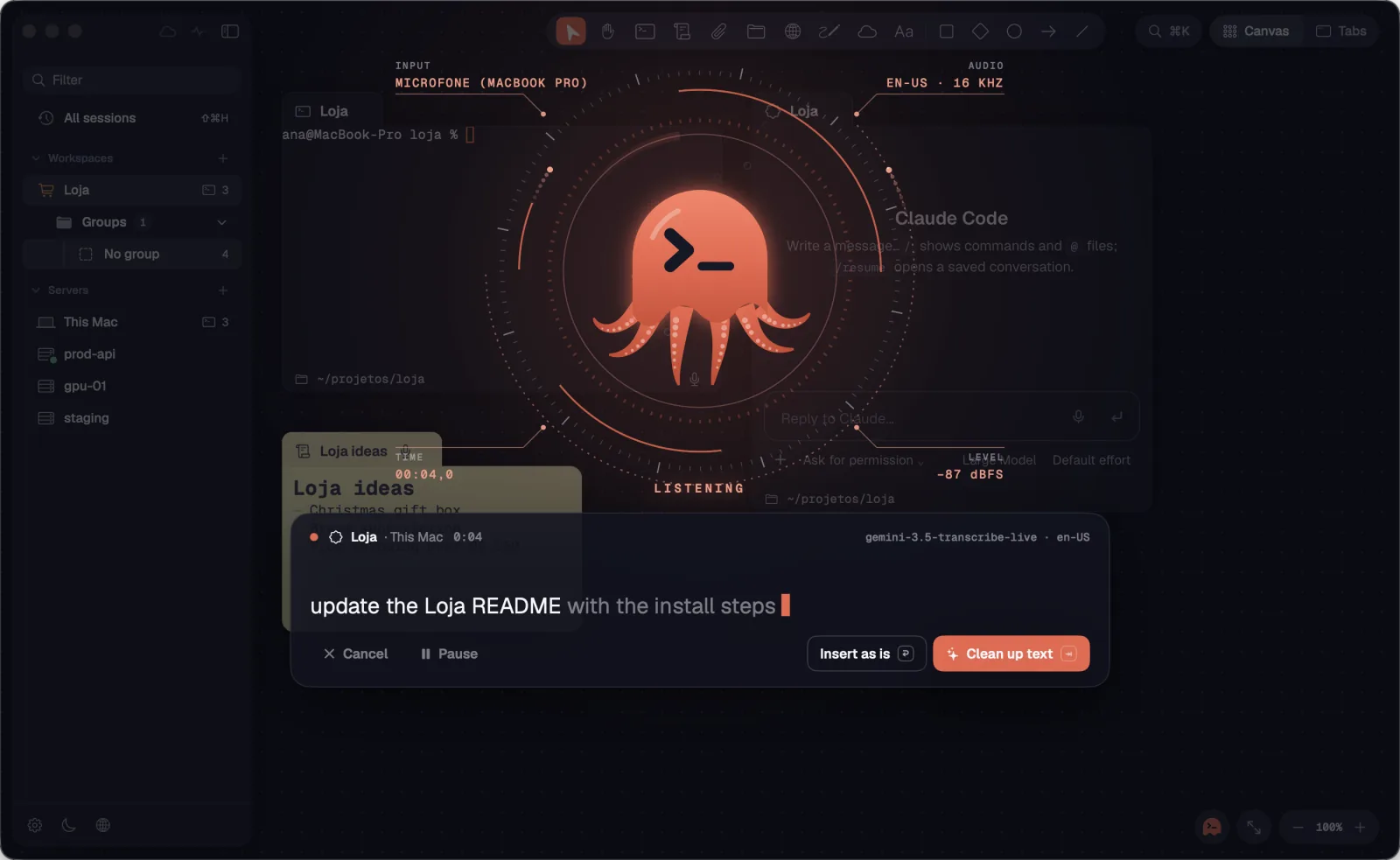
When you click the microphone, the octopus grows in the middle of the screen and starts listening. The text shows up as you speak: what's settled in white, the sentence still coming in dimmer.
Step by step
- Click the card's microphone.
- Wait for the state to go from CONNECTING to LISTENING and speak freely. Slipped up? Go back (“no, wait”): the cleanup sorts it out at the end.
- To pause, press space or click “Pause”. To go on, “Continue”.
- To finish, click “Insert as is” or “Clean up text”. One click stops listening and does it.
- To give up, click “Cancel” or press esc.
| Pause or continue | space |
| Cancel | esc |
In Settings › Voice, “Finish by itself after a silence” ends the dictation after 3, 5 or 10 seconds of silence.
See alsoThe panel's statesInsert as is or Clean up textKeys while you speak
The big word in the middle of the screen says what the voice is doing. Around the octopus are the INPUT (the microphone), the AUDIO, the TIME and the sound LEVEL; the dark panel below shows the target card, the clock, the model and the text.
Step by step
- CONNECTING: opening the connection to Gemini.
- LISTENING: transcribing what you say. Before the first word, the panel says “Speak freely: slip up, go back, it can be cleaned up at the end.”
- PAUSED: stopped until you continue (“Paused. Go on whenever you want.”).
- CLOSING THE SENTENCE: finishing the last sentence after you stopped.
- YOU FINISHED: the dictation is over and the text waits for your choice.
- CLEANING UP THE TEXT: Gemini is cleaning up the text.
- READY TO INSERT: the cleaned-up text waits for you to check it.
- INSERTING: the text is going to the card.
See alsoDictate
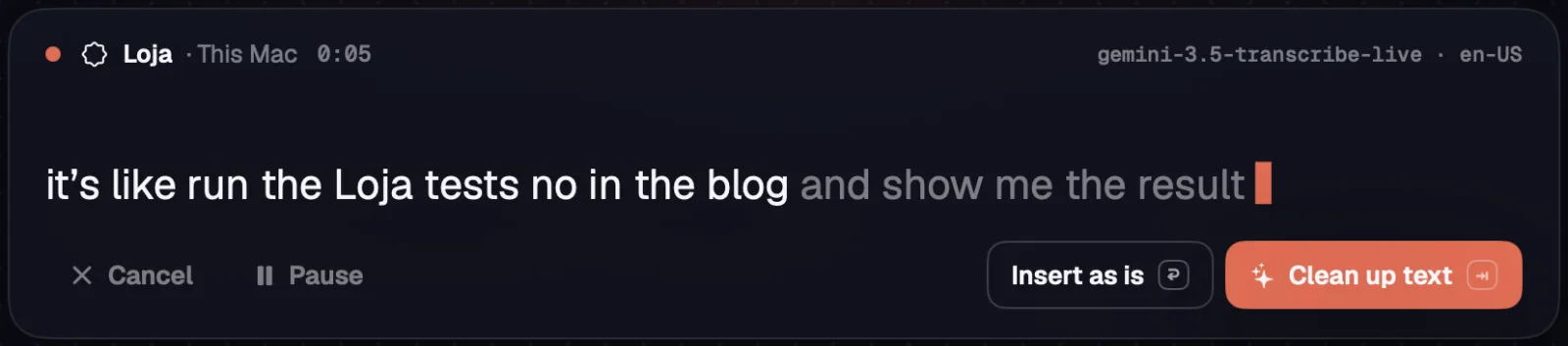
“Insert as is” puts in the text the way you said it. “Clean up text” sends it to Gemini to remove hesitations, repetitions and backtracking, fix the punctuation and spell dictated file names correctly.
Step by step
- While you speak, both buttons are already on screen.
- Click “Insert as is” (↩) for the raw text.
- Click “Clean up text” (⇥) to tidy it. The panel shows CLEANING UP THE TEXT and then the result for you to check.
- With “Clean up the text automatically” on in Settings › Voice, ↩ cleans up instead.
- If the cleanup fails or the key's quota runs out, the text stays as you said it.
| Insert as is | ↩ |
| Clean up text | ⇥ |
Since 1.0.40 both buttons show while you speak: there's no longer a separate step to finish first.
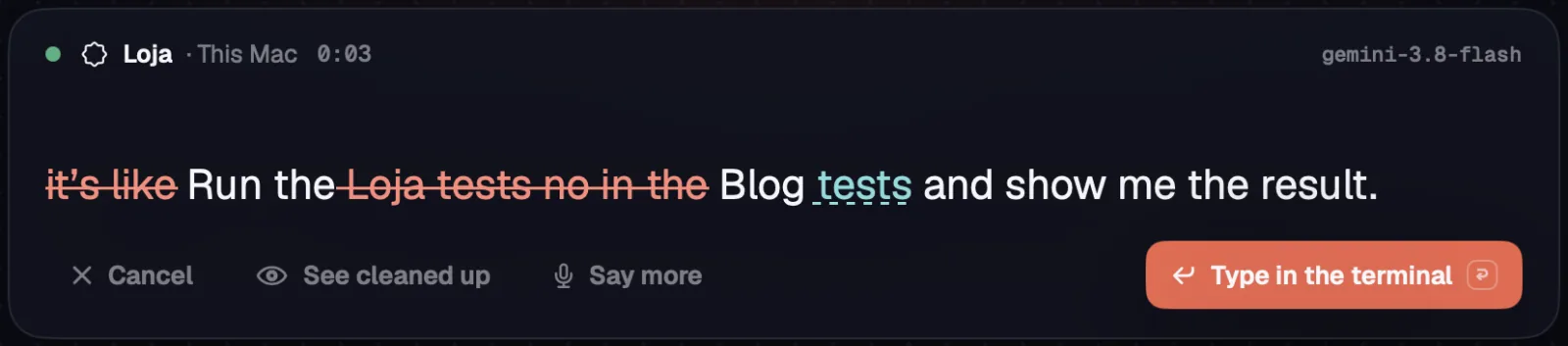
After the cleanup, the cleaned-up text stays on screen before it goes to the card. “See original” shows what came out struck through and what went in underlined.
Step by step
- With the state at READY TO INSERT, read the cleaned-up text.
- Click “See original” to see the changes: removed words show struck through and new ones underlined. “See cleaned up” goes back.
- Missed something? “Say more” starts listening again and adds to what you already said.
- Click the insert button (↩). It's called “Put in the field” in a chat, “Insert into the note” in a note and “Type in the terminal” in a terminal.
| Insert the cleaned-up text | ↩ |
See alsoVoice never presses Enter
The text never goes out on its own. In a chat it stays in the field, in a terminal it stays at the prompt and in a note it goes to the end. You check it and send it.
Step by step
- In a chat, the text goes into the message field. Send it when you want.
- In a terminal, the text is typed at the prompt, without Enter. Check it and press Enter yourself.
- In a note, the text goes to the end.
- If the card can't take the text (it closed midway, for example), Octopus copies the text and tells you. Paste it with ⌘VCtrl+Shift+V.
See alsoThe message boxCheck what the AI changedCreate a note
With the voice panel open, four keys control everything. Other keys don't reach the card underneath while you dictate.
Step by step
- esc cancels.
- space pauses and continues. After you finish, it lets you say more.
- ↩ inserts as is while you speak, or cleans up if the automatic cleanup is on. With the text ready, it inserts.
- ⇥ cleans up the text.
| Cancel | esc |
| Pause, continue or say more | space |
| Insert | ↩ |
| Clean up text | ⇥ |
See alsoInside panels
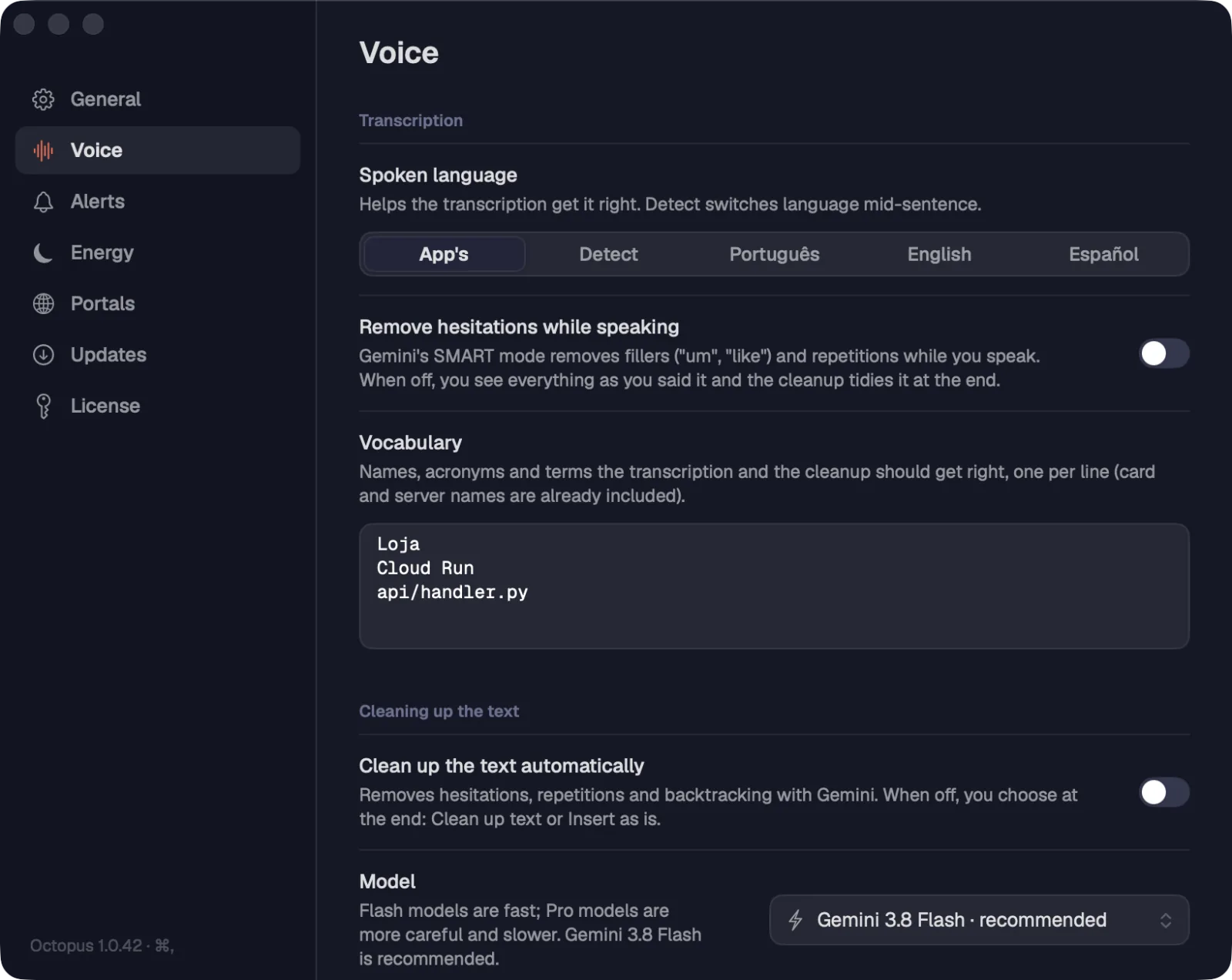
The Voice page in Settings keeps the key and fine-tunes the transcription and the cleanup. One button puts everything back to the defaults, and the key stays saved.
Step by step
- Open Settings (⌘,Ctrl+,) and click Voice.
- Gemini API key: paste, “Save”, “Remove” and the link to create the key.
- Transcription: Spoken language (App's, Detect, Português, English, Español; Detect lets you switch languages mid-dictation), “Remove hesitations while speaking” and Vocabulary (names, acronyms and terms, one per line; card and server names are already included).
- Cleaning up the text: “Clean up the text automatically”, Model (the Flash models are fast, the Pro ones are more thorough and slower; the recommended one is Gemini 3.8 Flash), Reasoning (Minimal, Low, Medium, High or Model's), “How much to change the text” (Light, Normal, Rewrite), “If the model fails, use Gemini 3.5 Flash Lite” and Extra instructions.
- “Test the cleanup”: write a sentence the way you'd say it and click “Test” to see the result, the model and the time it took.
- When inserting: “Finish by itself after a silence” (Never, 3 s, 5 s or 10 s).
- Where it is: a summary of where the microphones and the keys are.
- Factory settings: “Restore defaults” puts every choice back to its default. The API key stays saved.
| Settings | ⌘,Ctrl+, |
Light removes hesitations, repetitions and backtracking without changing your words; Normal also fixes punctuation, file names and dictated terms; Rewrite can reorganize sentences so they read clearly, without changing the meaning.
Problems show up in the voice panel itself, with what to do. What you already said isn't lost when the cleanup fails.
Step by step
- “Gemini refused the API key. Check the key in Settings › Voice.”: click “Open Settings” and paste the key again.
- “Your Gemini API key is out of quota for now.”: try again in a few minutes. If this happens during the cleanup, the text stays as you said it.
- “I didn't hear anything.”: speak closer to the microphone or check the computer's sound input.
- “Octopus can't hear the microphone”: allow Octopus in the system's microphone access and try again.
- “The connection to Gemini dropped”: check your internet connection and dictate again.
See alsoThe Gemini key