Docs › Windows and Linux: what changes
Windows and Linux: what changes
Since 1.0.24, Octopus runs on Windows and Linux with the same features as on the Mac and the same license. This page shows what changes: installing, the keys (Ctrl instead of ⌘ and the Leader key), the action palette, the tray and what only exists on one side or the other.
Octopus runs on Windows 10 and 11 (x64) and on Linux (Ubuntu 22.04 or later and Debian 12, x64 and arm64). On the Mac, it needs macOS 26 (Tahoe) or later, on Apple Silicon or Intel.
Step by step
- Windows: Windows 10 or 11, x64.
- Linux: Ubuntu 22.04 or later, or Debian 12, on x64 or arm64. For other distributions, use the AppImage.
- The agents are your own: Claude Code and Codex, with your account or your API key.
- The same license works on all three systems, on up to 2 computers.
See alsoThree systems, two computersInstall on WindowsInstall on Linux
The Windows installer installs Octopus for your user only, without asking for administrator rights. Since the installer doesn't have a Windows code-signing certificate, SmartScreen may show a warning the first time.
Step by step
- Download Octopus for Windows from the website.
- Open the installer.
- If you see “Windows protected your PC”, click “More info” and then “Run anyway”.
- Octopus opens first-run setup. To open it again later, use “Set Up This Computer…” in the action palette (Ctrl+Shift+P).
Later updates come on their own and are signed by Octopus.
See alsoUpdatesFirst-run setup
On Linux there are two packages: the .deb, for Ubuntu and Debian, and the AppImage, for other distributions. Both exist for x64 and arm64.
Step by step
- Download the package for your architecture (x64 or arm64) from the website.
- With the .deb: open the file in the software center or, in the terminal, in the download folder, run sudo apt install ./ followed by the .deb file's name. The package already includes tmux, which keeps this computer's sessions.
- With the AppImage: in the file manager, right-click › Properties › Permissions and turn on the option to run it as a program (or, in the terminal, chmod +x and the file's name). Then double-click to open it.
- Octopus opens first-run setup. To open it again, use “Set Up This Computer…” in the action palette (Ctrl+Shift+P).
Updates arrive on their own: with the .deb, installing asks for the administrator password; with the AppImage, the file itself is replaced.
See alsoUpdates
On Windows and Linux, the Mac's ⌘ becomes Ctrl. Since Ctrl with a letter belongs to the terminal, the app's shortcuts use Ctrl+Shift; the ones that still collide go to the Leader key. Octopus never uses Ctrl+Alt (it's AltGr on many keyboards) or the Windows key.
Step by step
- The app's shortcuts are generally Ctrl+Shift and the same letter as on the Mac: New terminal ⌘TCtrl+Shift+T, sidebar ⌘SCtrl+Shift+S, history ⌘YCtrl+Shift+Y.
- In the terminal, copy, paste and select all are ⌘CCtrl+Shift+C, ⌘VCtrl+Shift+V and ⌘ACtrl+Shift+A. Ctrl+Insert and Shift+Insert also work. On Windows, Ctrl+V pastes; on Linux, Ctrl+V stays with the program in the terminal (vim, the shell, Claude Code's image pasting).
- Groups 1 to 9 are ⌃⌘1–9Alt+1–9; terminals 1 to 9, ⌘1–9Ctrl+1–9.
- Next and previous workspace: ⌘↓Ctrl+Shift+PgDn and ⌘↑Ctrl+Shift+PgUp (also Ctrl+Shift+] and Ctrl+Shift+[). To go to workspace N, tap Ctrl twice and the number.
- Quitting Octopus is ⌘QCtrl+Shift+Q. Full screen is F11 (on the Mac, the window's green button).
- Keys work by their position on the keyboard, not by the letter printed on them: the shortcuts work the same on any layout.
| New terminal | ⌘TCtrl+Shift+T |
| Open on a server | ⌘KCtrl+Shift+K |
| Delete item / Close tab | ⌘WCtrl+Shift+W |
| Show or hide the sidebar | ⌘SCtrl+Shift+S |
| Settings | ⌘,Ctrl+, |
| Copy / Paste / Select all | ⌘C / ⌘V / ⌘ACtrl+Shift+C / V / A |
| Undo / Redo | ⌘Z / ⇧⌘ZCtrl+Z / Ctrl+Shift+Z or Ctrl+Y |
| Focus mode | ⇧⌘↩Ctrl+Shift+↩ |
| Chat ⇄ terminal | ⌘JCtrl+Shift+J |
| Find in the terminal | ⌘FCtrl+Shift+F |
| Group 1–9 | ⌃⌘1–9Alt+1–9 |
| Workspace N | ⌘ twice + 1–9Ctrl twice + 1–9 |
| Quit | ⌘QCtrl+Shift+Q |
| Full screen | —F11 |
| Search for an action | —Ctrl+Shift+P |
The full table, side by side, is on the shortcuts page.
See alsoGeneralThe Leader key
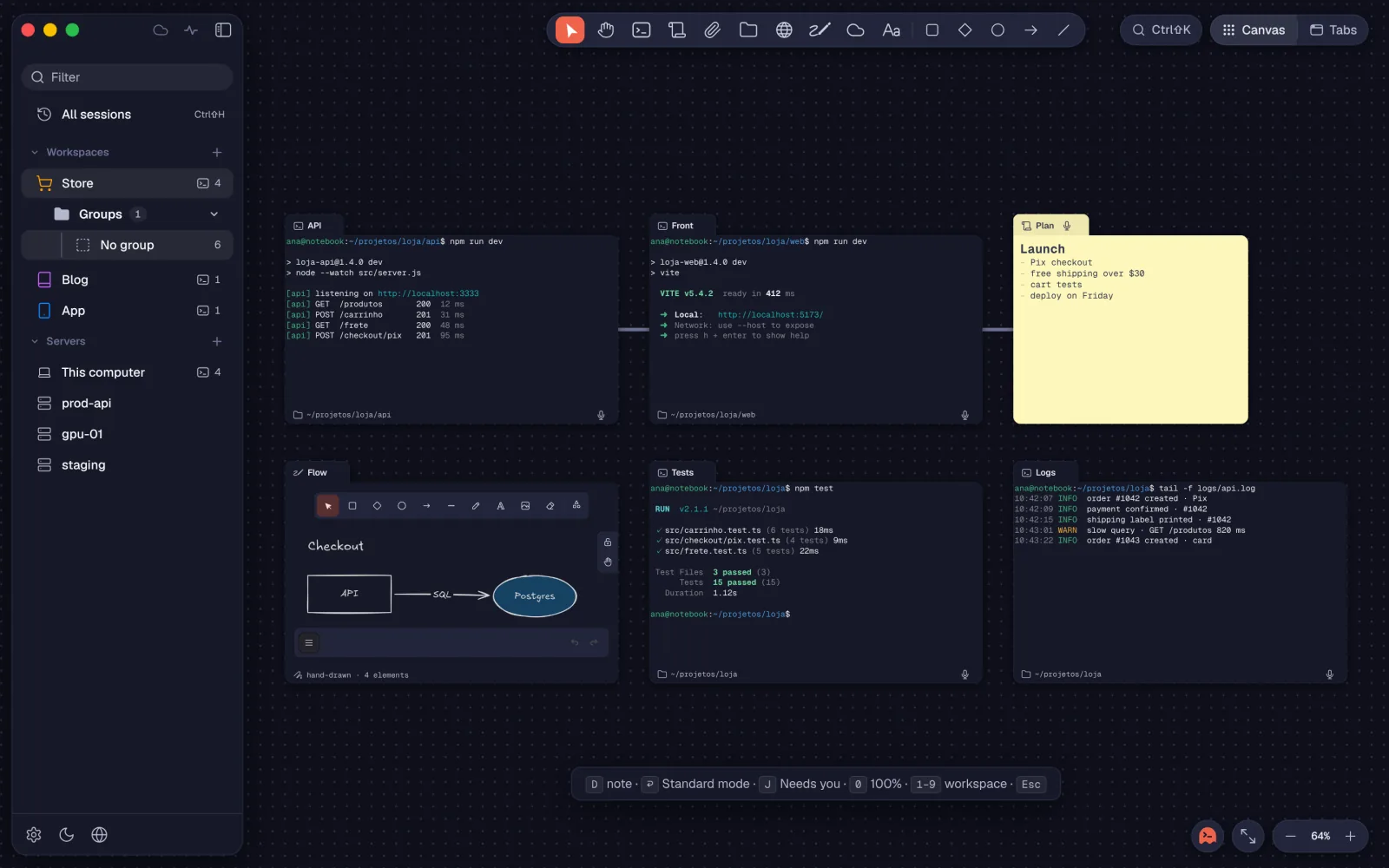
Leader is Ctrl+Shift+Space. You press and release it, then press a single key. It holds the shortcuts that, as Ctrl+Shift+letter, would collide with another app shortcut, with the terminal or with the system.
Step by step
- Press Ctrl+Shift+Space and release. A hint shows up on screen for a second and a half.
- Press the action's key, for example D for a new note or ↩ for standard mode.
- To give up, press Esc or wait for the hint to go away.
| New note | ⇧⌘DLeader D |
| Standard mode | ⌃⌘↩Leader ↩ |
| Next one needing you | ⇧⌘JLeader J |
| Actual size | ⌥⌘0Leader 0 |
| Workspace 1–9 | ⌘ twice + 1–9Leader 1–9 |
| Shell beside | ⌥⌘TLeader S |
| Ungroup | ⇧⌘GLeader G |
| Gather into folder / Spread out | ⌥⌘GLeader P |
| Saved groups | ⇧⌘YLeader Y |
| Cloud accounts | ⇧⌘ULeader U |
| Arrange | ⇧⌘TLeader T |
| Arrange for reading | ⌥⇧⌘TLeader R |
| Focus on the item | ⌘\Leader E |
| Zoom to selection | ⌥⌘\Leader Z |
| Clear the terminal | ⇧⌘KLeader K |
| Larger / smaller font | ⇧⌘+ / ⇧⌘-Leader = / Leader - |
| Go to the neighboring card | ⌃⌘ + arrowsLeader + arrows |
| Follow / go back along the connection | ⌥⌘→ / ⌥⌘←Leader . / Leader , |
The hint only shows J when someone needs you.
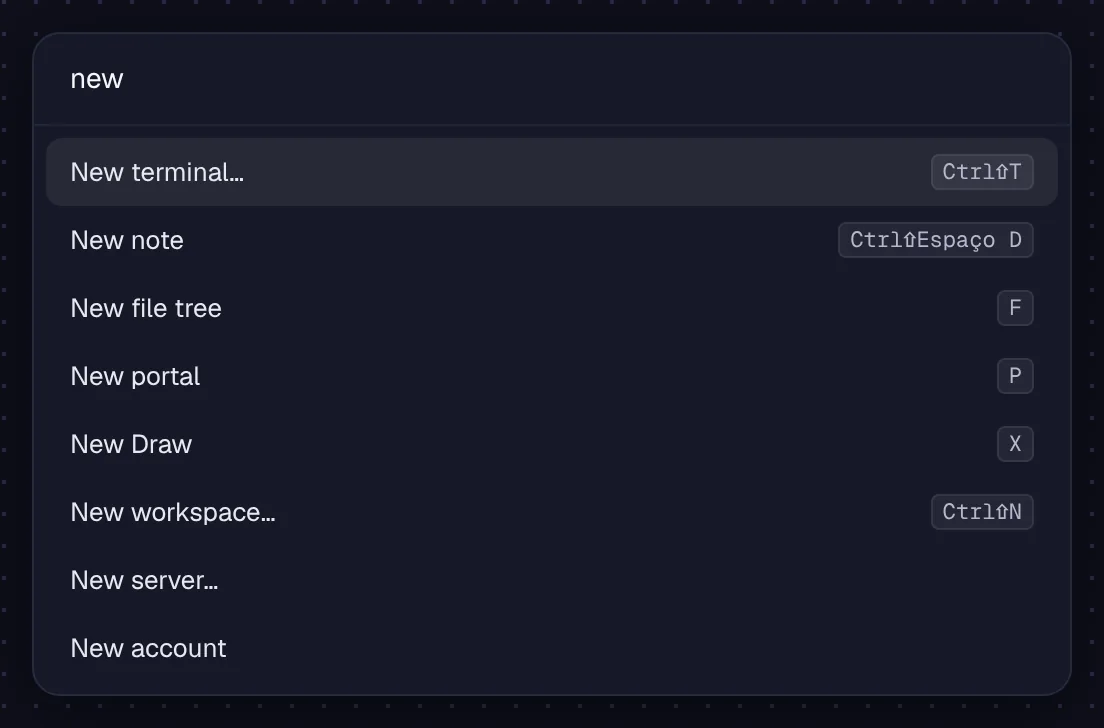
Windows and Linux don't have the Mac's menu bar. Instead, the Ctrl+Shift+P palette finds any action by name and shows each one's key.
Step by step
- Press Ctrl+Shift+P. The field says “Search for an action”.
- Type part of the name, like “note”, “arrange” or “updates”. The search uses the language of the app.
- Use ↑ and ↓ to choose and ↩ to run. Esc closes it.
- Besides the actions with keys, the palette has “Go to workspace X”, “Group: X”, “Align › …”, “Appearance: Light / Dark”, the canvas's “Undo” and “Redo”, “New server…”, “New account”, “Save group…”, “Set Up This Computer…” and “Check for Updates…”.
| Search for an action | —Ctrl+Shift+P |
The palette is the best way to learn the keys: each action shows its own on the right.
Closing the window hides Octopus in the system tray, and it keeps running. The window has the Mac's three round buttons at the top of the sidebar.
Step by step
- Close the window: Octopus goes to the tray, with alerts, the agents' watch and Keep awake still running.
- Right-click the tray icon (on Windows, a single click opens the window) to “Open Octopus”, change Keep awake or “Quit Octopus”.
- On a Linux without a tray (GNOME without the AppIndicator extension), Octopus tells you when you close the window: open it again from the applications menu.
- To move the window, drag it by the top of the sidebar or by the empty strip at the top of the canvas. Double-clicking that strip maximizes it.
- F11 puts the window in full screen. On the Mac, full screen is the window's green button.
| Full screen | —F11 |
With the window closed, portals don't work: open the window for an agent to use a portal.
See alsoKeep running when the window is closedKeep awake in the tray
Light mode removes the blur behind focus mode and the animations of the cards and the view. It's meant for slower computers and remote desktop.
Step by step
- Open Settings (Ctrl+,) › General.
- Under Performance, turn on “Light mode”.
| Settings | ⌘,Ctrl+, |
See alsoGeneral
How many agents need you shows on the Octopus icon: in the Windows taskbar and in the Linux launcher. Alerts arrive as system notifications.
Step by step
- Leave Settings › Alerts › the number on the icon turned on.
- When an agent asks for you or finishes, the number shows on the icon and the system notification tells you.
- Click the notification to open the card.
See alsoWhere the alert shows up
An address or a file path in the terminal lights up when you hold Ctrl and opens with Ctrl+click. On Linux, the middle button pastes the selected text, as in the rest of the system.
Step by step
- Hold Ctrl and hover over an address or a path in the terminal: it lights up.
- Ctrl+click opens the address in the browser or the file in the system's app. Links that programs mark in the terminal open the same way.
- On Linux, select some text and click the middle button, without moving, in a terminal: the text is pasted there.
On the Mac, ⌘-click opens links.
On Windows, this computer's terminals live in an Octopus service; on Linux, in tmux, as on the Mac. Closing the app or updating doesn't kill any terminal. On servers, sessions live in tmux, as always.
Step by step
- Open terminals and agents on this computer as usual.
- Quit Octopus or restart to update: the terminals keep running and come back when the app opens.
- On Windows, Shell opens PowerShell 7 if it's installed; otherwise, Windows PowerShell.
- On Linux, tmux comes with the .deb. If it's missing, Octopus offers “Install tmux”.
See alsoSessions that don't drop
Almost everything is the same on all three systems. The list below shows the little that changes, so you don't look for something that doesn't exist on yours.
Step by step
- Mac only: the menu bar (with “Set Up This Mac…”, “Check for Updates…” and the Edit and Window menus) and the “About Octopus” window.
- Mac only: the number on the Dock, Octopus moving itself to Applications on first use, and the closed lid with the administrator password, with “Restore sleep”.
- Mac only: the system's Quick Look and “Show in Finder” (on Windows and Linux, Octopus has its own preview and “Show in folder”), and dragging a server file from the tree to Finder to download it.
- Mac only: sharp text at any zoom on non-Retina displays, and ⌥ with the wheel zooming the canvas even over a selected Draw.
- Windows and Linux only: the action palette (Ctrl+Shift+P), the Leader key and navigation mode, the tray, Light mode, F11, the text and page menus built by Octopus, right-clicking empty canvas, the closed lid's “Test on this Linux” and the update notice with “Later” and “Restart”.
- Some names change a little too: “This Mac” becomes “This computer”, and “Same as the Mac” becomes “Same as the system” (in the Windows sidebar globe, “Same as Windows”).