Docs › History, sessions and saved groups
History, sessions and saved groups
Closing a card deletes nothing: it goes to the workspace's history and comes back where it was, resuming the conversation. All sessions finds any Claude Code or Codex conversation on your machines. Saved groups keep a whole group so you can open it again whenever you want.
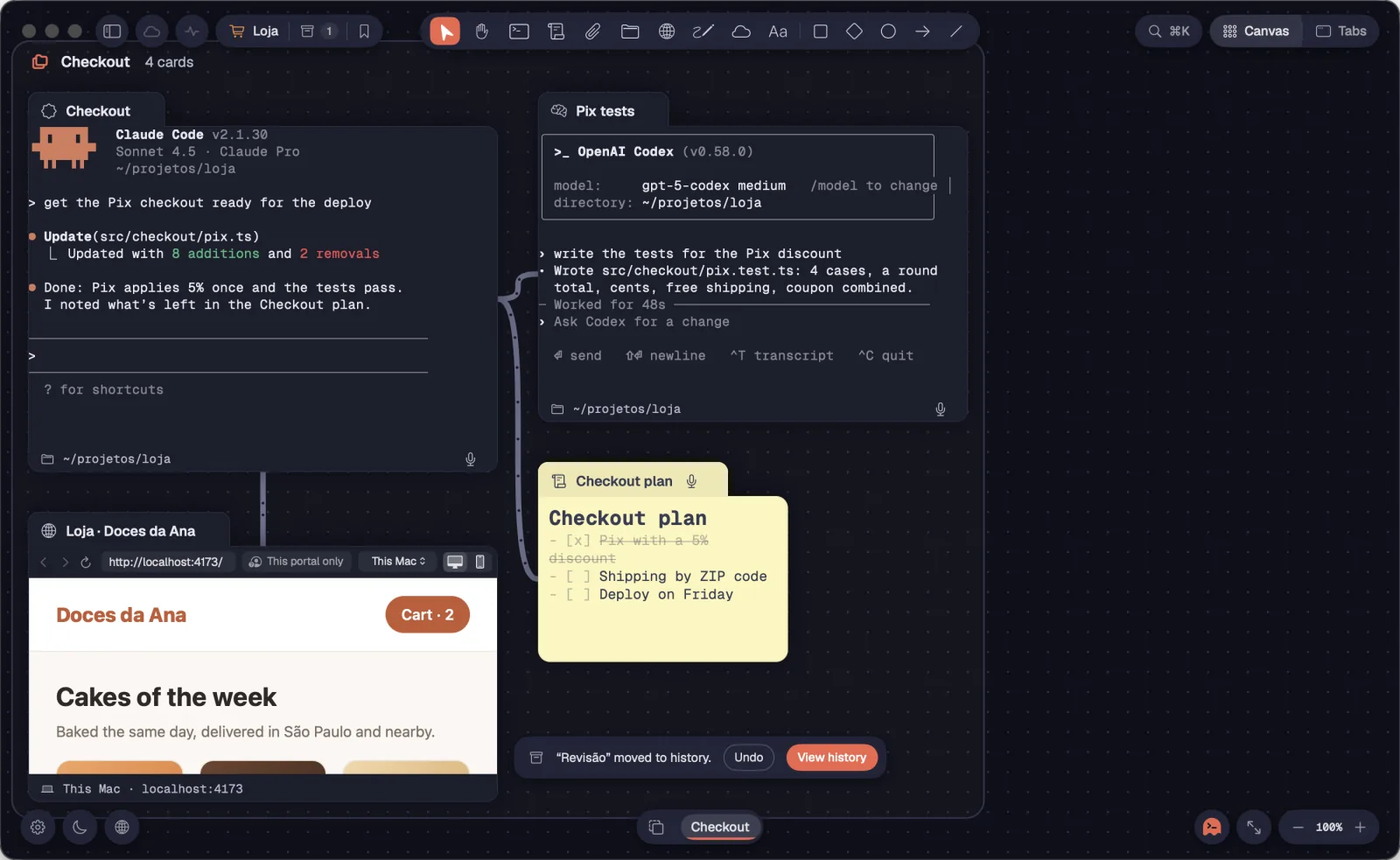
Closing a terminal sends its card to the workspace's history. The conversation stays saved, and you can undo it right away.
Step by step
- Pick the card and press ⌘WCtrl+Shift+W or ⌫Delete (or use “Delete” on its bar).
- If it's idle, it closes right away. At the bottom of the canvas, for 8 seconds, a notice with the card's name (for example: “Revisão” moved to history.) offers “Undo” and “View history”.
- If the agent is still working, Octopus asks: “Archive and stop”, “Archive and let them finish”, “Delete permanently” or “Cancel”.
- “Archive and let them finish” keeps the session running, and the history shows the card as “running”. “Delete permanently” ends the session and doesn't keep the card; the conversation stays saved by the agent on the machine.
- In the Tabs view, closing a tab (⌘WCtrl+Shift+W) sends any card to the history: notes, portals and drawings come back as they were.
| Close to history | ⌘WCtrl+Shift+W |
| Delete | ⌫Delete |
Shells don't stay in the history: a closed shell is gone once Undo runs out. For shells, the question is “Close and stop” or “Close and let it finish”; if you let it finish, the session stays in the server's list.
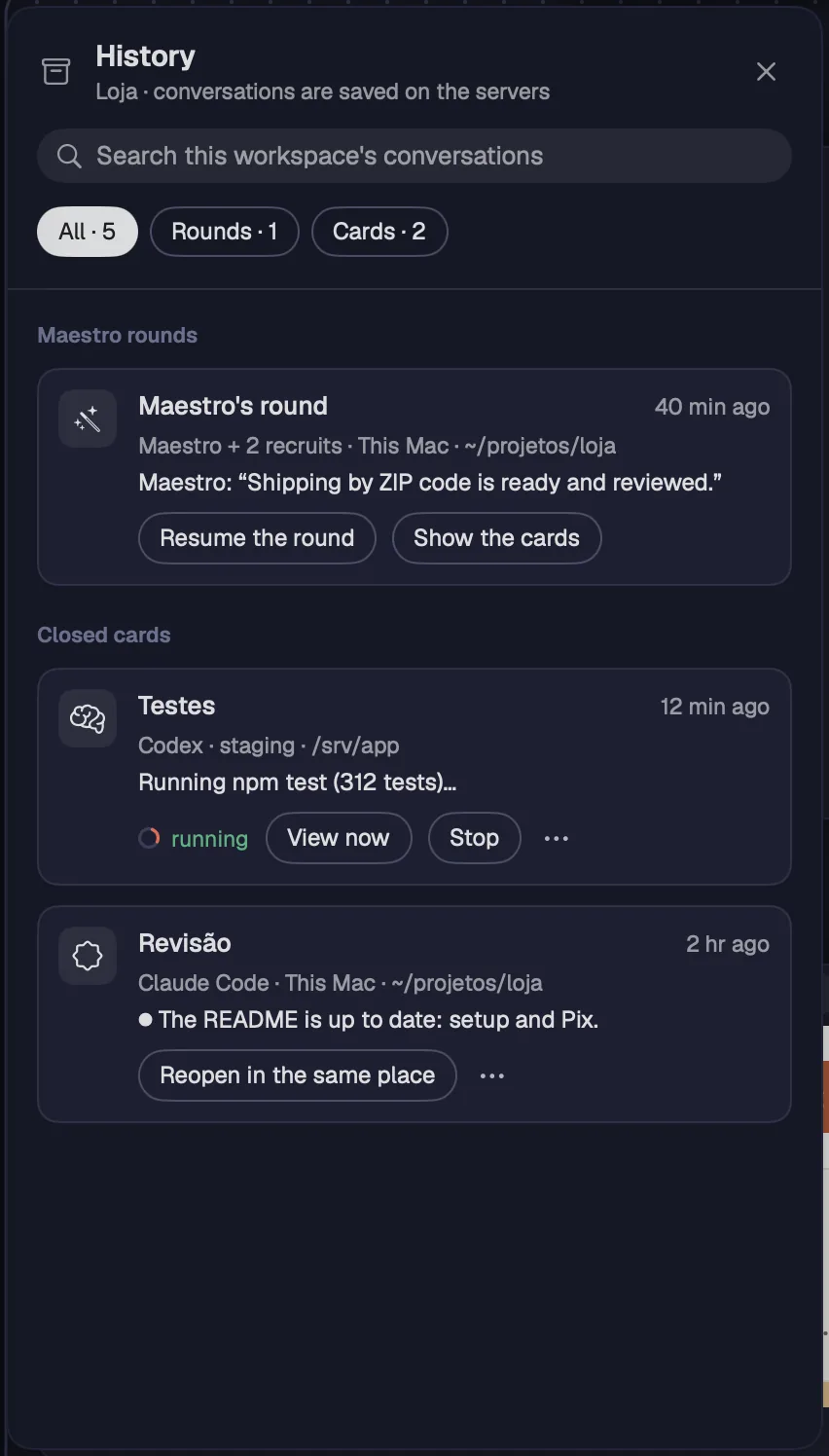
⌘YCtrl+Shift+Y opens this workspace's closed cards and Maestro rounds, with search across the conversations. Each workspace has its own.
Step by step
- Press ⌘YCtrl+Shift+Y or click History, below the current workspace in the sidebar. When the sidebar is closed, History sits in the workspace capsule.
- Search in “Search this workspace's conversations”: it matches the card's name, the last thing it said, its role, its folder or its group.
- Filter with “All”, “Rounds” or “Cards”.
- Each card shows what it was (agent, chat, note, portal…), the machine, the folder, how long ago it closed and the agent's last words.
| History | ⌘YCtrl+Shift+Y |
History closes with the same shortcut or a click outside it.
A closed card comes back to the same place and resumes the conversation. It can also open in another workspace, get a new name or leave the history for good.
Step by step
- Click “Reopen in the same place” (on a shell or a card that isn't an agent, like a note or a portal, “Open again”). The card returns where it was and the agent resumes the conversation.
- If it was closed while running, the row says “running”: “View now” brings the card back and “Stop” ends the session.
- In the “⋯” menu, “Reopen in” opens the card in another workspace, in a free spot, without its previous cables and group.
- “Rename…” changes the name it comes back with. “Forget” removes the card from the history for good; a session left running ends.
When a Maestro closes together with its recruits, the history keeps the whole team as a round, so they come back together.
Step by step
- Open History (⌘YCtrl+Shift+Y) and pick “Rounds”.
- Each round shows the Maestro's name (“…'s round”), how many recruits it had, the machine, the folder and the Maestro's last words.
- “Resume the round” brings the Maestro and its recruits back together.
- “Show the cards” lists each one, so you can reopen just one of them.
| History | ⌘YCtrl+Shift+Y |
⇧⌘HCtrl+Shift+H lists the Claude Code and Codex conversations on all your machines, by project: open ones, archived ones and ones that started outside Octopus. You can read the end of each one and resume it in a card.

Step by step
- Press ⇧⌘HCtrl+Shift+H or click “All sessions”, at the top of the sidebar.
- On the left, pick “All projects” or a folder on one machine. While Octopus searches, you see “Looking for conversations on …”.
- Search in “Search all conversations” and filter: “All”, “Open”, “Archived” or “Outside” (outside Octopus).
- Pick a conversation to see how it ends. The whole conversation comes back when you resume it.
- Open: “Go to card”. Archived: “Resume in a card”, in the workspace you pick next to it. Outside: “Resume in chat” or “Open in terminal”. “Copy the conversation ID” copies the ID.
| All sessions | ⇧⌘HCtrl+Shift+H |
“Outside” includes the conversations you opened in Claude Code or Codex without Octopus, on your servers too.
See alsoWorkspace history
A saved group keeps the cards as they are, the cables between them, the notes' text, the files and the agents' conversations. You open it again whenever you want, even after closing everything.

Step by step
- Pick the group by its name and click “Save group” on its bar. You can also right-click the group's name, use the group bar or open the group's menu in the Tabs view.
- Give it a name, choose in “Listed in” the workspace that will list the group, and write a description if you want.
- Check “Goes along”: each card says what comes back (“resumes the conversation”, “new shell in the folder”, “the text goes along”, “the file goes along”, “opens the address”, “opens the folder”, “the account comes back signed in”, “the drawing goes along”).
- Click “Save” to keep the group on the canvas, or “Save and close” to take it off the canvas and end the sessions.
- A notice confirms the group is in Saved groups. The conversations are copied in the background, and the group shows “copying the conversations…” in the meantime.
If the group came from a saved group, the sheet asks whether to “Refresh” the saved one or “Save as a new group”. Whatever a shell is running right now doesn't come back, and the sheet tells you so.
See alsoSaved groupsOpen a saved group
⇧⌘YLeader Y lists the workspace's saved groups, with search, a thumbnail and what goes in each one. From there you open, edit, move to another workspace or delete them.

Step by step
- Press ⇧⌘YLeader Y or click “Saved groups”, below the current workspace in the sidebar.
- Search in “Search the name or description”. Each group says when it was saved and how many cards it has.
- Click a group to see its thumbnail and cards. “Open here” opens it in the current workspace.
- In the “⋯” menu: “Open in” (another workspace), “Edit name and description…”, “Move to” (the group is then listed in another workspace) and “Delete…”.
- “Delete…” sends the group's folder to the Trash, with the copies of the notes, files and conversations. Groups already opened from it stay on the canvas.
| Saved groups | ⇧⌘YLeader Y |
A saved group isn't lost with its workspace: when you delete the workspace, you choose where its groups go, and they show where they came from (“came from Loja, deleted”).
See alsoOpen a saved group
Opening a saved group puts the cards back in a free spot on the canvas. The agents resume their conversations where they left off.
Step by step
- In Saved groups, click “Open here” (or “Open in”, in the “⋯” menu).
- Octopus shows that it's opening the group. The agents resume their conversations (if the machine no longer has the conversation, Octopus puts it back first), the shells open in their folders, and the notes and files come back.
- The notice that the group opened offers “Undo”: the cards go away and the sessions end.
- If the group is already open in some workspace, Octopus asks. “Show the group” takes you to it; “Open a copy” opens the cards with new conversations, without changing the open group or the saved one.
| Saved groups | ⇧⌘YLeader Y |
Changed the open group? Save it again and choose “Refresh” to keep the new version.
A card from the history or a saved group returns to its spot. If something is already there, it goes to the nearest free space, without landing on top of other cards.
Step by step
- Reopen a card (“Reopen in the same place”) or open a saved group.
- If the spot is free, it comes back exactly where it was.
- If the spot is taken, the whole block goes to the nearest free space, and the cards keep their positions relative to each other.
- In another workspace (“Reopen in”, “Open in”), it goes into a free space.