Docs › Notes, text and attachments
Notes, text and attachments
Notes keep what you and your agents need to remember, in markdown. Free text names areas of the canvas. Images, PDFs and other files become cards you hand to an agent with one click.
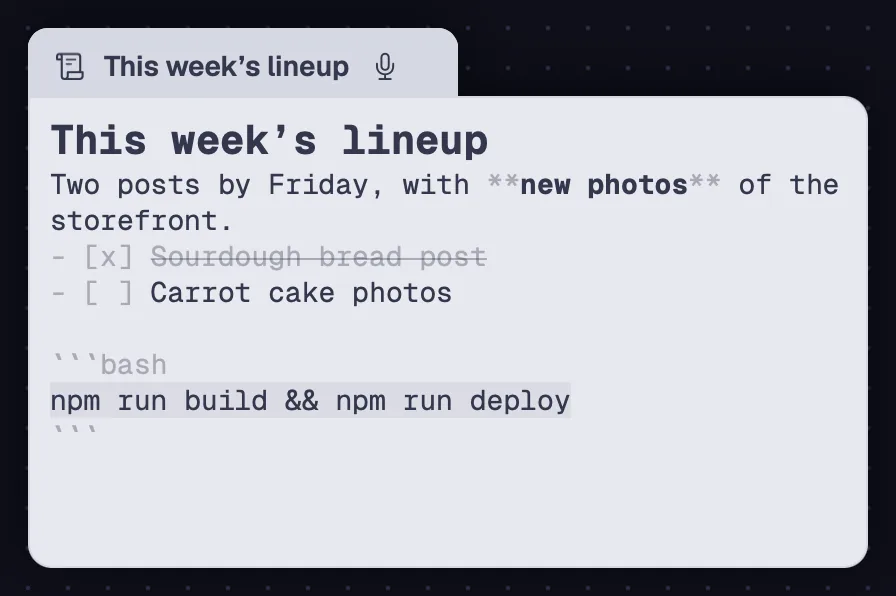
A note is a markdown file on the canvas. Formatting shows as you write, and the card's name follows the first line.
Step by step
- Press N with nothing selected and click the canvas, or drag to pick the size. ⇧⌘DLeader D creates a note in the middle of the view.
- Click “Click to edit…” and write. Markdown shows formatted as you type: bigger headings, bold, italic, strikethrough and code. A heading's # signs only show on the line where the cursor is.
- The card's name follows the first line. If you rename the note, the name you gave it stays.
- Everything saves by itself, in the note's file.
| New note | ⇧⌘DLeader D |
| Note tool | N |
The size of new notes is in Settings › General › “New notes” (280×240, 340×300 or 420×380). In the Tabs view, the “+” also creates a note.
See alsoFormat barNotes and agents
With a note selected, a format bar shows up below the toolbar. Each button writes the markdown for you.
Step by step
- Select the note. The bar shows the color, the text size, the formats, “Copy the note's text”, “Focus mode”, the markdown M and “Delete”.
- Select some text and click “Bold”, “Italic”, “Strikethrough” or “Code”. With nothing selected, the pair of symbols goes around the cursor. Clicking again undoes it.
- “Heading (#, ##, ###)” cycles the line through #, ##, ### and plain text with each click.
- “List” puts - at the start of the selected lines, and “To-do list” puts - [ ]. “Code block” fences the selected lines.
- The same items are in the note's right-click menu, under “Format”. That helps in a narrow tab, where the bar doesn't fit.
In the Tabs view, the format bar sits in the bar of the note's pane.
See alsoColor and text sizeRaw markdown and copying the text
Seven colors to tell topics apart and text from 9 to 32 points, note by note.
Step by step
- Click the color dot on the bar and pick: gray, yellow, orange, pink, purple, blue or green. New notes are gray.
- Use the buttons to make the text smaller or bigger. The number between them is the size, from 9 to 32.
- In the right-click menu, “Format” › “Note color”, “Make text smaller” and “Make text bigger” do the same.
A note has no font family choice. For a heading in another font on the canvas, use Text.
See alsoText on the canvas
The M button shows the note as plain markdown, with every symbol and no styling. “Copy the note's text” copies the whole markdown.
Step by step
- Click the M on the bar (“Show raw markdown”). It turns gray and the note shows the text without formatting.
- Click it again (“Show formatted”) to go back.
- “Copy the note's text” puts the whole text, in markdown, on the clipboard.
See alsoFormat bar
Drop a .md, .markdown or .txt file on the canvas and it becomes a note that edits the file itself. Good for a README, a plan or a changelog you already have.
Step by step
- Drag the file from Finder (on Windows and Linux, from the file manager) onto the canvas.
- The note shows the content formatted. What you write goes to the original file.
- Deleting this note takes the card off the canvas, and the file stays where it was. A note created in Octopus, on the other hand, goes to the Trash when you delete it.
A .md dragged from a server's file tree comes in as a file card, not a note: a note would only edit the copy.
See alsoDrop and paste files
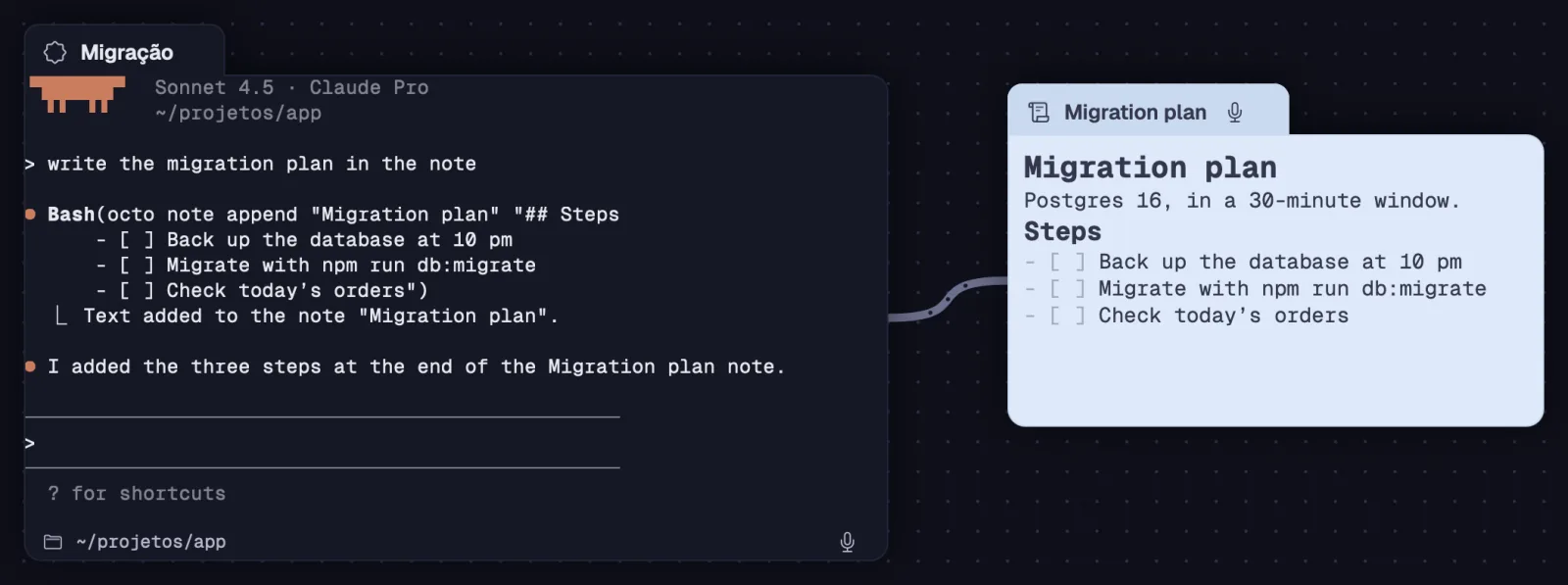
A note linked to an agent becomes a document you both read and write: the plan, the to-do list, the summary of the day.
Step by step
- Link the note to the agent's terminal with a cable: select the terminal, press ⌘LCtrl+Shift+L and click the note.
- Ask in plain words: “read the note” or “write the plan in the note”.
- The agent uses octo note read "Note" to read, octo note write "Note" "text" to replace the text and octo note append "Note" "text" to add to the end. The open note updates right away.
| Start connection | ⌘LCtrl+Shift+L |
See alsoCreate a note
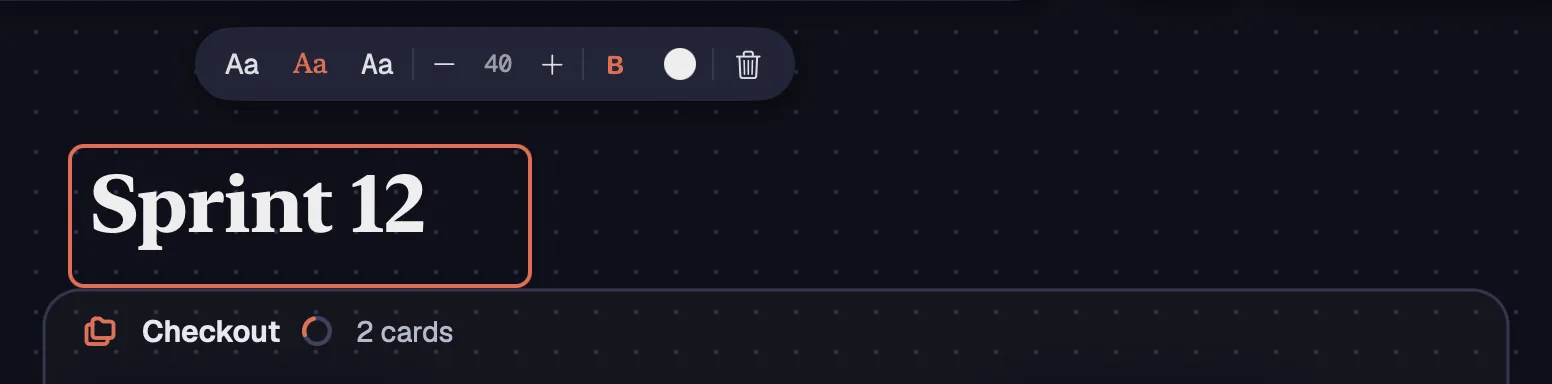
Free text works as a heading for an area of the canvas or as a label next to a card. It has three font families, size, bold and color.
Step by step
- Press L with nothing selected, click where the text goes and write.
- With the text selected, the bar shows “Aa” in three fonts: “Sans serif”, “Serif” and “Monospaced”.
- Use − and + for the size (from 10 to 96, in steps of 2), “Bold” and the color dot.
- Double-click to edit the text again. Double-clicking a closed shape (rectangle, diamond, ellipse) writes inside it. Text left empty disappears.
- “Delete” (or ⌫Delete) erases the text right away, without asking.
| Text tool | L |
| Delete | ⌫Delete |
The next text uses the last font, size and color you used.
See alsoCreate a note
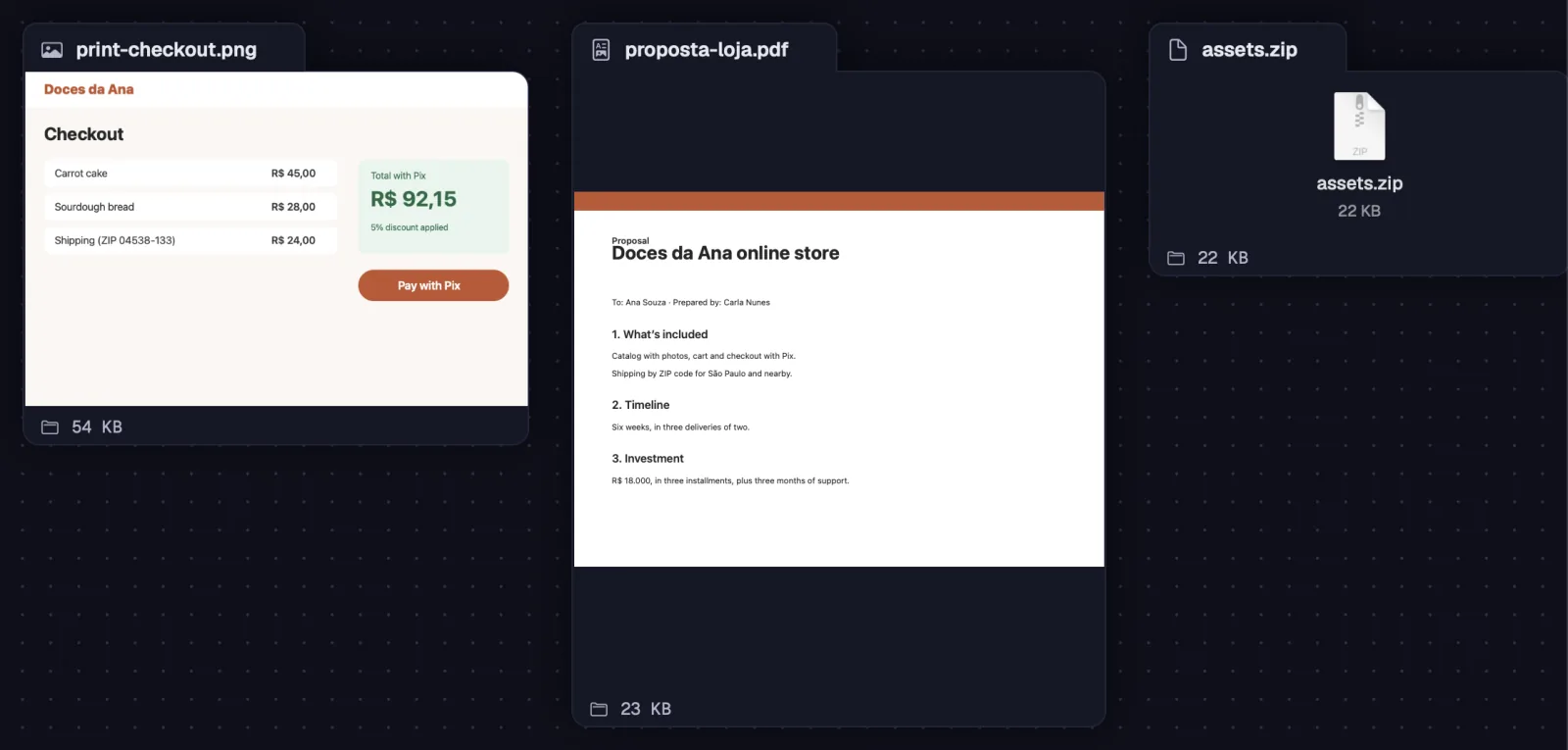
A file on the canvas becomes a card with a preview: the image, the PDF, the video, the folder, or the icon with its name and size. Double-click to open it in its app.
Step by step
- Click “Attach files” (the paperclip on the toolbar), choose the files and click “Attach”. They show up in the middle of the view.
- Or drag from Finder (on Windows and Linux, from the file manager) onto the canvas, or paste with ⌘VCtrl+V with the canvas selected. A copied screenshot also becomes a card.
- Drag the card by any part, the image included. Double-click to open the file in its app; a folder opens in Finder or in the file manager.
- With the card selected, a quick tap on Space shows the file in Quick Look.
- Files up to 100 MB are copied into the workspace. Bigger ones stay where they are, and the card points to them.
| Paste on the canvas | ⌘VCtrl+V |
| Quick Look | Space |
Deleting an attachment asks for confirmation. The copy stays in the workspace's folder, and undo brings the card back.
“Send to” hands the file to an agent in the workspace. In a chat it becomes an attachment; in a terminal its path is typed, with the file already copied to the server when the agent runs on one.
Step by step
- Right-click the attachment and open “Send to”.
- Pick the agent. In a chat, an image goes along with the next message; other files go by their path. In a terminal, the path is typed at the prompt, and Claude Code and Codex read the image through it.
- If the agent runs on a server, Octopus copies the file there first.
- An agent linked to the attachment can also fetch the file on its own: octo file get "Name" [destination] copies the file to its machine, at any size, and says where it went.
See alsoDrop and paste filesAttachments: images, PDFs and other filesAttachments and @ files
What happens to a file depends on where you drop it. On the canvas it becomes a card, in a terminal it becomes a path, in a chat it becomes an attachment.
Step by step
- On the canvas: each file becomes a card, and a .md, .markdown or .txt becomes a note.
- In a terminal: the path is typed. If the terminal is on a server, the file goes there first. ⌘VCtrl+Shift+V with files or a copied screenshot does the same.
- In a chat: the file comes in as an attachment to the next message.
- In a Draw: the image goes into the drawing.
- In a file tree: the file is copied to the folder where you dropped it.
- From the tree to the canvas, files become cards and folders become trees. From the tree to a terminal, the path is typed.
| Paste in a terminal | ⌘VCtrl+Shift+V |
See alsoCopy and move between machinesAttachments: images, PDFs and other files