Docs › Draw
Draw
Draw is a card with an Excalidraw board inside. You draw freehand or with shapes, and an agent linked by a cable draws on the same board: ask for a flowchart and it shows up right there, with boxes and arrows you can edit.
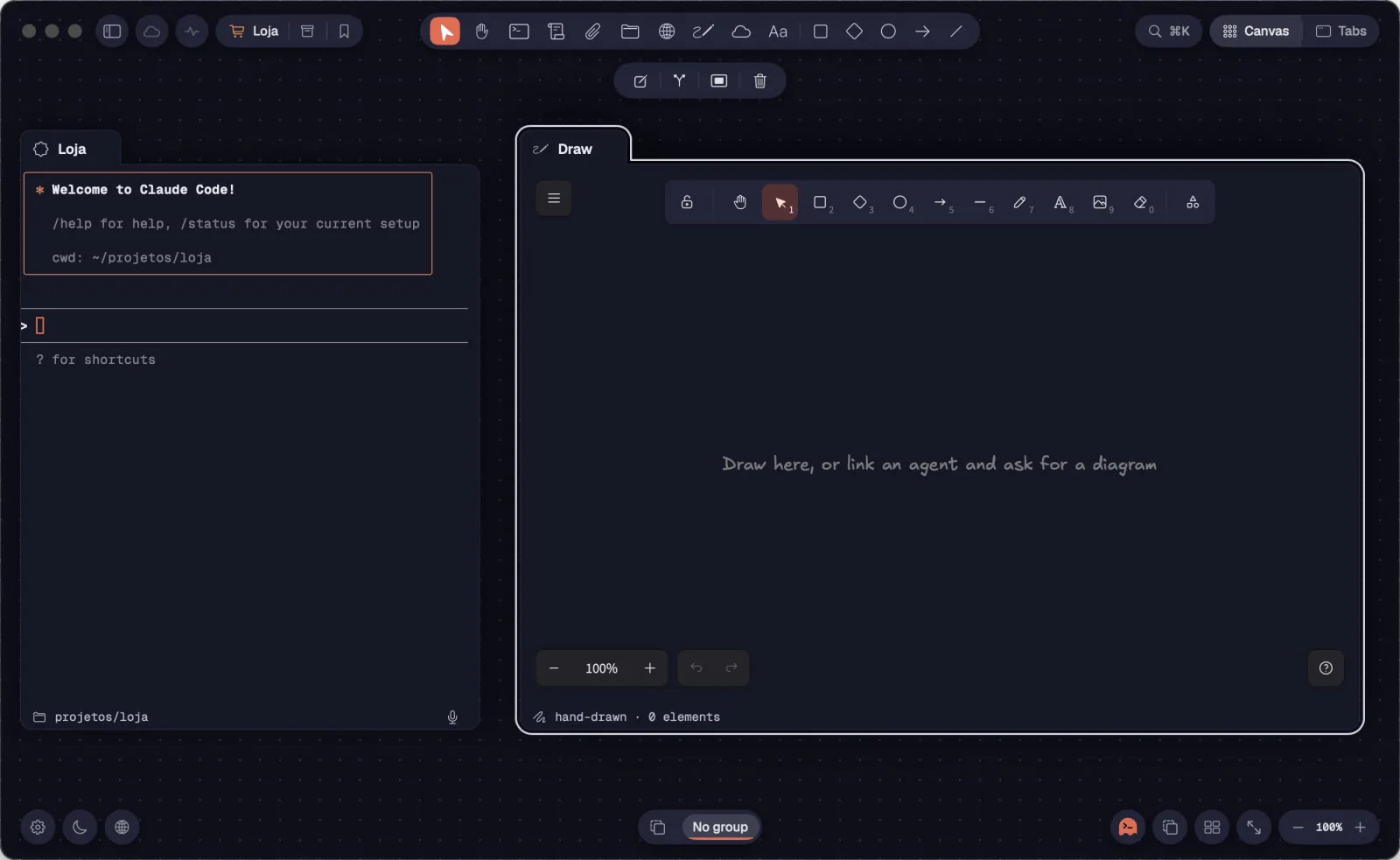
A Draw starts empty, at the default size of 840 × 600. The card's footer shows the stroke and how many elements the drawing has, like “hand-drawn · 12 elements”.
Step by step
- With nothing selected, press X or click Draw on the top toolbar.
- Click the canvas where the card should go. To pick the size, drag instead of clicking.
- In the Tabs view, click the “+” and choose Draw. On Windows and Linux, the action palette (Ctrl+Shift+P) also has “New Draw”.
- The empty board says “Draw here, or link an agent and ask for a diagram”.
| Draw | X |
To give the card another name, use “Rename…” in its menu.
See alsoDraw on the boardAsk an agent for a flowchartToolbar
Excalidraw only gets the mouse when the Draw is the only selected card. That way the first click selects the card and a drag moves the card, without scribbling anything by accident.
Step by step
- Click the Draw once to select it. That click doesn't draw.
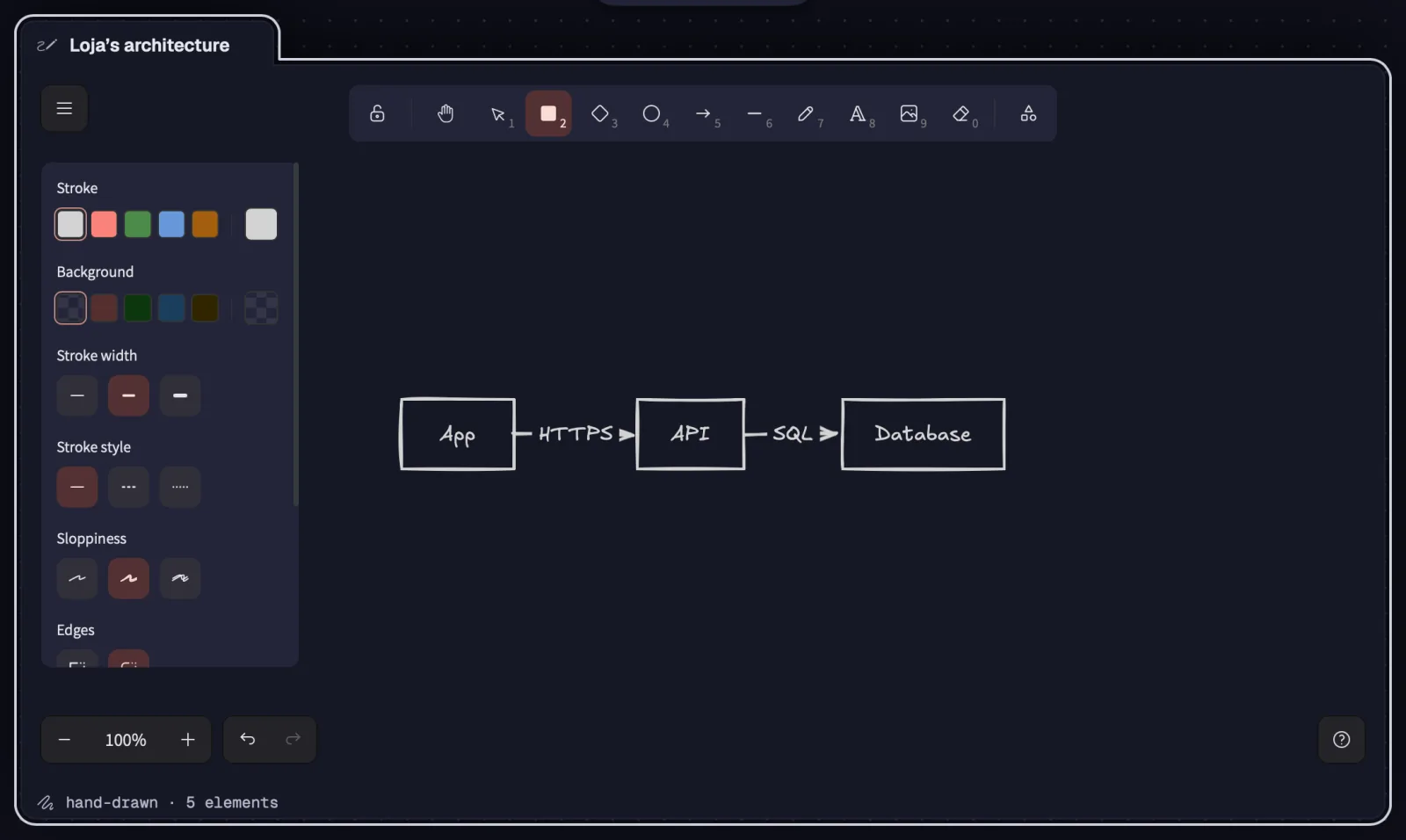
- With only the Draw selected, use Excalidraw's bar at the top of the board: shapes, arrows, lines, pencil, text, image and eraser.
- Excalidraw's keys work on the board: ⌘ZCtrl+Z undoes, ⇧⌘ZCtrl+Y redoes, ⌘ACtrl+A selects everything, ⌘DCtrl+D duplicates and ⌘GCtrl+G groups elements.
- ⌘CCtrl+C and ⌘VCtrl+V copy and paste elements within the board.
- Press Esc to cancel what's in progress, like a text or a shape. With nothing to cancel, Esc gives the keyboard back to the canvas.
- A link on an element opens in your browser.
| Undo in the drawing | ⌘ZCtrl+Z |
| Redo in the drawing | ⇧⌘ZCtrl+Y |
| Give the keyboard back to the canvas | Esc |
With several cards selected, no Draw gets the mouse. In the Tabs view, the Draw fills its whole pane and gets the mouse right away, without the selecting click.
See alsoHand-drawn or clean stroke, and the board's menuZoom and pan inside the boardPane bar
A drawing starts with a hand-drawn stroke, in Excalidraw's handwritten font. The clean stroke switches the whole drawing to straight lines and a sans-serif font, with Undo, and the card remembers the choice.
Step by step
- With the Draw selected, open the ☰ menu in the board's top corner.
- Click “Stroke: hand-drawn” to switch to the clean stroke. The item then says “Stroke: clean”; click it again to go back.
- “Reset the canvas” erases the drawing, after you confirm.
- “Canvas background” changes the board's background color. Without a choice, the background is the card's.
- “Help” shows Excalidraw's shortcuts.
- The card's footer shows the current stroke: “hand-drawn” or “clean”.
A linked agent can also switch the stroke. Ask, for example, “make the drawing's stroke clean”.
See alsoAsk an agent for a flowchart
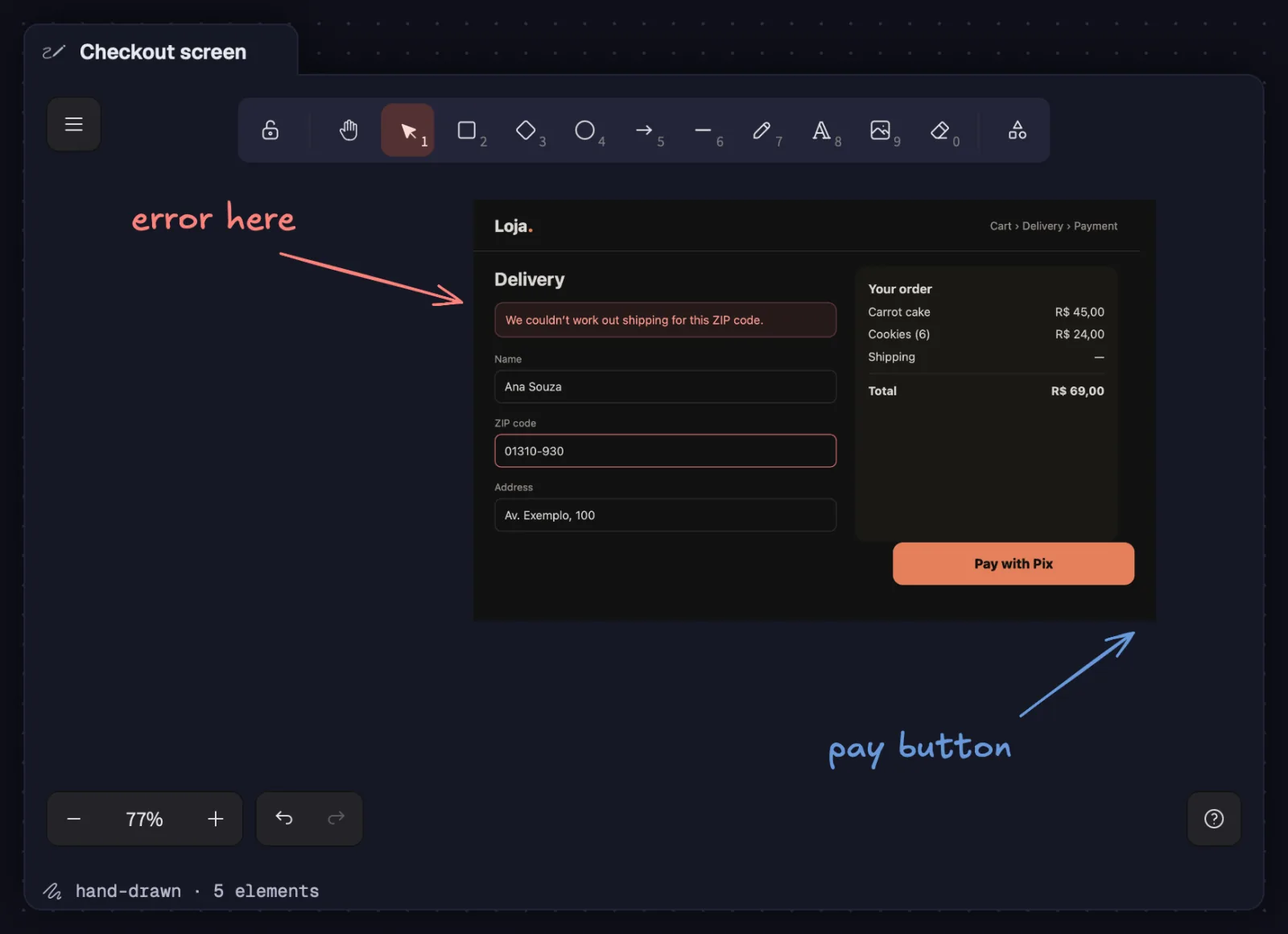
Photos and screenshots go into the board as drawing elements. Drag the file onto the card, paste a copied image or use Excalidraw's image tool.
Step by step
- Select the Draw with a click.
- Drag an image from Finder (or from the system's file manager, on Windows and Linux) onto the card. It goes where you dropped it.
- Or copy an image and paste it with ⌘VCtrl+V, with the Draw selected.
- PNG, JPEG, GIF, WebP and SVG work.
- The whole drawing has a 12 MB limit. If an image would go over that, the board warns “The drawing would go over 12 MB: the image was not added. Use smaller images or fewer images.”
Dropped outside a Draw, the image becomes an image card on the canvas. Dropped on the Draw, it goes into the drawing.
See alsoDropping files
With only the Draw selected, pinch, the mouse wheel and the middle button act on the drawing, not the canvas. When it isn't selected, the same gestures pan and zoom the canvas, as always.
Step by step
- Click the Draw so it's the only thing selected.
- To zoom the drawing: pinch on the trackpad, or ⌘Ctrl with the mouse wheel.
- The mouse wheel alone also zooms the drawing when Settings › General › “Mouse wheel on the canvas” is set to “Zooms, like pinching”.
- To pan the drawing: two fingers on the trackpad, or drag with the middle mouse button.
- On the Mac, ⌥ with the wheel acts on the canvas as it does outside the Draw: with the wheel on “Zooms, like pinching”, it pans the canvas; on “Pans the canvas”, it zooms.
- The drawing opens fitted to the card. If you changed the zoom or the position, the board keeps that view and opens on it next time.
| Zoom the drawing | ⌘ + wheelCtrl + wheel |
When the card changes size (in standard mode, for example) and you haven't touched the board's view, the drawing fits itself again.
See alsoGeneralZoom and mouse wheel
A Claude Code or Codex linked to the Draw by a cable draws on it when you ask for a flow, a diagram, an architecture or a mind map. The drawing arrives live, with editable elements, and you can undo what it did.
Step by step
- Link the agent's terminal to the Draw: press ⌘LCtrl+Shift+L and click the Draw, or drag the link button from the bar to it.
- Ask in the conversation, for example: “make a flowchart of the Loja login”.
- The agent writes the diagram in mermaid and Octopus turns it into Excalidraw boxes, arrows and text, next to what's already on the board.
- Then it checks an image of the drawing and fixes overlapping boxes or crossing arrows.
- If you're drawing at the same time, its change merges with yours. With the Draw selected, ⌘ZCtrl+Z undoes what it drew.
- With no Draw linked, the agent creates one next to itself, already linked.
| Start connection | ⌘LCtrl+Shift+L |
A Draw only links to terminals. With a single Draw linked, the agent doesn't even need to know its name. The Maestro also creates Draws for its team.
See alsoThe “drew” noticeThe agent's commands (octo draw)Agents that talk over cablesHow it recruits
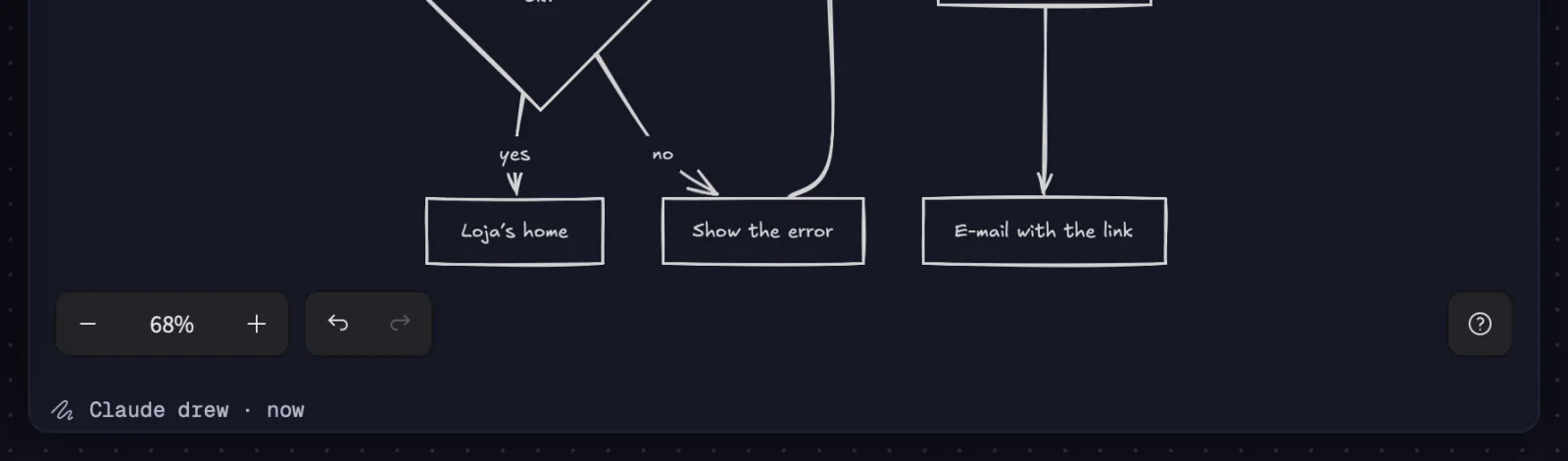
When an agent changes the drawing, the card's footer shows for a few seconds who did it, like “Claude drew · now”. Then it goes back to the stroke and the element count.
Step by step
- Watch the Draw's footer while the agent works.
- The notice shows who drew: Claude, Codex or the name of the agent's card.
- If you haven't touched the board's view, the whole drawing fits itself to show what the agent did.
See alsoAsk an agent for a flowchart
Agents draw with the octo draw command, which comes with the Octopus skill. You don't need to type anything: this list helps you understand what the agent does and ask for something specific.
Step by step
- octo draw new “Name”: creates a Draw next to the agent, linked to it.
- octo draw read: lists the elements (id, type, label, position and what each arrow connects) and the drawing's revision.
- octo draw mermaid: turns a mermaid diagram into editable elements. With --replace, it replaces the whole drawing; without it, it draws next to what's there.
- octo draw add: adds exact shapes (rectangle, ellipse, diamond, text, arrow, line). Arrows attach to elements by id; without a position, elements arrange themselves in a free spot.
- octo draw update, delete and clear: change an element, delete elements or clear the board.
- octo draw look sketch or clean: hand-drawn or clean stroke.
- octo draw write: replaces the whole drawing with a .excalidraw file. The agent only uses it when you ask.
- octo draw png or svg: saves an image of the drawing so the agent can check what it did.
- With --rev, the change only goes in if nobody touched the drawing since it was read. Otherwise the agent reads it again and redoes it.
With only one Draw linked, the name is optional in every command.
See alsoocto draw
The drawing saves itself on every change. It goes along when the card is copied, moves to another workspace or goes into a saved group.
Step by step
- There's no save button: each stroke is saved right after you make it.
- Copy the card with the keyboard on the canvas (⌘CCtrl+C and then ⌘VCtrl+V): the new Draw comes with a copy of the drawing.
- Moving the Draw to another workspace or saving its group takes the drawing along.
- Deleting the Draw sends the drawing to the Trash. ⌘ZCtrl+Z right after brings the card back with the drawing.
- When Octopus quits, it saves whatever was still pending.
See alsoSave a groupCopy, paste and undo