Docs › Maestro
Maestro
The Maestro is a Claude Code or Codex that decides when it's worth splitting the work. It recruits other terminals with roles, sets up notes, portals and drawings, follows each one and closes the team when it's done.
The Maestro is a Claude Code or Codex that decides on its own when it's worth splitting the work. On small tasks it works alone; when there are independent parts (frontend and backend, building and reviewing, testing), it recruits agents linked to it and directs the team.
Step by step
- Turn on Maestro in a Claude Code or Codex card: in New terminal, or with the wand button in the card's bar (“Make Maestro”).
- Ask for the task as usual. If you like, say how many agents to use, or ask it to work alone.
- The recruits show up below it, linked by cables, each with its role's badge. They get the first task and answer the Maestro when they finish.
- The Maestro follows the team, keeps you posted on progress and closes the recruits when their work is done.
Recruits use the same AI as the Maestro; a different one only if you ask (“review it with Codex”). It can always open shells for builds and servers. The team is usually small, two to five.
See alsoTurning on the MaestroHow it recruitsMaestro commands
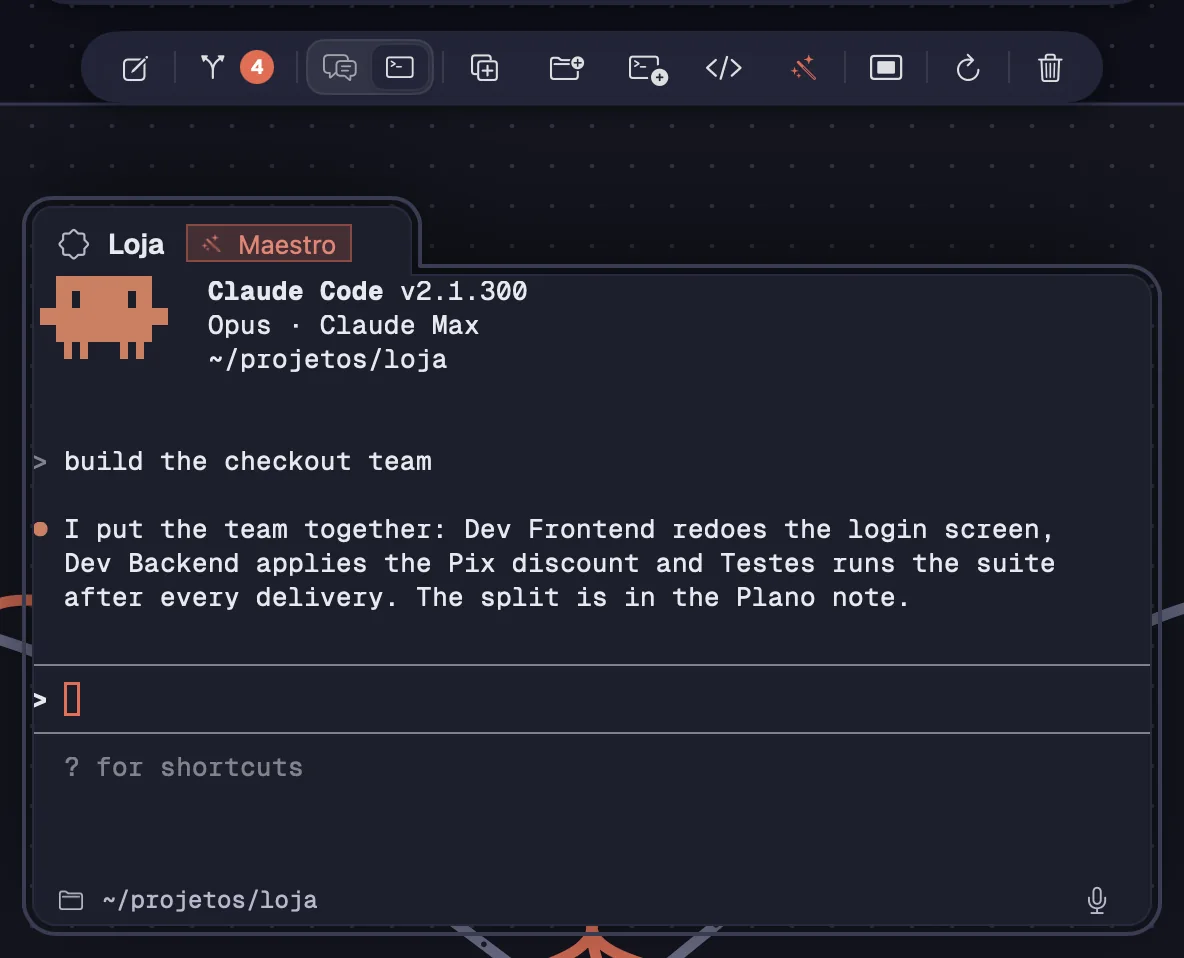
You turn on the Maestro per card, in three places: in New terminal, with the button in the card's bar and in the right-click menu. The agent is told right away.
Step by step
- In New terminal (⌘TCtrl+Shift+T), choose Claude Code or Codex and turn on “Maestro”.
- On a card that's already open, click the wand button in the bar (“Make Maestro”) or use right-click › “Maestro”.
- The card gets the “Maestro” badge and a notice confirms it. The agent receives a message saying it is now the Maestro.
- To turn it off, use the same button (“Stop being Maestro”) or the menu. The recruits stay on the canvas, linked to it.
| New terminal | ⌘TCtrl+Shift+T |
Only Claude Code and Codex can become Maestro. A workspace can have more than one.
See alsoNew terminal
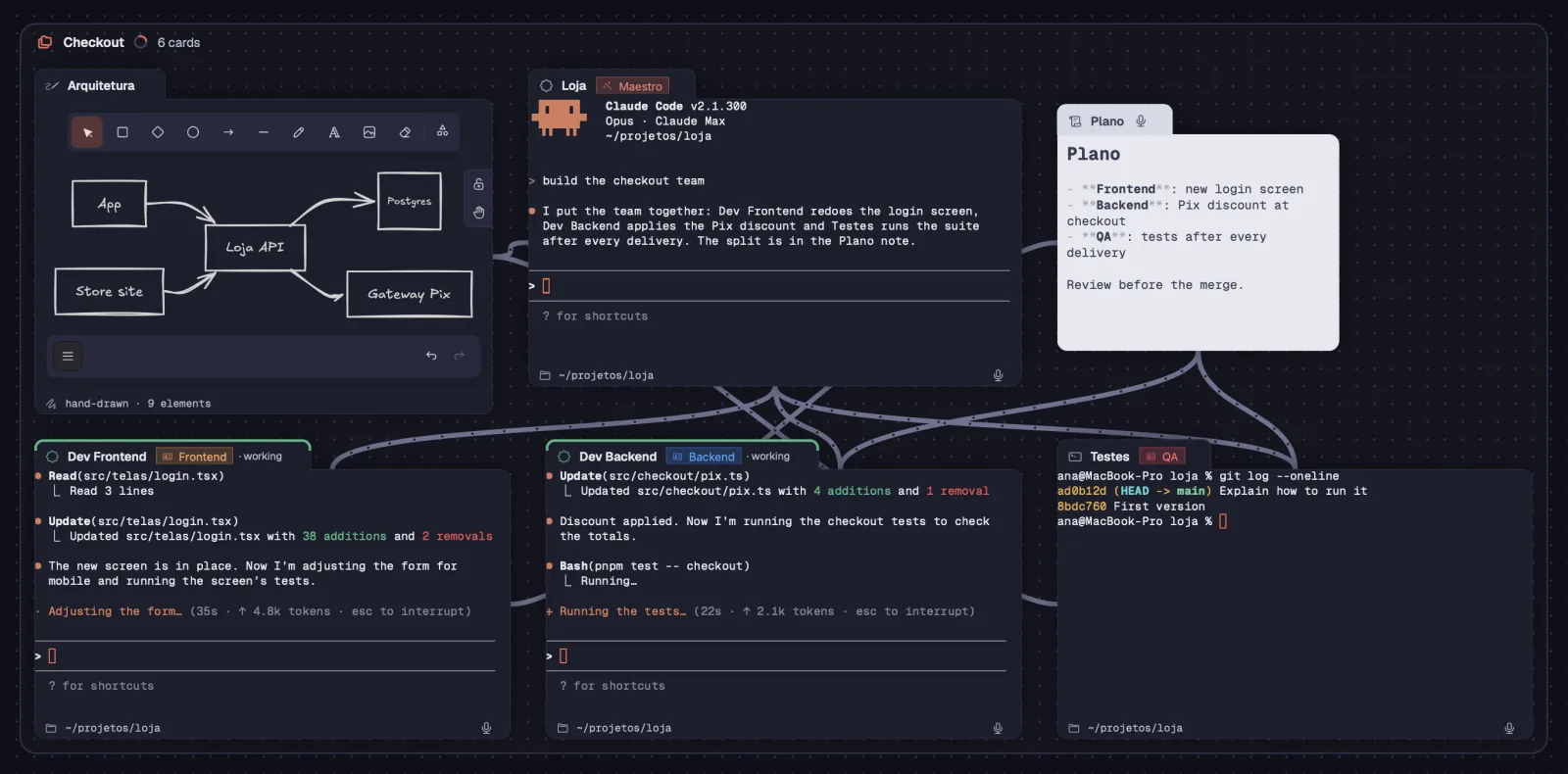
Each recruit is a new terminal, linked to the Maestro, with a role it makes up for that team. Besides agents, it creates notes, portals, file trees and Draw boards, links the cards to each other and groups them.
Step by step
- Recruits come in below the Maestro, in its group, with the role's badge on the header. Hover over the badge to read that role's instructions.
- Each role gets a color: orange, blue, red, purple, green, cyan, pink or gray. Two recruits with the same role have the same color.
- What applies to the whole team goes in a note, linked to whoever needs it. To see the site, it opens a portal; to draw the architecture, a Draw; to look at files, a tree.
- On a saved server, it opens a shell there and runs the commands itself.
- Recruits only talk to each other over the cables the Maestro links. It hands out new tasks, asks questions and looks at each one's screen.
Roles only apply to that team: they go away with the cards and don't carry over to the next one.
See alsoMaestro commandsRole… by hand
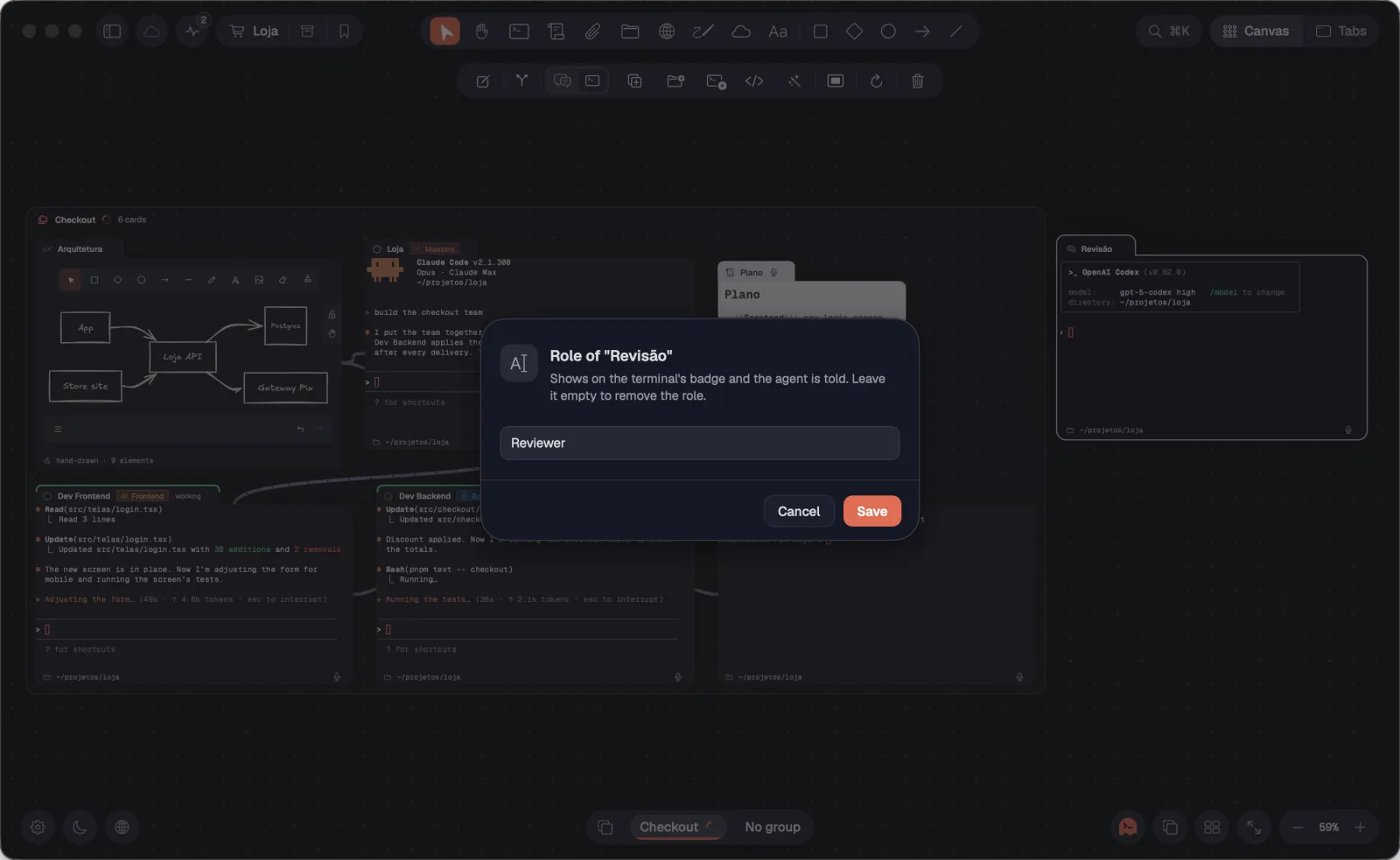
You can also give a role to any terminal, with or without a Maestro. The role shows up on the card's badge and the agent is told.
Step by step
- Right-click the terminal and choose “Role…”. If it already has a role, the item shows its name, like “Role: Reviewer…”.
- Type the name, for example Reviewer, and click “Save”. The badge shows up on the header, with a color.
- To remove the role, erase the name and save.
A role with the same name as another card's in the workspace uses the same color.
See alsoHow it recruits
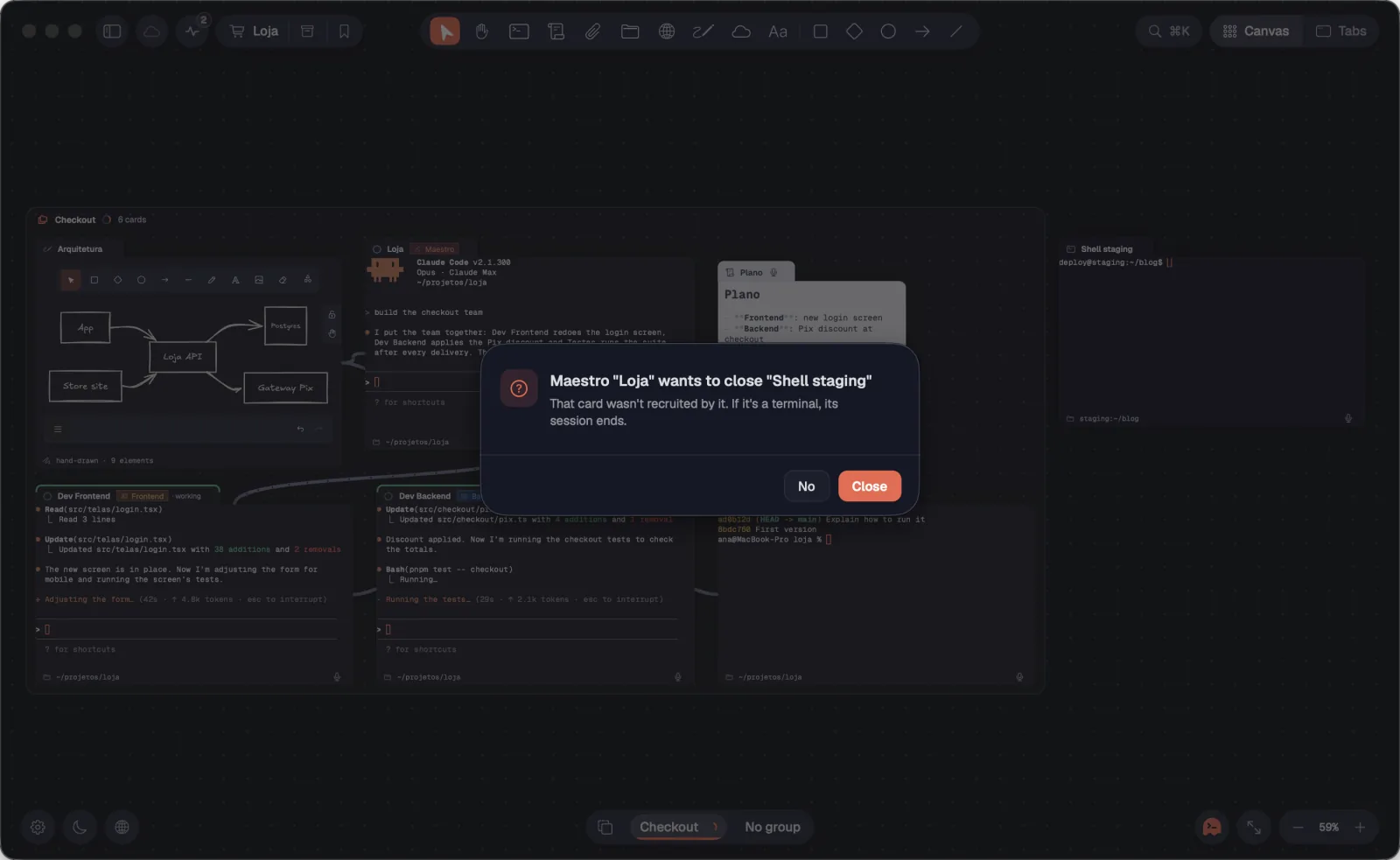
When a recruit's work is done, the Maestro closes the card, along with the notes, portals and trees it created. To close a card it didn't recruit, it asks you.
Step by step
- The Maestro closes its own recruits on its own. Each one's session ends; an agent goes to the workspace's history, and a shell leaves the canvas.
- To close another card, it asks: “Maestro … wants to close …”. “Close” lets it; “No” keeps the card.
- You can also close a recruit like any other card.
Turning off the Maestro doesn't close anything: the recruits stay on the canvas, linked to it.
See alsoRounds in history
When you move a Maestro to another workspace without its recruits, Octopus asks whether the team goes along. The ones left behind become regular agents.
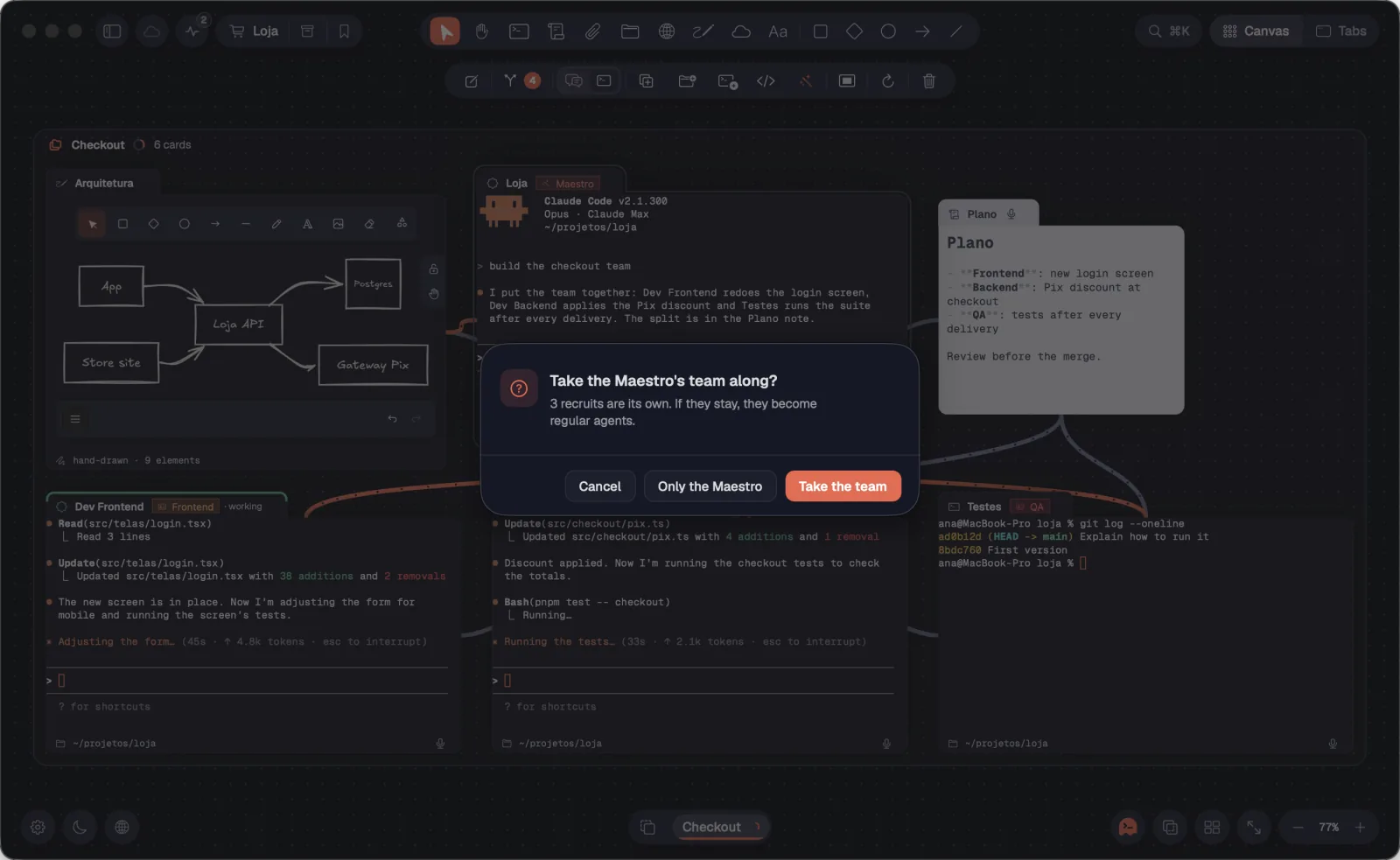
Step by step
- Select the Maestro and use right-click › “Move to workspace” › the destination.
- In “Take the Maestro's team along?”, choose “Take the team” to move the recruits too, or “Only the Maestro”.
- The sessions keep running during the move. A notice says where they went, with “Go to” the workspace and “Undo”.
When you move the whole group, the team already goes along and Octopus doesn't ask.
A closed Maestro, with its recruits closed along with it, forms a round in the workspace's history. It comes back whole with one click, each agent in the same conversation.
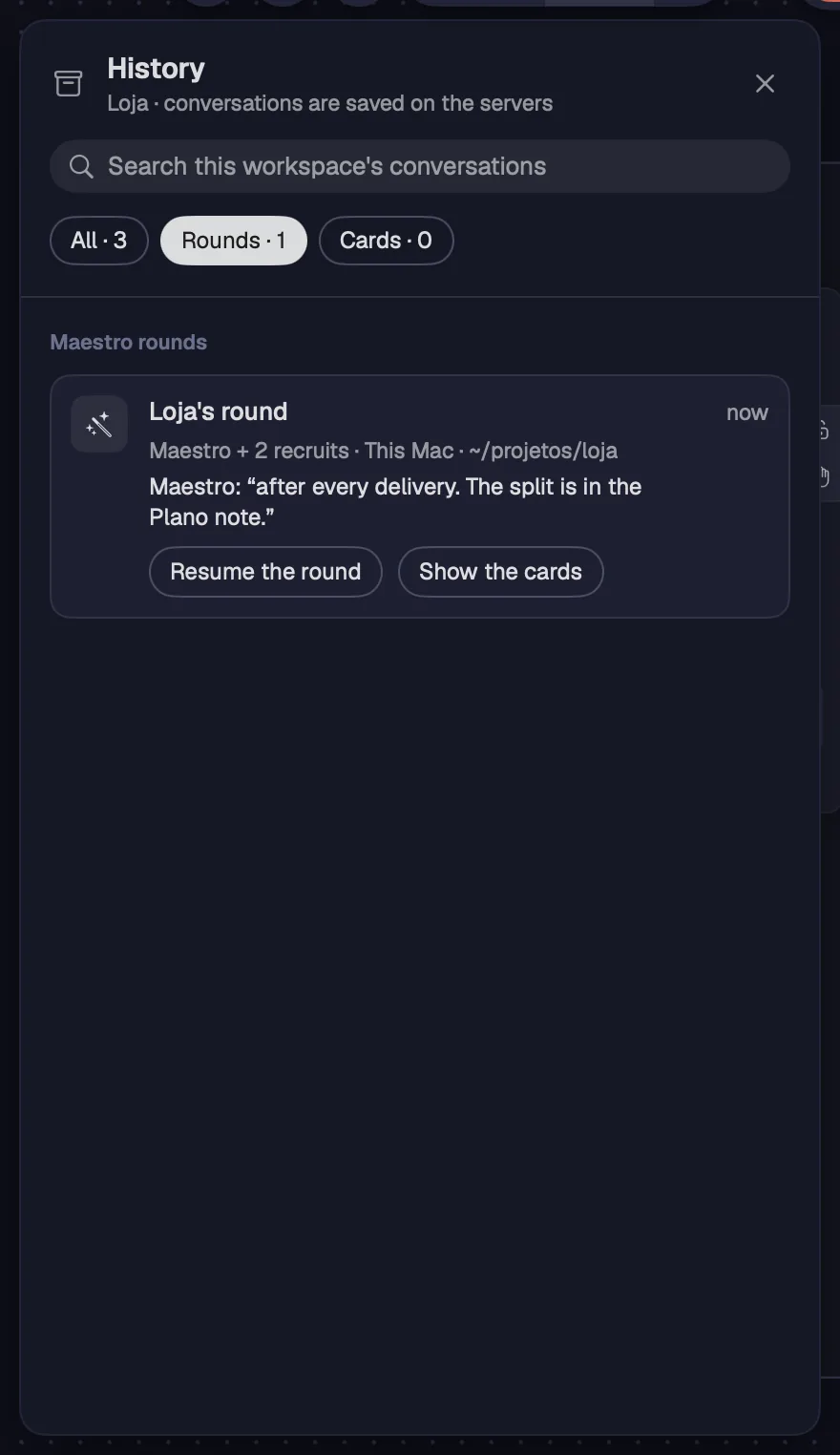
Step by step
- Open the workspace's History (⌘YCtrl+Shift+Y) and choose “Rounds”.
- Each row shows the round with the Maestro's name (“Dev's round”), how many recruits, the machine, the folder and the Maestro's last sentence.
- “Resume the round” reopens the Maestro and the recruits together and shows the team on screen.
- “Show the cards” lists each one, so you reopen only what you want.
| Workspace history | ⌘YCtrl+Shift+Y |