Docs › Get started
Get started
Octopus runs on Mac, Windows and Linux. The first time, it installs what's missing, signs in with you and unlocks a 7-day trial with no sign-up. After that, you just open an agent.
Octopus for Mac needs macOS 26 (Tahoe) or later and runs on Apple Silicon and Intel. It comes on an install disk (.dmg) with the Octopus branding.
Step by step
- Download Octopus for macOS from the website.
- Open the downloaded .dmg file.
- Drag Octopus to Applications and open it from there.
- If you open it straight from the disk, the first setup step, “Put Octopus in Applications”, copies the app to Applications, opens it from there and ejects the disk. “Continue without moving” skips that step.
Updates arrive on their own. To check right away, use “Check for Updates…” in the Octopus menu.
See alsoFirst-run setup
On Windows, Octopus runs on Windows 10 and 11, on x64. The installer isn't signed yet, so Windows may show a warning before opening it.
Step by step
- Download Octopus for Windows from the website.
- Open the downloaded installer.
- If you see “Windows protected your PC”, click “More info” and then “Run anyway”.
- Open Octopus. First-run setup starts on its own.
There's no tmux on Windows: terminal sessions live in an Octopus service, and closing the app doesn't kill any of them. Updates arrive signed, download on their own and ask you to “Restart”.
On Linux, Octopus runs on Ubuntu 22.04 or later and Debian 12, on x64 and arm64. There's a .deb package for Ubuntu and Debian and an AppImage for other distributions.
Step by step
- On the website, choose .deb (Ubuntu, Debian) or AppImage (other distros) and your computer's architecture: x64 or arm64.
- Install the .deb with your distribution's package installer. It already includes tmux.
- For the AppImage, mark the file as executable and open it: in the file manager, right-click › Properties › Permissions and turn on the option to run it as a program; or, in the terminal, chmod +x and the file's name.
- If tmux is missing, first-run setup installs it with your distribution's package manager. sudo asks for the password in the terminal, never in the app.
Without a package manager Octopus knows, the tmux row tells you how to install it: with your distribution's apt, dnf or pacman.
See alsoFirst-run setupInstall on Linux
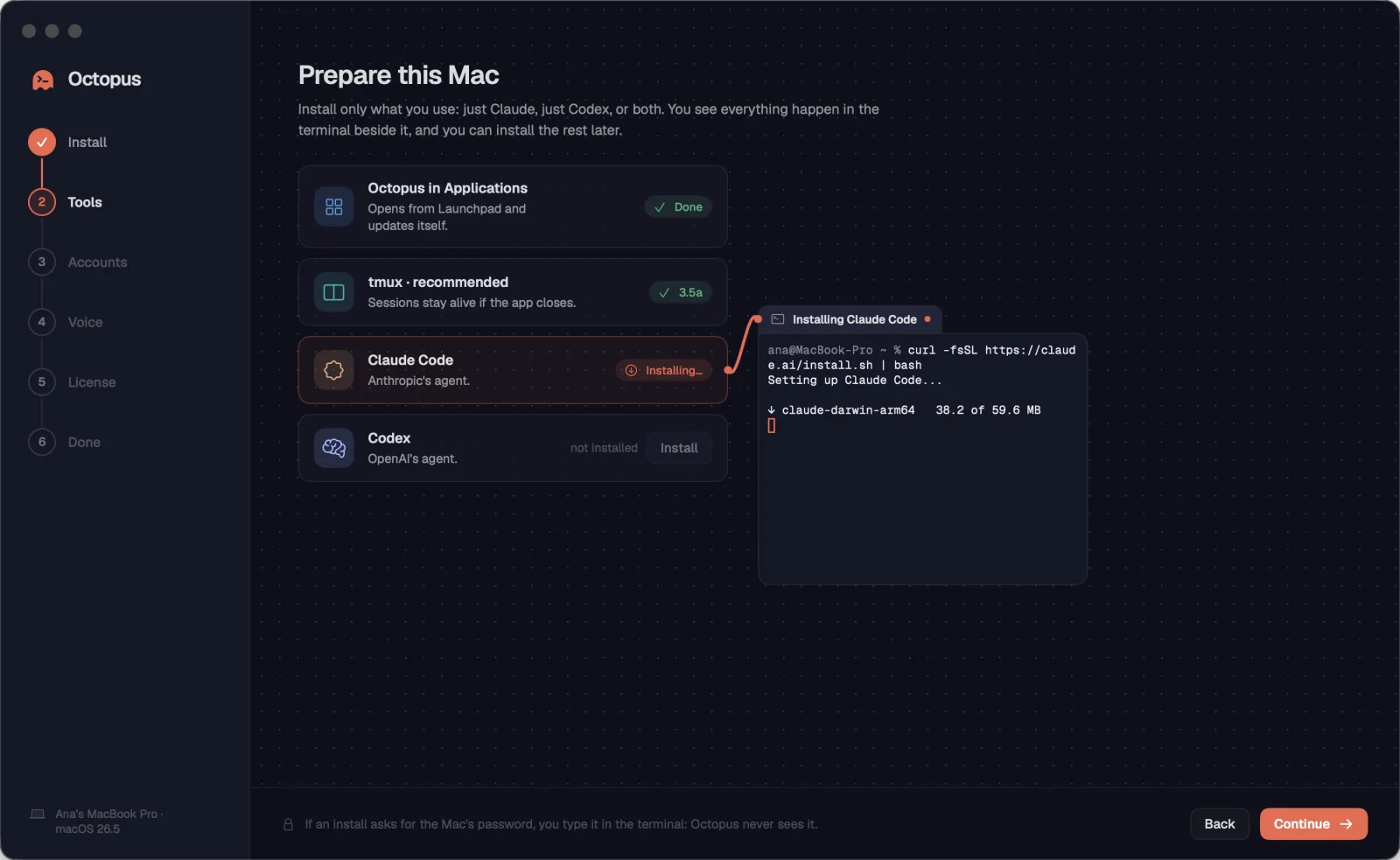
The first time it opens, Octopus shows a quick setup. It installs only what you use (tmux, Claude Code, Codex) in a terminal you watch live, signs in to your accounts, sets up voice and takes care of the license.
Step by step
- On the “Welcome to Octopus” screen, click “Get started”. If you already have everything, “I have everything, skip” goes straight to the license.
- In “Prepare this Mac” (“Prepare this computer” on Windows and Linux), click “Install” on each tool you want: tmux (recommended: it keeps sessions alive if the app closes), Claude Code and Codex. The install runs in the terminal next to it, and you can install the rest later.
- If an install asks for your computer's password, you type it in the terminal. Octopus never sees the password.
- Click “Continue” and sign in to the agents' accounts.
- In “Speak instead of typing”, paste the Gemini API key if you want to dictate with your voice. It's optional: you can add it later in Settings › Voice.
- In “Get started”, start the free trial or activate your key.
- In “All set”, pick a starting point: “Open Claude Code” (or Codex, or “Open a terminal”), “Connect a server” or “Create a workspace”. Or click “Open Octopus”.
- To come back to this screen later, use “Set Up This Mac…” in the Octopus menu. On Windows and Linux, it's “Set Up This Computer…”, in the action palette (Ctrl+Shift+P).
On Windows, the list only shows Claude Code and Codex: tmux doesn't exist there, and sessions live in an Octopus service.
See alsoSign in to your accounts7-day free trialOpen your first agentThe Gemini key
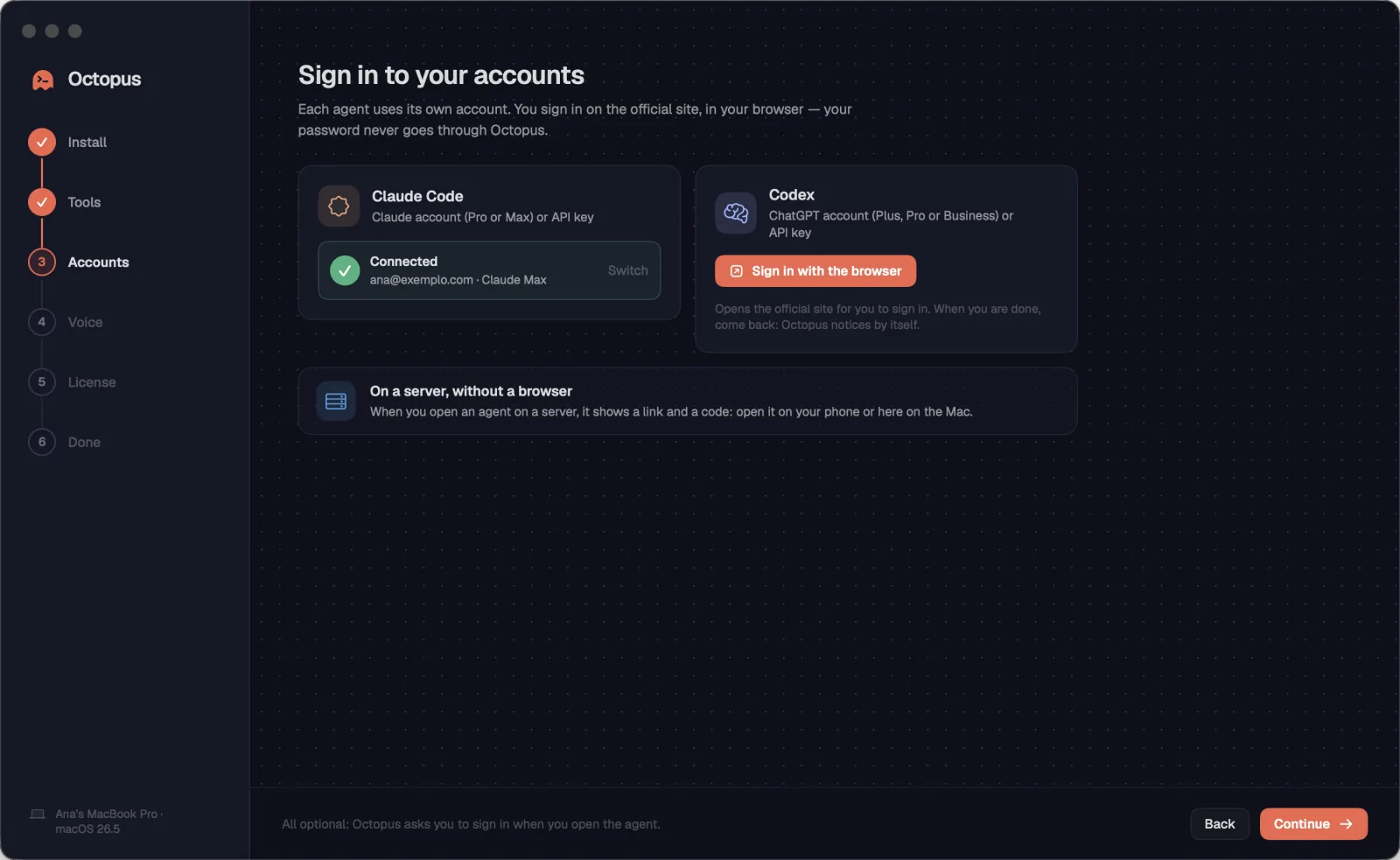
Each agent uses your own account: Claude (Pro or Max) or ChatGPT (Plus, Pro or Business), or an API key. You sign in on the official website, in your browser. Your password never goes through Octopus.
Step by step
- In the “Sign in to your accounts” step, click “Sign in with the browser” on the Claude Code or Codex card.
- Sign in with your account in the browser and come back. Octopus notices on its own and shows “Connected”, with the email and the plan.
- To use another account, click “Switch”.
- If the agent isn't installed, the card shows “Not installed on this Mac” (“Not installed on this computer” on Windows and Linux) and the “Install now” button.
- A server has no browser: the first time you open an agent there, it shows a link and a code. Open the link on your phone or computer to sign in.
Octopus works with just Claude or just Codex. If you open the other one someday, it offers to install it and sign in right then.
See alsoOpen your first agentClaude Code and Codex with your account
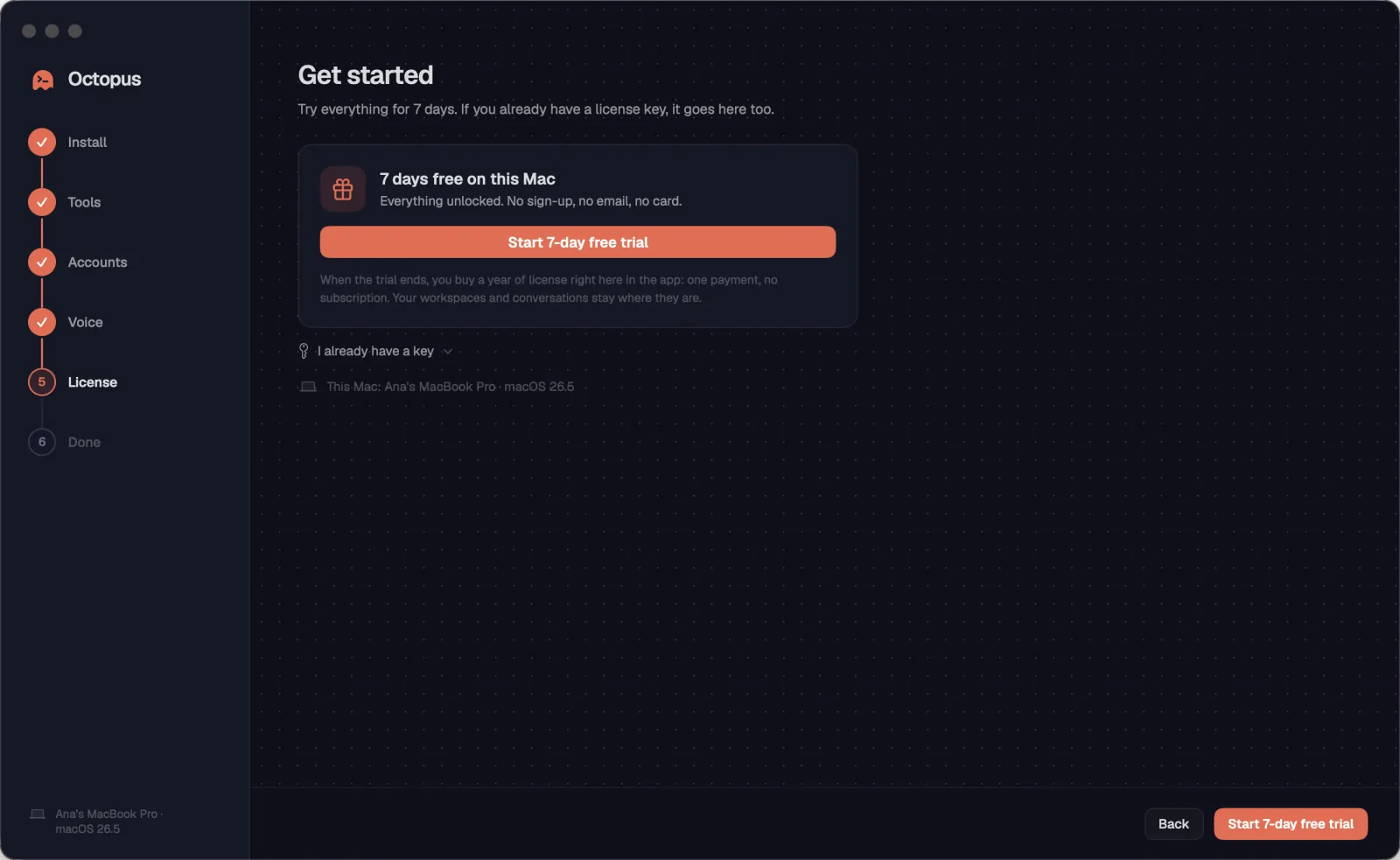
You try everything for 7 days, with no sign-up, no email and no card. At the end, nothing is charged on its own, and your workspaces and conversations stay saved.
Step by step
- In the “Get started” step, click “Start 7-day free trial”.
- If you already have a key, click “I already have a key”, paste the key (it starts with OCTO-) and click “Activate on this Mac” (“Activate on this computer” on Windows and Linux). If there's a key on the clipboard, Octopus offers “Paste”.
- The days left show on the “Trial · N days” pill, at the bottom of the sidebar. It turns coral in the last 2 days. One click opens Settings › License.
- To buy during the trial, open Settings › License. If you buy before the end, the year starts when the trial ends.
- When the trial ends, the “Your free trial has ended” screen lets you buy a year or use a key. Your workspaces, conversations and servers stay saved.
The trial works once per computer. If you see “This Mac's trial has already ended” (“This computer's trial has already ended” on Windows and Linux), use a license key.
See alsoThe license in a few wordsTrial and license pillFree trial
An agent is a terminal card with Claude Code or Codex. You choose where it runs (this computer or a server) and in which folder, and it opens on the canvas ready to type.
Step by step
- Press ⌘TCtrl+Shift+T, or click “New terminal…” on the empty canvas.
- Choose “Claude Code” or “Codex”. “Shell” opens a regular terminal.
- Under “Where”, leave “This Mac” (“This computer” on Windows and Linux) or pick a server. Under “Folder”, choose the project folder, for example ~/projetos/loja.
- Click “Create terminal”. The card opens on the canvas, with keyboard focus on it.
- If the agent isn't installed on that machine, Octopus warns “Claude Code is not installed on…” and offers “Install Claude Code” (in a terminal you can watch) or “Open a Shell”.
| New terminal | ⌘TCtrl+Shift+T |
On the setup's “All set” screen, the “Open Claude Code” shortcut does the same.
See alsoNew terminalInstalling a missing agentCard typesOpen on a server…
After the trial, a yearly license unlocks everything, with no limit on agents, workspaces or servers. The same license works on Mac, Windows and Linux, on up to 2 computers.
Step by step
- Buy it in the app, in Settings › License, or on the website. Payment happens in the browser; if you buy through the app, the license activates by itself.
- The price is R$ 497 a year in Brazil and US$ 97 in other countries. It's a single payment: no subscription and no automatic renewal, with every update for the year.
- The app tells you 30, 7 and 1 day before it expires, and the “Ends · N days” pill shows up at the bottom of the sidebar. “Renew” adds a year to the time left.
- Without internet, Octopus works for up to 14 days. If the license expires, nothing on the computer is deleted.
Don't like it? There's a 7-day guarantee to ask for your money back. The license is sold by Smartery LLC; the details are in Settings › License.
See alsoSettings › LicenseBuy in the appPrice and what's included7-day free trial